
Audio8D — FFmpeg 8D Audio Converter for Windows and Linux
🎧 A Python desktop and command-line tool for creating customizable headphone-focused 8D audio.
Developed by Gehan Fernando








🚀 Quick start · 🎵 Your first song · ⌨️ Command line · 🛠️ Troubleshooting
Audio8D turns normal music into a moving 3D headphone experience. Add a song, choose how you want it to sound, listen to a preview, and create the new audio file. People call this effect “8D audio”: the music seems to travel past one ear, behind you, past the other ear and back.
- 🛡️ Your songs are safe. Audio8D always makes a new file. Your original song is not changed (unless you ask it to replace the original).
- 📦 Nothing else to install. The ready-made packages include everything Audio8D needs, including Python and FFmpeg (the sound program that does the work).
- 🔁 There is a window and a command line. Both do the same job, with the same features (see Window or command line).
[!IMPORTANT] 🎧 Use headphones or earbuds. The effect works because each ear hears something a little different. On speakers it sounds much weaker (the Speakers style helps).
📑 Contents
| **For everyone** 1. [What Audio8D does](#what-audio8d-does) 2. [How it works](#how-it-works) 3. [Quick start](#quick-start) 4. [Windows](#windows) 5. [Linux](#linux) 6. [macOS (not tested)](#macos-not-tested) 7. [Check that it works](#check-that-it-works) 8. [Your first song (the window)](#your-first-song-the-window) 9. [Using the window](#using-the-window) 10. [Window or command line](#window-or-command-line) 11. [Command line](#command-line) 12. [Troubleshooting](#troubleshooting) 13. [Reference](#reference) 14. [Known limitations](#known-limitations) | **For developers** 15. [Running from source](#running-from-source) 16. [Building the packages](#building-the-packages) 17. [Tests and project layout](#tests-and-project-layout) 18. [Credits and licences](#credits-and-licences) |
✨ What Audio8D does
| ### 🌀 3D movement Turns normal music into 3D ("8D") audio that moves around your head. | ### 🎚️ 13 sound styles Studio, Gentle, Front, Smooth, Groove and more, and you can make and edit your own. | ### 👂 Listen first A **short preview** or an **A/B comparison** (original, then 8D) before anything is created. |
| ### 🎛️ One song, your way **Customize one song** (or several) without changing the others. | ### 📂 Many songs at once A whole folder, even hundreds of songs, up to 16 at the same time. | ### 💾 Five formats Saves as **MP3, FLAC, WAV, M4A or Opus**. |
| ### 🔊 Even loudness Makes every song **as loud as your other music** (or keeps its own loudness). | ### 🎤 Singer in the middle Can keep **the singer near the middle** with an optional add-on. | ### 🖥️ Window + ⌨️ command line The same features either way, for clicking or for scripts. |
Audio8D reads MP3, FLAC, WAV, M4A/AAC, OGG, Opus, WMA, AIFF, ALAC, APE, WavPack, MKA and the sound of MP4/WEBM videos.
🔄 How it works
Your journey is four steps, in the window or on the command line:
flowchart LR
    A["🎵 1 · Add music<br/>songs or folders"] --> B["🎚️ 2 · Choose sound<br/>style, Customize, Preview"]
    B --> C["💾 3 · Output<br/>where, format, loudness"]
    C --> D["✅ 4 · Create<br/>new '(8D)' files"]
Inside, each song goes through these stages (from src/pipeline.py):
flowchart TD
    S["Read the song<br/>(FFprobe: format, length, channels)"] --> V{"Keep the singer<br/>in the middle?"}
    V -- "yes (add-on)" --> X["Separate the voice<br/>from the music (Demucs)"]
    V -- no --> M
    X --> M["Make the 3D mix<br/>(movement, bass, room)"]
    M --> L{"Loudness goal?"}
    L -- yes --> Q["Measure the loudness<br/>(or reuse a remembered measurement)"]
    Q --> G["Set the volume once<br/>and limit the peaks"]
    L -- "no change" --> E
    G --> E["Encode into a temporary file"]
    E --> P["Move it into place<br/>(original to the Recycle Bin / Trash only if replacing)"]
    P --> C["Check the result<br/>(loudness, peaks, mono-safety)"]
The details are in How the sound is made.
🚀 Quick start
-
Choose the package for your computer:
Your computer Package Status 🪟 Windows 10 or 11 (64-bit) Audio8D-1.0.0-windows-x86_64.zip(about 102 MB)✅ Tested 🐧 Linux (64-bit x86) Audio8D-1.0.0-linux-x86_64.zip(about 82 MB)✅ Tested 🍎 Mac with Apple Silicon (M1 or newer) Audio8D-1.0.0-macos-arm64.zip⚠️ Not built or tested yet - Get it. The packages are in the
binfolder of the Audio8D repository (github.com/gcfernando/audio-8d/tree/main/bin), or someone can give you a copy. There is no separate download page and no GitHub release. If the package for your system is not inbin, it hasn’t been built yet (see Building the packages). - Extract it. You get an
Audio8Dfolder (on Windows, inside a folder named like the ZIP,Audio8D-1.0.0-windows-x86_64). - Run it: double-click
Audio8D.exe(Windows),Audio8D(Linux) orAudio8D.app(macOS; that package is not built or tested yet).
[!NOTE] You don’t need Python or FFmpeg. Each package already contains its own Python and FFmpeg, and ignores any Python on your computer. (Only the optional singer add-on needs a Python.)
What is in the Audio8D folder:
| Windows | Linux | macOS | What it is |
|---|---|---|---|
Audio8D.exe |
Audio8D |
Audio8D.app |
The window |
audio8d-cli.exe |
audio8d-cli |
audio8d-cli |
The command line |
_internal |
_internal |
(inside Audio8D.app) |
Audio8D’s own Python, libraries and FFmpeg; don’t change it |
HOW TO RUN.txt, README.md, THIRD-PARTY-NOTICES.md, licenses |
same | same | Short instructions, this guide, licences |
[!TIP] Keep the folder together; you can put it anywhere, including a path with spaces.
🪟 Windows
Tested on Windows 11 Pro (64-bit): unpacked to a folder with spaces and run with Python and
FFmpeg hidden (only C:\Windows\System32 on the PATH), also with a broken PYTHONHOME.
- Right-click
Audio8D-1.0.0-windows-x86_64.zipand choose Extract All…, then Extract. - Open the extracted
Audio8D-1.0.0-windows-x86_64folder, then theAudio8Dfolder inside it, and double-clickAudio8D.exe. - If Windows says “Windows protected your PC”, click More info, then Run anyway. This appears because the app is not signed with a paid certificate.
The command line is audio8d-cli.exe in the same folder: open the folder in File
Explorer, right-click an empty area, choose Open in Terminal, and type
.\audio8d-cli.exe --check.
🐧 Linux
Tested on 64-bit x86 computers: Debian 12 and Fedora 40 with no Python and no FFmpeg, and Ubuntu 24.04 (window shown). The package needs a 64-bit x86 computer with glibc 2.35 or newer (it was built on Ubuntu 22.04, which has glibc 2.35) and a desktop for the window.
-
Extract the package with your file manager, or in a terminal:
unzip Audio8D-1.0.0-linux-x86_64.zip -
Open the
Audio8Dfolder and double-clickAudio8D, or run:./Audio8D/Audio8D -
If you see Permission denied (some extract tools drop the “may run” mark), run this once and try again:
chmod +x Audio8D/Audio8D Audio8D/audio8d-cli
The command line is ./Audio8D/audio8d-cli (for example ./Audio8D/audio8d-cli --check).
[!NOTE] What is different on Linux: there is no drag and drop into the window (use Add songs or Add folder, even though the window says Drop songs or folders here); previews open in your usual music player (this needs
xdg-open, which desktops include); replaced originals go to the Trash.
🍎 macOS (not tested)
[!CAUTION] The macOS package has not been built or tested yet (no Mac was available). These steps describe how it is designed to work. It is for Macs with Apple Silicon only.
- Double-click
Audio8D-1.0.0-macos-arm64.zip. You get anAudio8Dfolder. - Move
Audio8D.appwherever you like (for example Applications). -
The first time, right-click
Audio8D.app→ Open, then Open again (the app is not signed). If macOS says the app is damaged, run this in Terminal, in the folder with the app:xattr -dr com.apple.quarantine Audio8D.app
The command line is ./audio8d-cli in the Audio8D folder (it runs the program inside
Audio8D.app). Keyboard shortcuts use Ctrl, not Cmd; there is no drag and drop into
the window; previews open in your usual music player; replaced originals go to the Trash.
✅ Check that it works
- The window: it opens on 1 Add music. Settings → System check shows FFmpeg and FFprobe as ready.
- The command line:
--checkends with Everything required is ready. (the singer add-on is optional) and shows where the log file is. - A test song: use any song you have. Listen to a short preview first, then make the
8D song. It is saved as
<song> (8D).mp3next to the original.
System (terminal in the Audio8D folder) |
Preview | Make the song |
|---|---|---|
| Windows | .\audio8d-cli.exe "C:\Music\My Song.mp3" --preview |
.\audio8d-cli.exe "C:\Music\My Song.mp3" |
| Linux or macOS | ./audio8d-cli ~/Music/"My Song.mp3" --preview |
./audio8d-cli ~/Music/"My Song.mp3" |
The end of a successful run looks like this:
  Created in 5.6 s  ->  C:\Music\Rain Study (8D).mp3  (3.6 MB)
  Loudness: measured -13.7 LUFS, turned down 0.3 dB  ->  -14.0 LUFS (checked)
  Check: -14.0 LUFS, peaks -3.1 dBTP, range 0.8 LU, mono-safe (correlation +0.87)
  Put on your headphones and press play!

  Tip: this used the studio style. Listen first with --preview   (every style: --list-styles)
[!TIP] Running the same command again skips the song, because its 8D file already exists (Nothing new to create). Add
--overwriteto make it again.
🎵 Your first song (the window)
This takes about five minutes. The four steps down the left side are the whole journey: 1 Add music → 2 Choose sound → 3 Output → 4 Create.
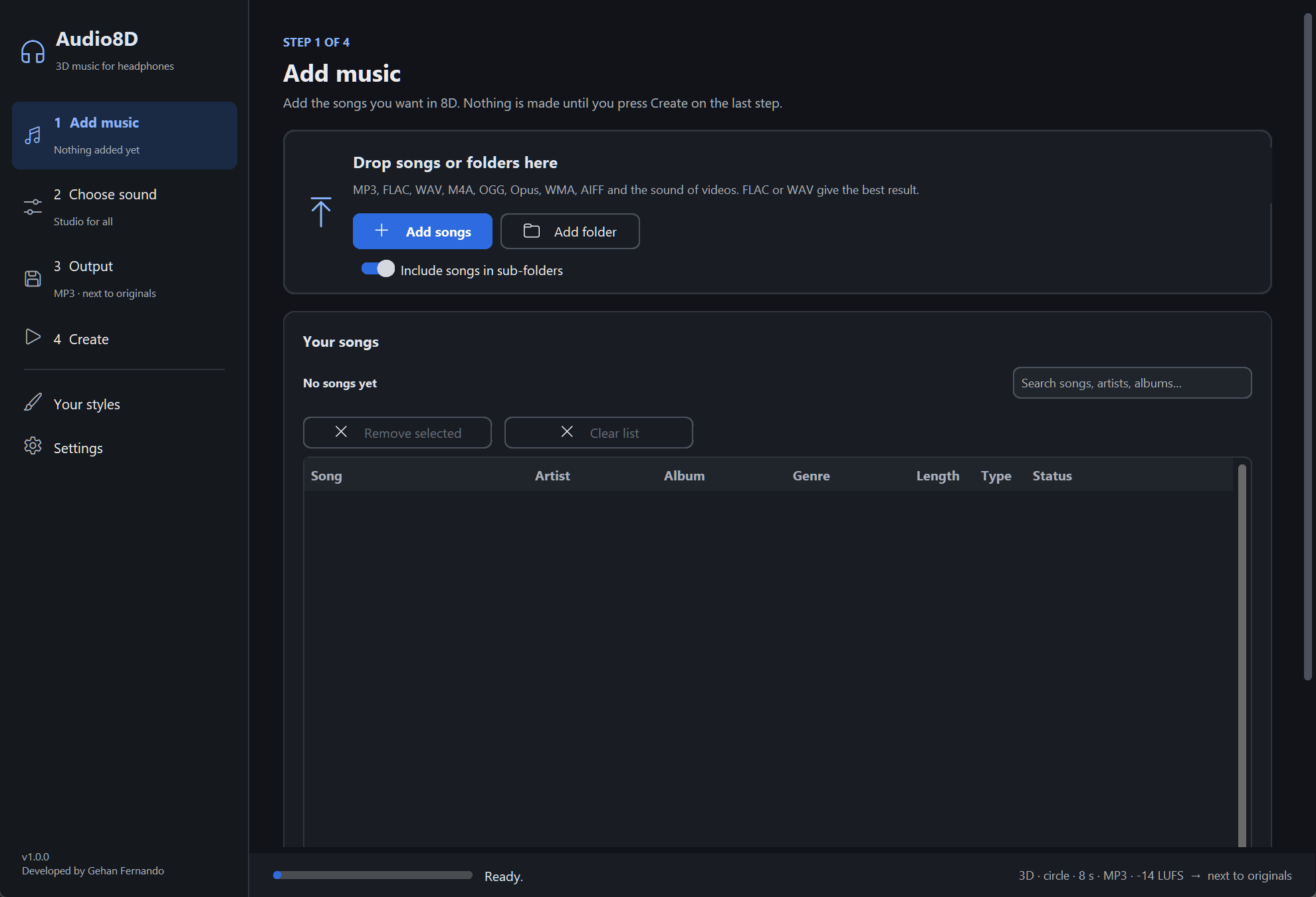
-
Add your songs. Click Add songs (one or more songs) or Add folder (every song in a folder; switch on Include songs in sub-folders to add those too). On Windows you can also drag songs or folders from File Explorer onto the window. A file that isn’t music is shown in red and skipped. Click Next: choose sound.
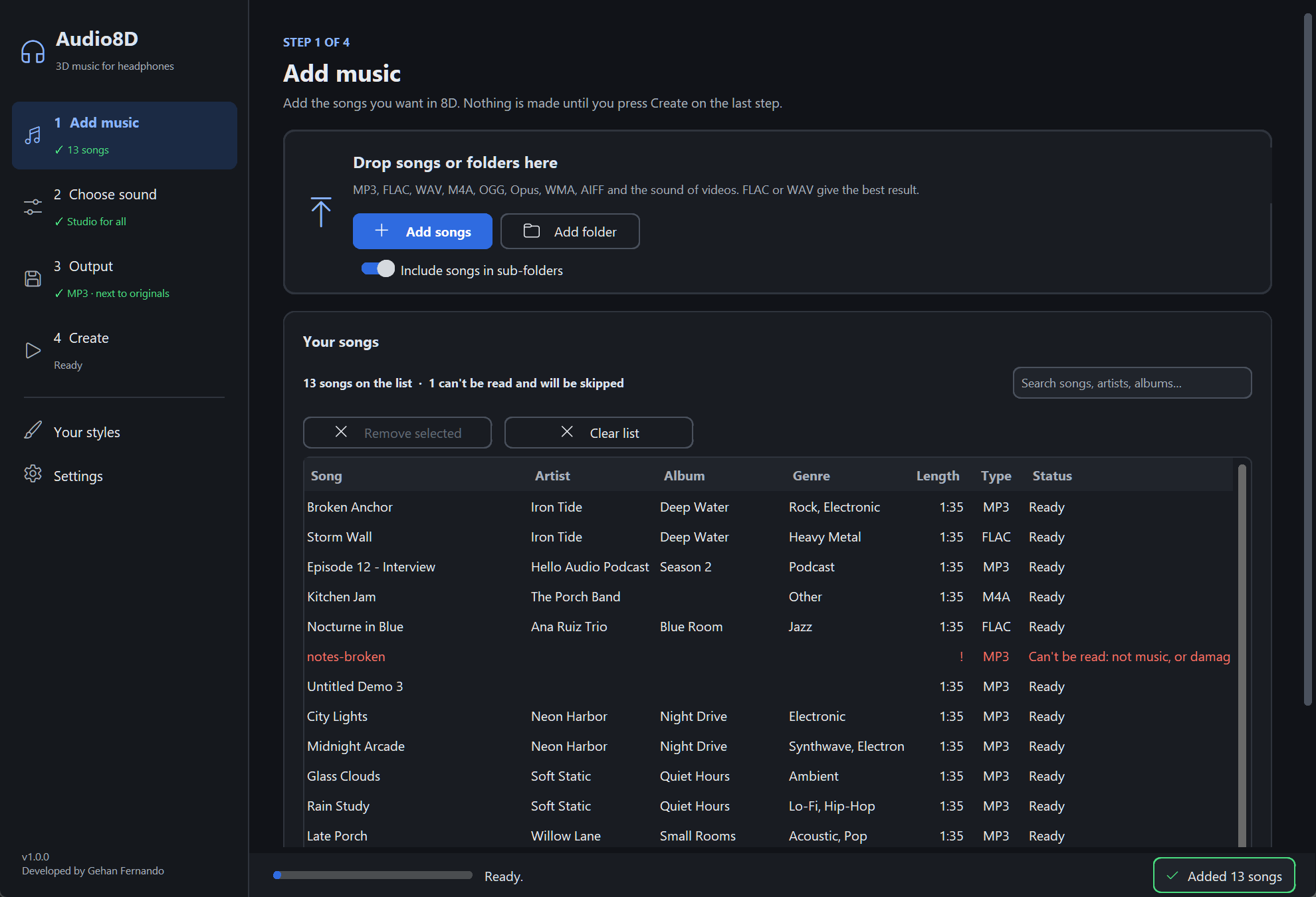
-
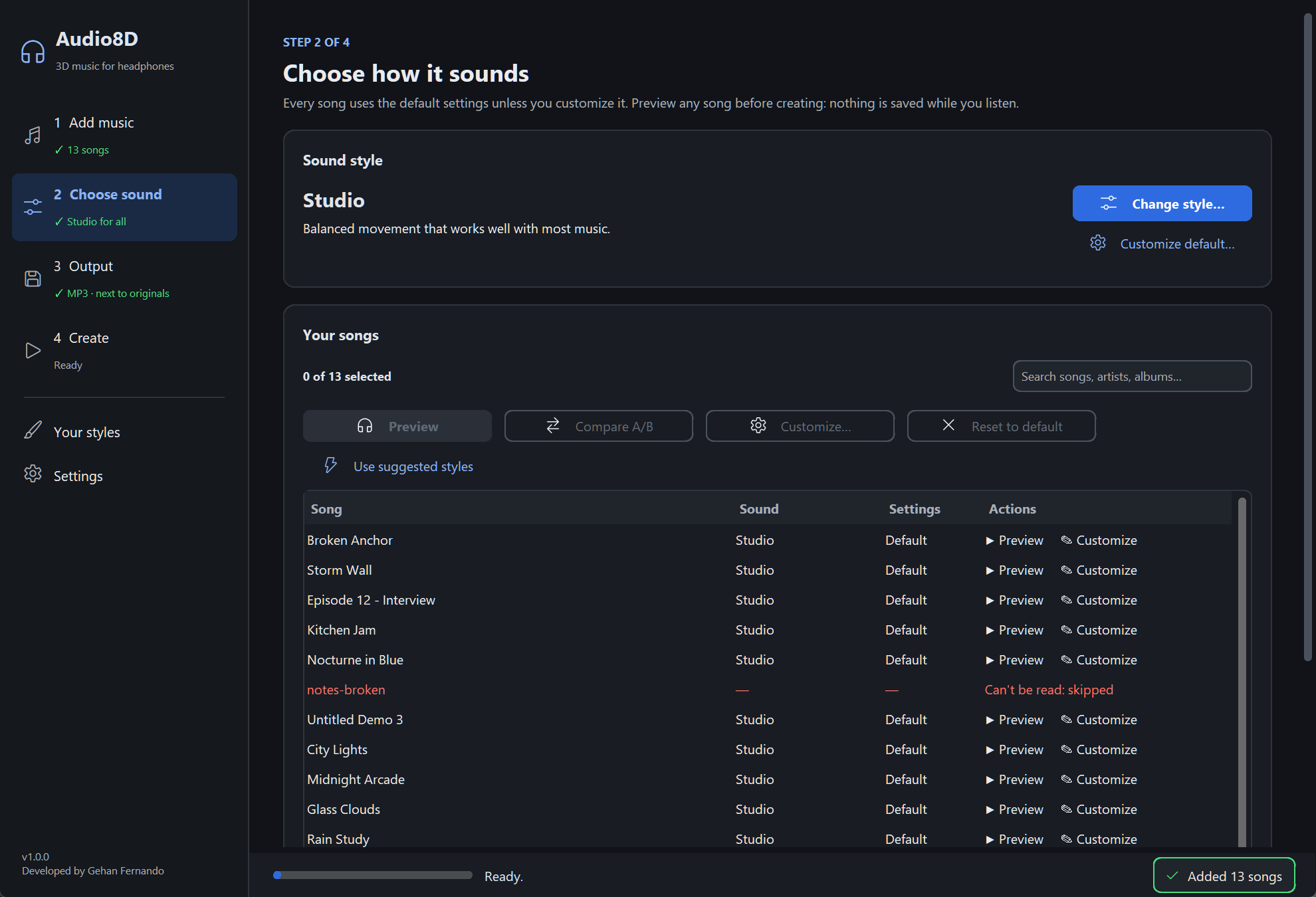
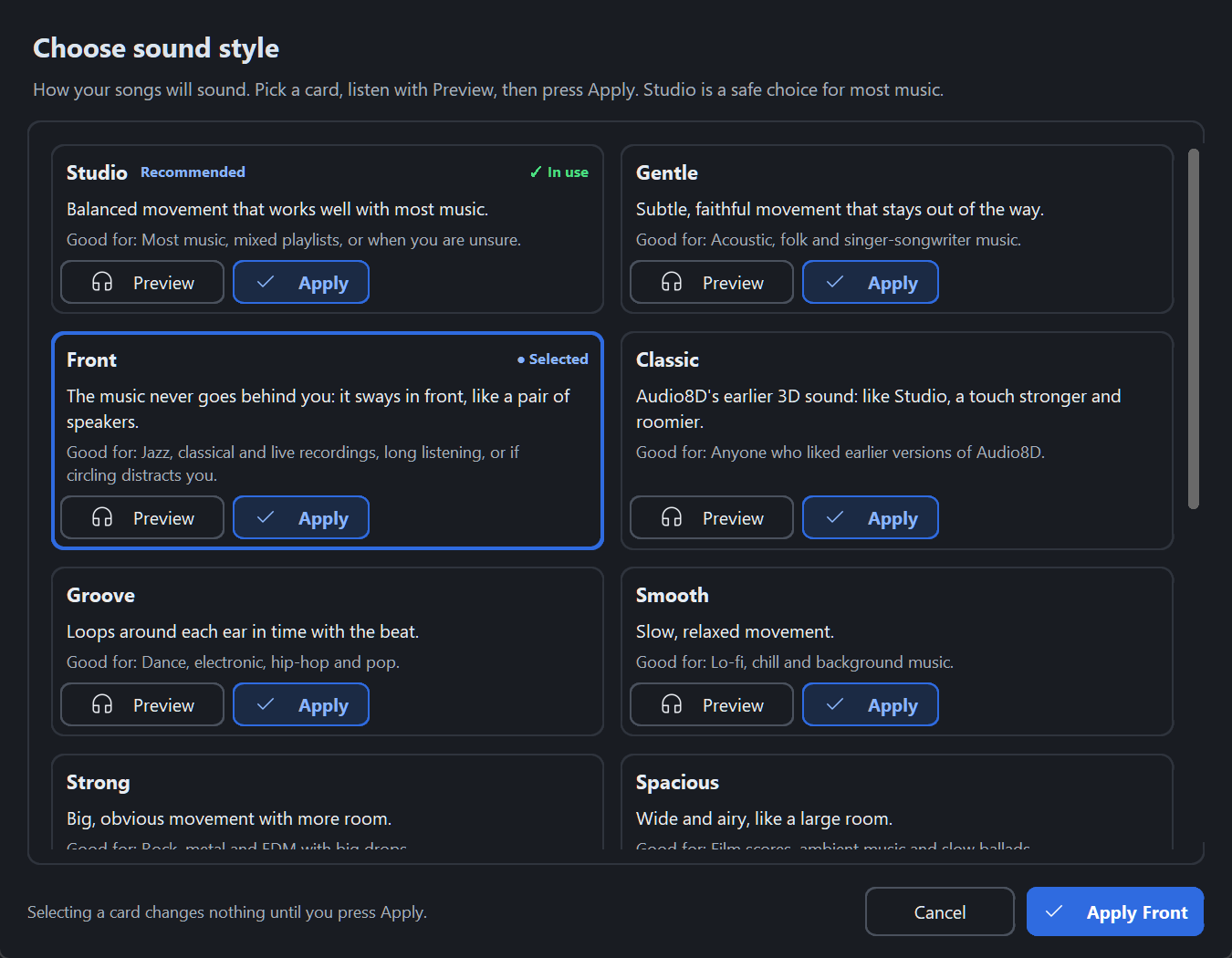
Choose a sound style. Studio is already chosen and suits most music. To try another, click Change style, click a card, and click Apply … (the button names the style you picked).
-
Preview. Select a song and click Preview. After a few seconds you hear about 30 seconds from its loudest part. Nothing is kept. Compare A/B plays the same part twice: the original, then in 8D. (On macOS and Linux they open in your music player.) Click Next: output.
-
Choose where and how to save (step 3). The recommended choices are already selected, so you can simply go on. The main ones: where the new files go (next to each original or in one folder you choose), the Output format (MP3 works everywhere) and Loudness (Match music apps). Click Next: create.
-
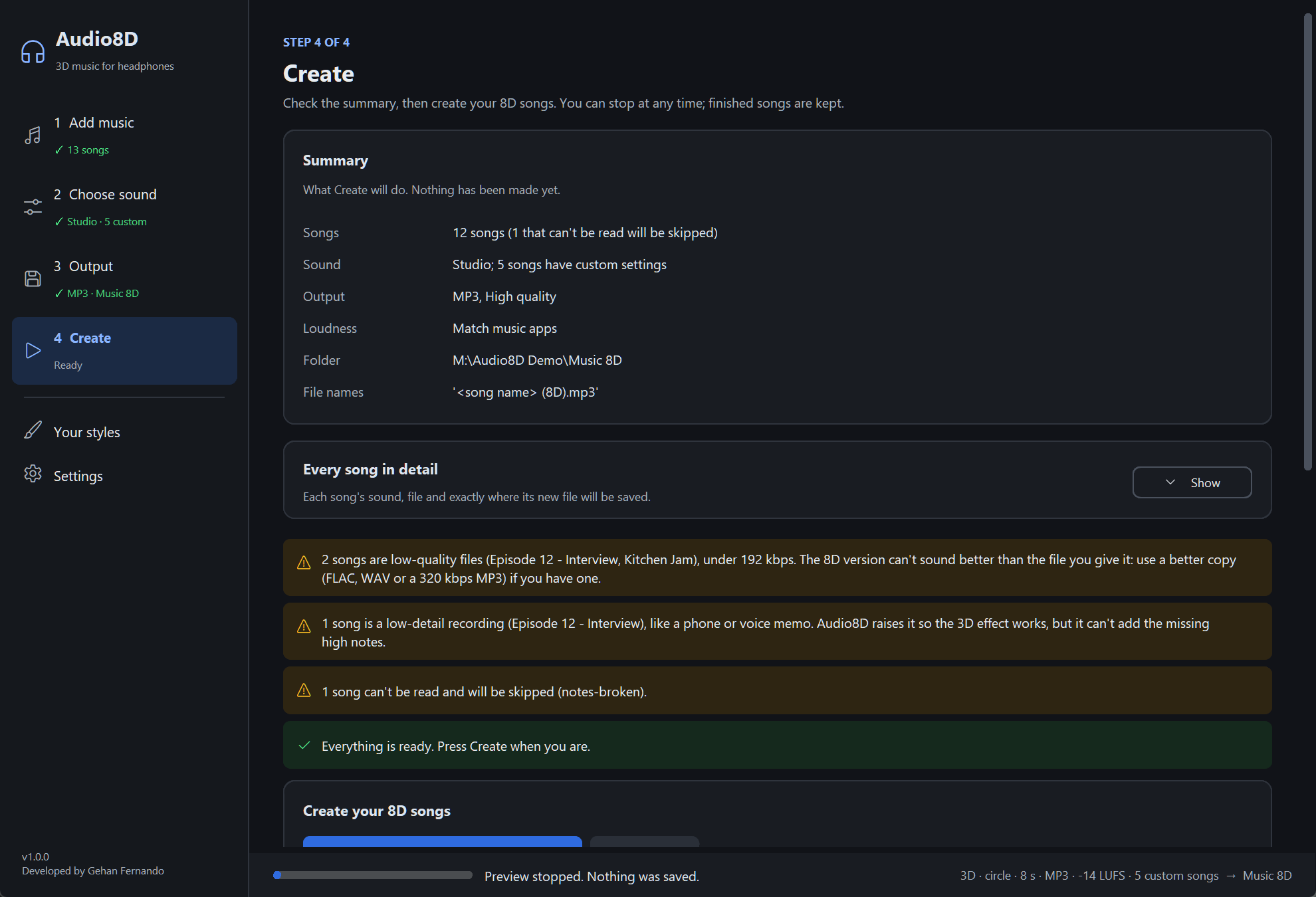
Create. Step 4 shows a short summary. Click the big Create N songs button (it says how many). You see the progress and roughly how long is left; Stop stops after the current step and keeps finished songs.
-
Find your new music. Each new song is called
<song name> (8D).mp3, next to the original song or in the folder you chose. Click Open folder to see them, or Play to listen.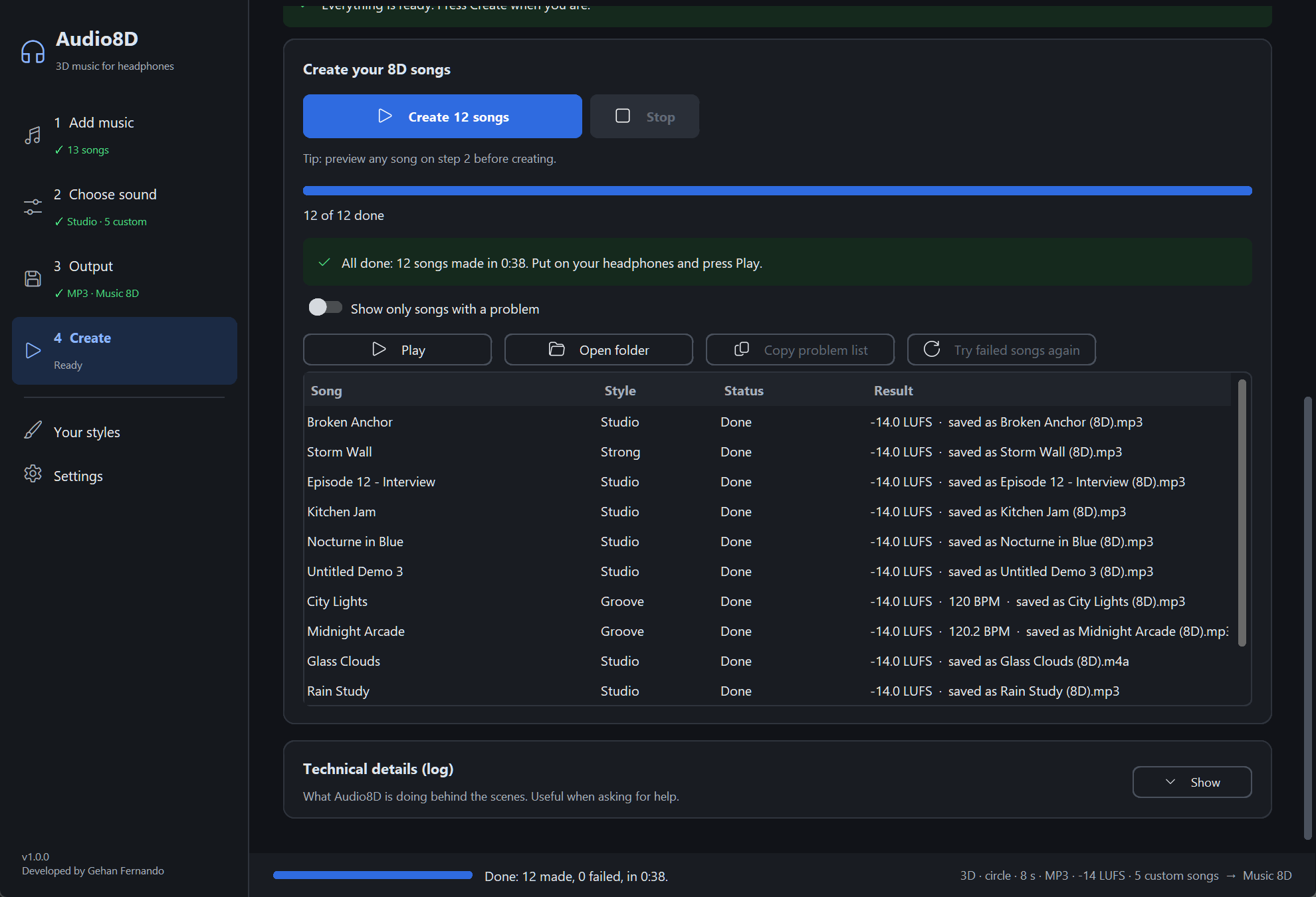
That’s it. Put on your headphones and press play. 🎧
🖥️ Using the window
Sound styles
A style is a ready-made way to make the music move. A style only changes how it sounds; how the file is saved is chosen on step 3. If you don’t know which to pick, start with Studio.
To change the style for all songs: on step 2, click Change style, click a card, listen with Preview if you like, then click Apply (or Cancel). Clicking a card only selects it; nothing changes until you apply. The style in use is marked ✓ In use, the one you picked ● Selected. Arrow keys move between cards, Enter applies, Esc cancels.
| Style | What it sounds like | Good for |
|---|---|---|
| Studio ⭐ | Balanced movement around your head, with a touch of room | Most music, mixed playlists, or when you are unsure |
| Gentle | Soft, subtle movement that stays out of the way | Acoustic, folk and singer-songwriter music |
| Front | The music never goes behind you: it sways in front, like a pair of speakers | Jazz, classical and live recordings, long listening, or if circling distracts you |
| Classic | Audio8D’s earlier 3D sound: like Studio, a touch stronger and roomier | Anyone who liked earlier versions of Audio8D |
| Groove | Loops around each ear, in time with the beat | Dance, electronic, hip-hop and pop |
| Smooth | Slow, relaxed movement | Lo-fi, chill and background music |
| Strong | Big, obvious movement with more room | Rock, metal and EDM (can tire your ears on long albums) |
| Spacious | Wide and airy, like a large room | Film music, ambient music and slow ballads |
| Sky | Drifts up over your head and back down | Ambient, chill-out and meditation music |
| Voice | For speech: a slow sweep in front of you with no room sound | Podcasts, audiobooks and spoken word |
| Whirlwind | A very fast spin: fun for a moment, but it may feel dizzying | Short clips and ringtones |
| Speakers | Gentle left-right movement that works without headphones | Speakers and car stereos |
| Retro | The old left-right “ping-pong” sound of the first Audio8D; the bass moves too | Nostalgia and short clips (not for long listening) |
No style is “better” than another; they suit different music. Every style was tested to land near -14 LUFS without clipping. A preview uses the same processing as the final file; it is only shorter, and the movement eases in over at most 1.5 s. A style preview uses the all-songs output settings (see Known limitations).
[!WARNING] Fast spins (Whirlwind) can make some listeners feel they are turning; use them for short clips.
Audio8D can also suggest a style for each song from its genre: click Use suggested styles on step 2 (it only changes songs where the genre makes the choice clear).
Where the styles come from (standards and practice behind them)
Where the styles come from
The styles are Audio8D’s own ready-made settings, not an industry standard. No international standard defines a list of consumer “sound styles”, and other 8D apps’ preset names are not standards either.
| Kind | What Audio8D uses |
|---|---|
| Formal standards | Loudness is measured with FFmpeg’s meter, which follows ITU-R BS.1770 and EBU R 128. Lossy files aim to keep true peaks below -1 dBTP, the headroom AES TD1008 recommends before lossy encoding (measured for MP3 and Opus; M4A was not measured); FLAC and WAV keep sample peaks under -1 dBFS. |
| Established practice | Bass below 120 Hz stays in the middle (as in loudspeaker bass management); direction comes from the timing and level differences between your ears; a modest room helps the sound feel outside your head; Front stays within about the ±30° of a normal pair of stereo speakers (ITU-R BS.775). |
| Audio8D’s own choices | The speed, depth, path and room of each style, chosen by listening and measurement. |
Standards for full immersive audio (ITU-R BS.2051 / BS.2127, MPEG-H 3D Audio, MPEG-I Immersive Audio) describe complete speaker, object and head-tracking systems. Audio8D makes ordinary stereo files for headphones; it does not implement those systems and claims no compliance with them.
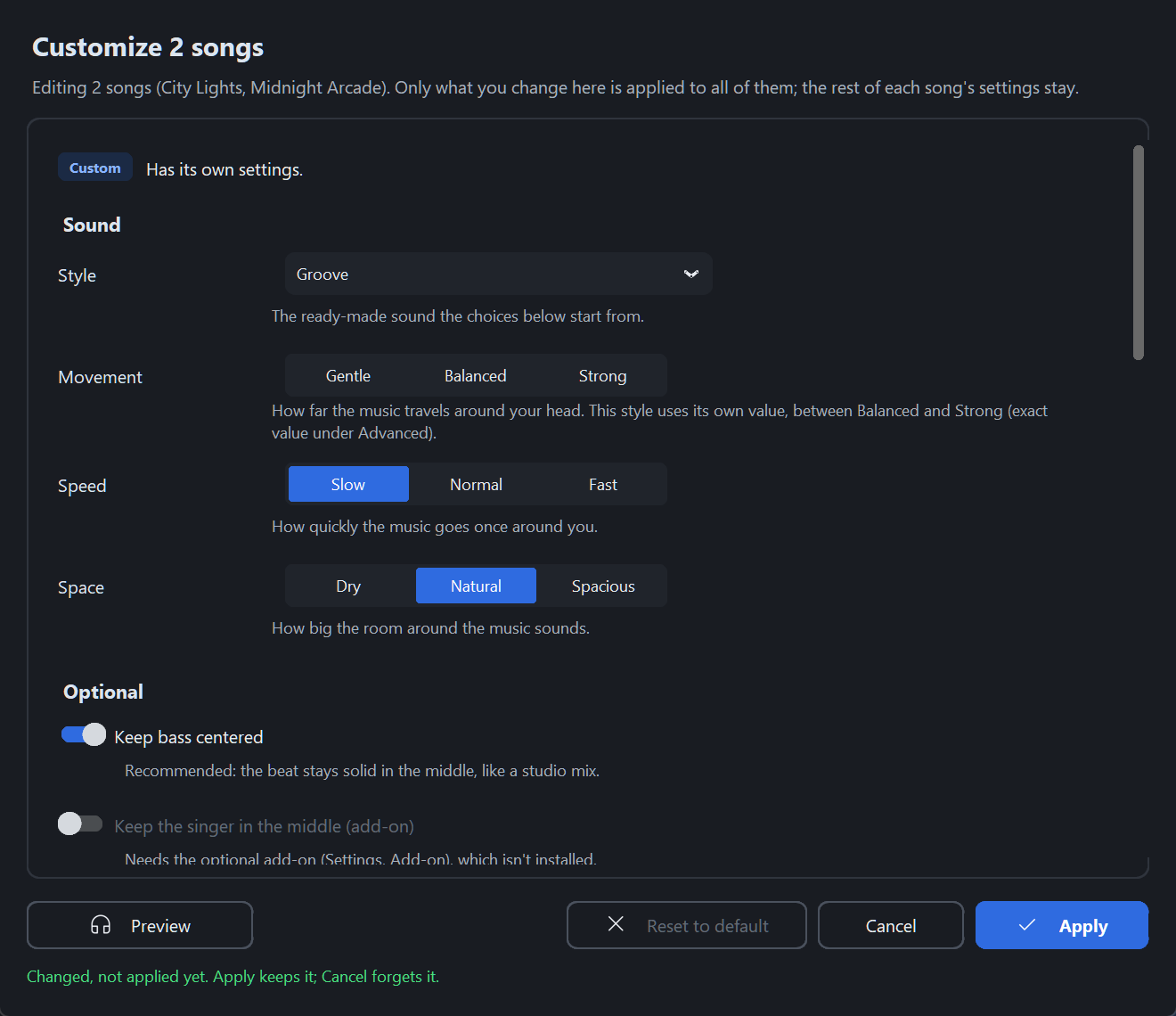
Change how one song sounds (Customize)
Every song follows the default style unless you customize it.
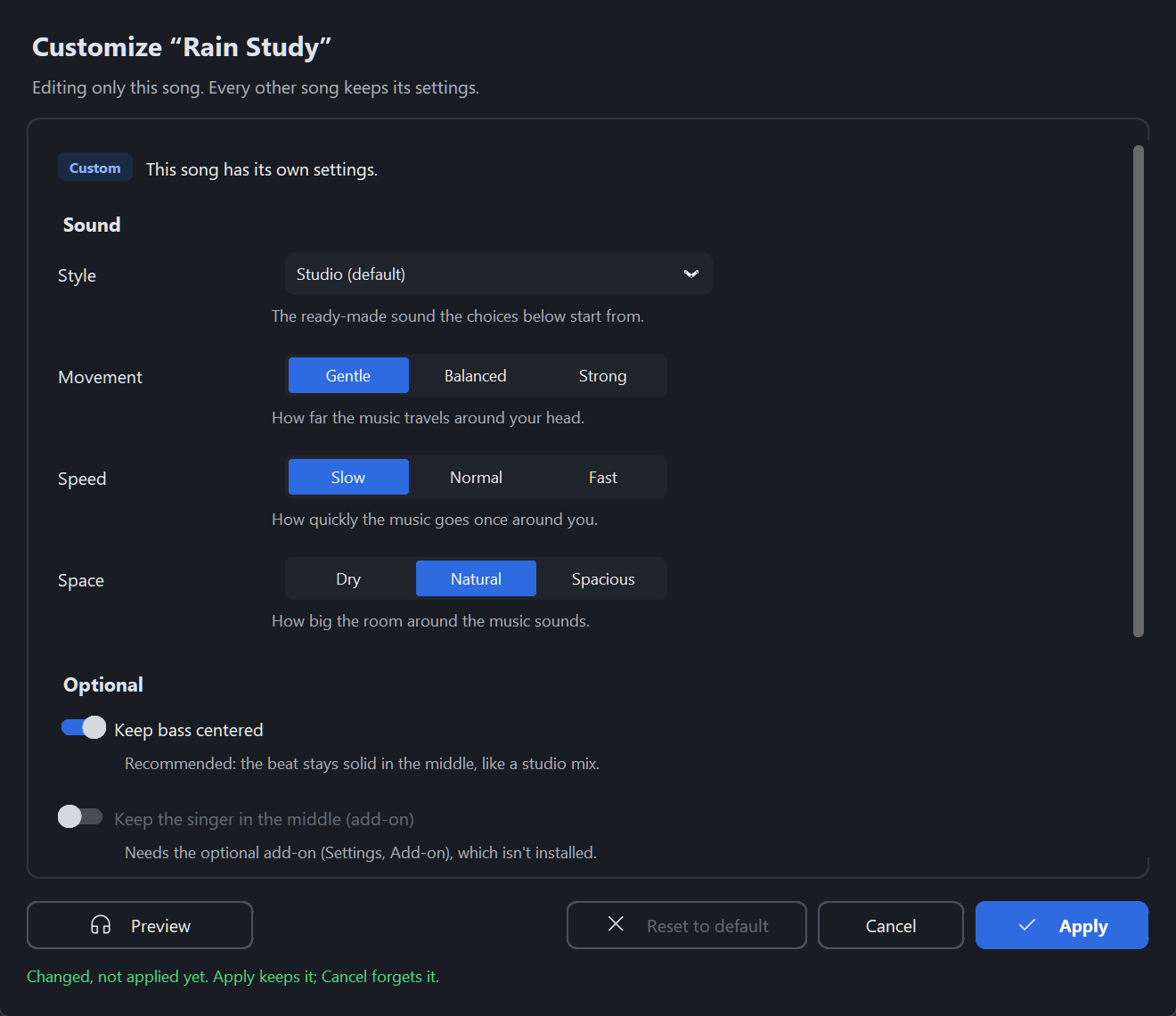
- On step 2, select the song and click Customize… (or double-click the song, or click ✎ Customize in its row).
- The Customize “song name” window opens; its title says which song you are changing.
- Change what you like, then click Apply. Cancel (or Esc) changes nothing.
| Choice | What you hear |
|---|---|
| Style | The ready-made sound the song starts from |
| Movement: Gentle, Balanced, Strong | How far the music travels around your head |
| Speed: Slow, Normal, Fast | How quickly the music goes once around you |
| Space: Dry, Natural, Spacious | How big the room around the music sounds |
| Keep bass centered | The drums and bass stay steady in the middle (recommended) |
| Keep the singer in the middle | The music moves; the voice moves only a little and stays close to the middle (needs the add-on) |
Click Preview in the dialog to hear your changes before you apply them. If a style uses a value between two choices, no choice is highlighted and the line under it says so.
Save this song differently (folded) gives this song its own file format, quality, loudness, or only part of the song. Advanced (folded) holds the exact numbers behind the choices, plus path, direction, height, easing, beat sync, speed and movement over time, and Safe for speakers too; you never need them.
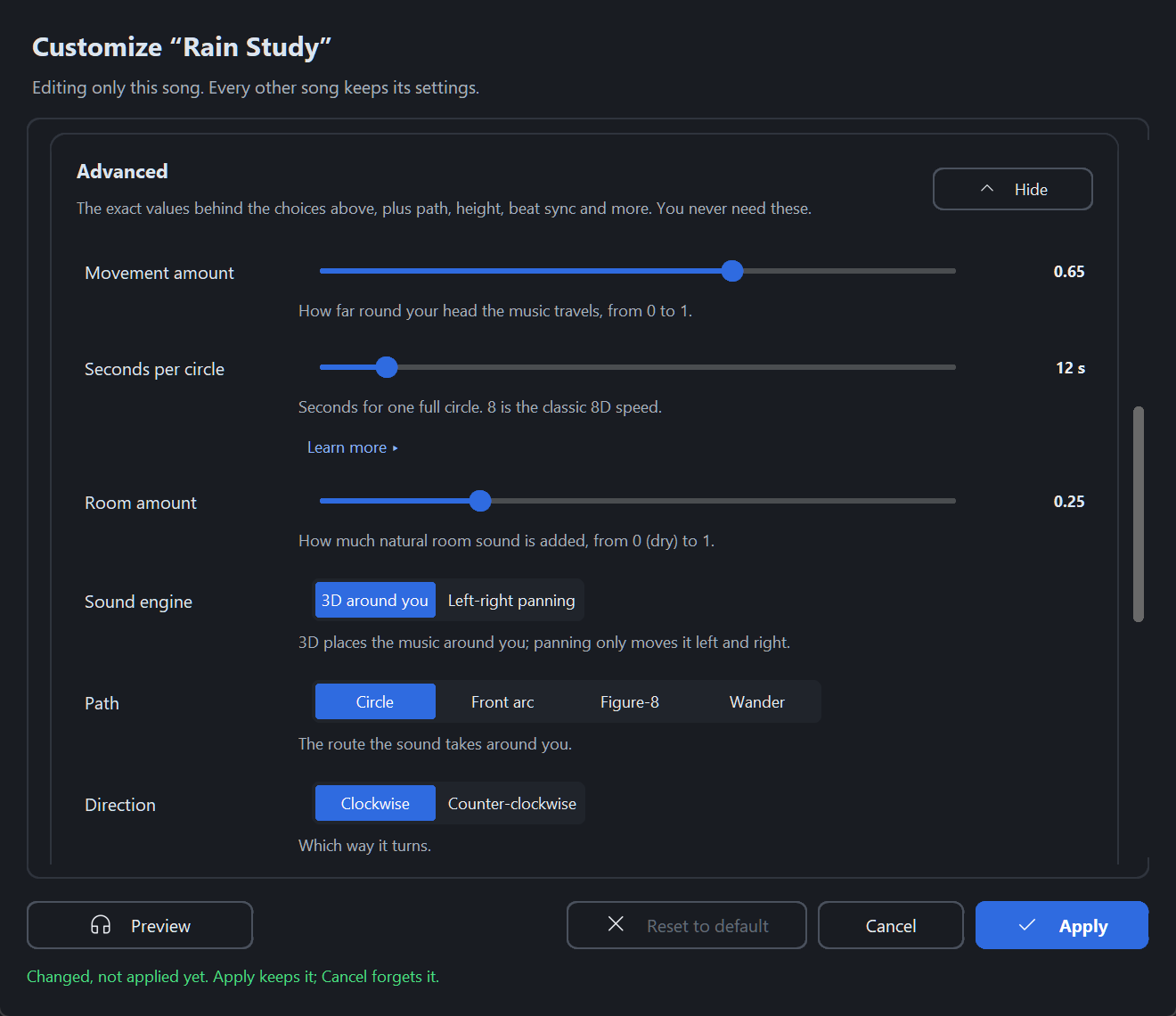
Several songs at once: select them (Shift+click or Ctrl+click) and click Customize 2 songs…. Only what you change is applied to all of them.
The default sound for every song: click Customize default… under Change style. The dialog says Editing defaults for all songs; songs you customized keep their own settings.
Default and Custom
Audio8D starts with one set of default settings. Every song uses them unless you customize that song. The Settings column in the song list says which:
| Word | Meaning |
|---|---|
| Default | This song follows the main settings. |
| Custom | This song has its own settings. |
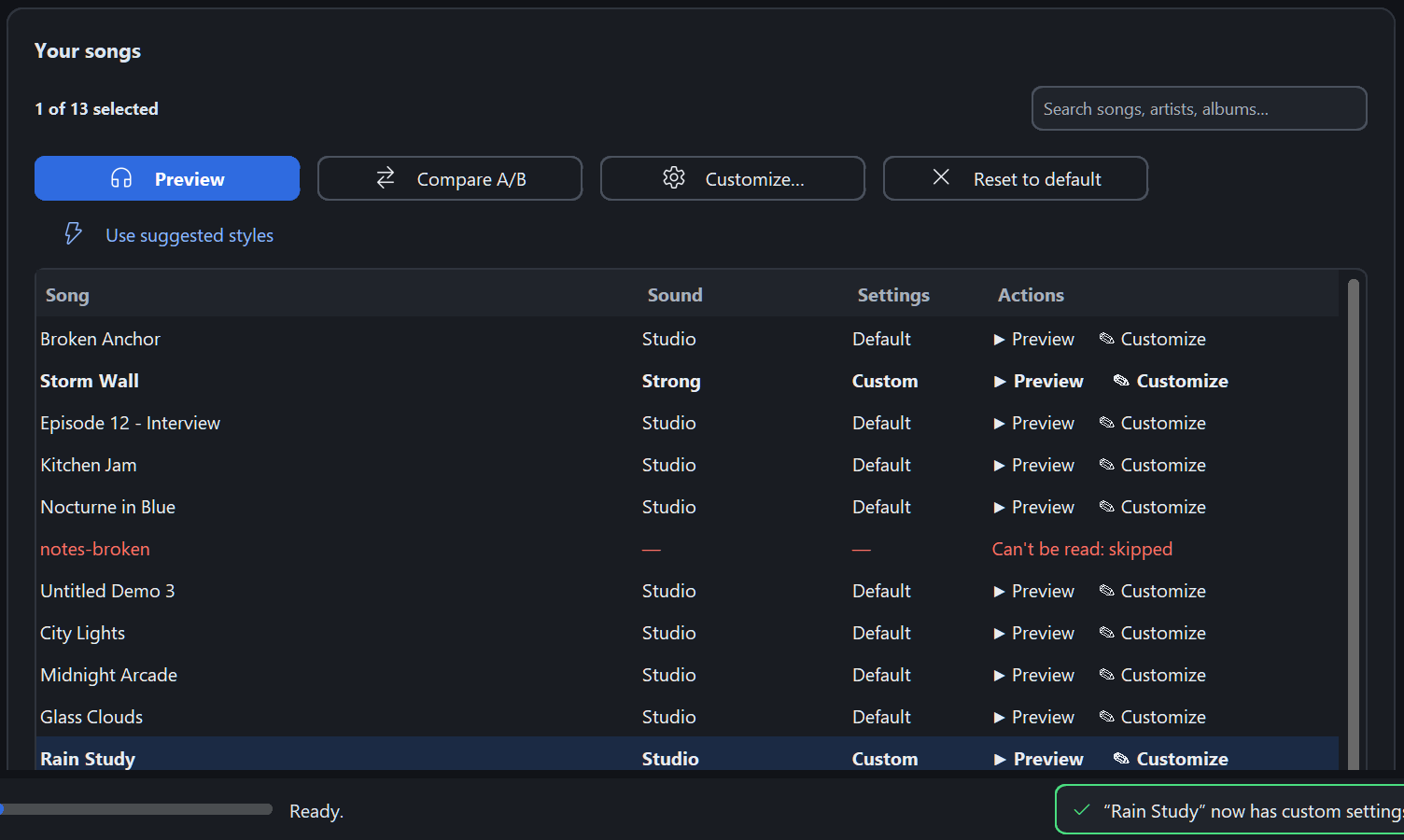
Example. You change the default style to Smooth. Every Default song now sounds Smooth. A song you had customized to Strong stays Strong. Songs you add later follow the default.
Reset to default removes a song’s own settings. Select the song(s) on step 2 and click Reset to default, or click Reset to default inside Customize.
Preview your music
Preview lets you listen before creating anything.
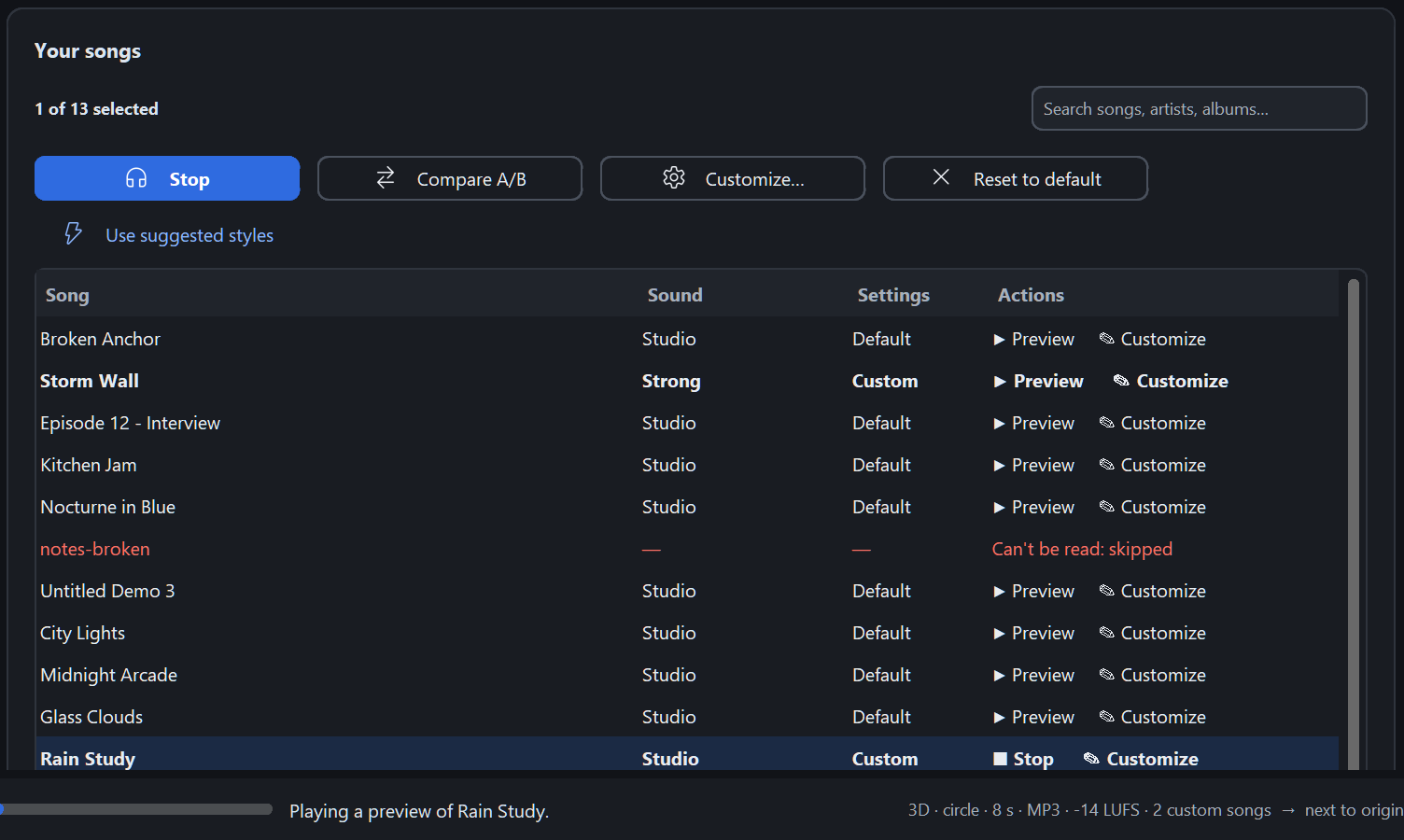
- It makes only a short temporary piece of audio (30 seconds by default, from the loudest part; change it in Settings → Preview length: 15, 30, 45 or 60 s). It is never saved next to your music, and it is cleaned up automatically.
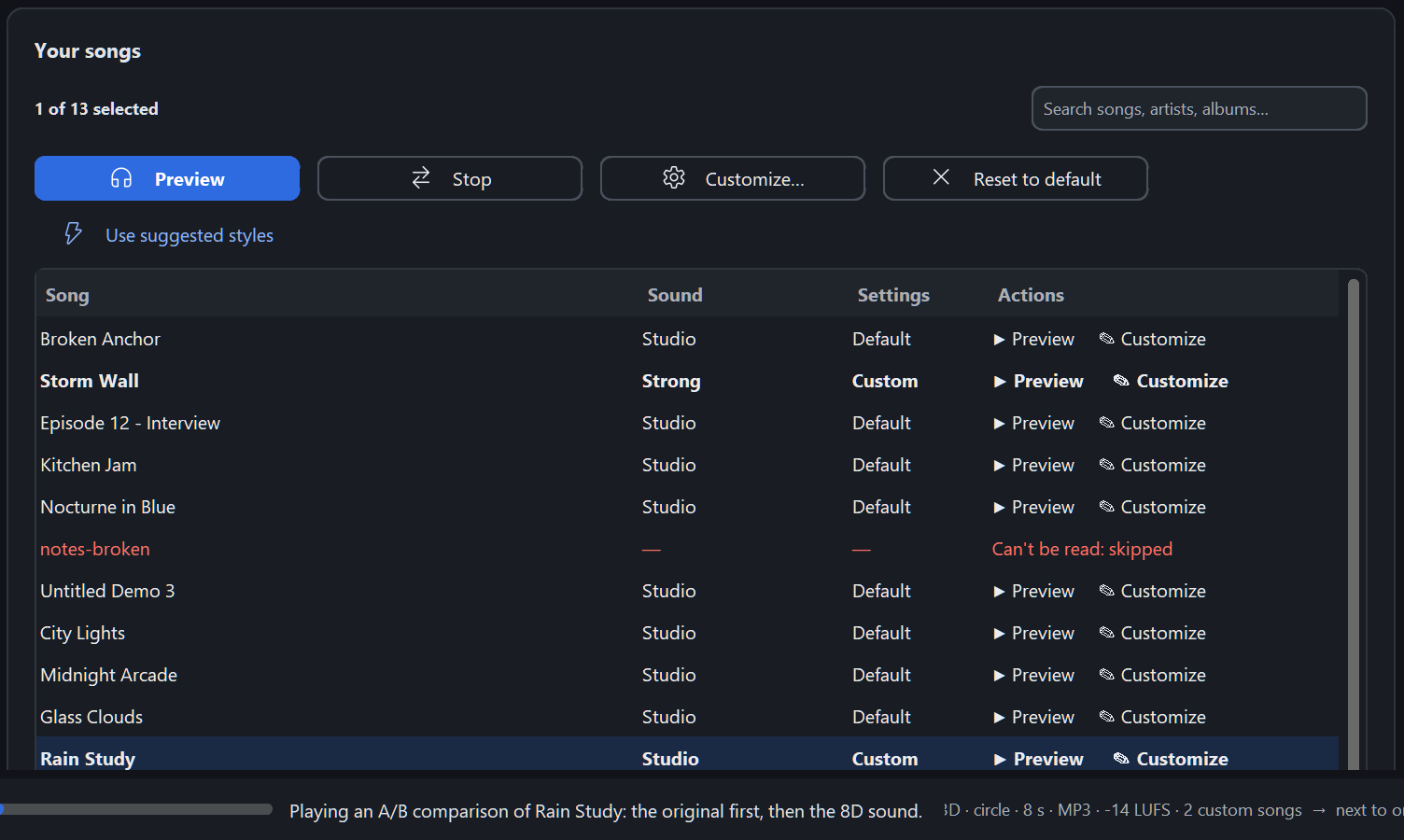
- Compare A/B (next to Preview on step 2) plays the same part of the selected song twice: first the original (A), then in 8D (B), at the same loudness. Nothing is saved.
- On Windows the preview plays inside Audio8D and the button shows what it will do: ▶ Preview (click to listen), ◌ Preparing… 40% (click to cancel), ■ Stop (click to stop).
- On macOS and Linux the preview opens in your usual music player when it is ready; stop it in that player.
- Starting another preview replaces the current one. A song you already previewed with the same settings plays again straight away.
- Inside Change style and Customize, Preview plays the style or changes you are looking at, without applying them.
- To save a permanent file, use Create (step 4).
Where the new files go
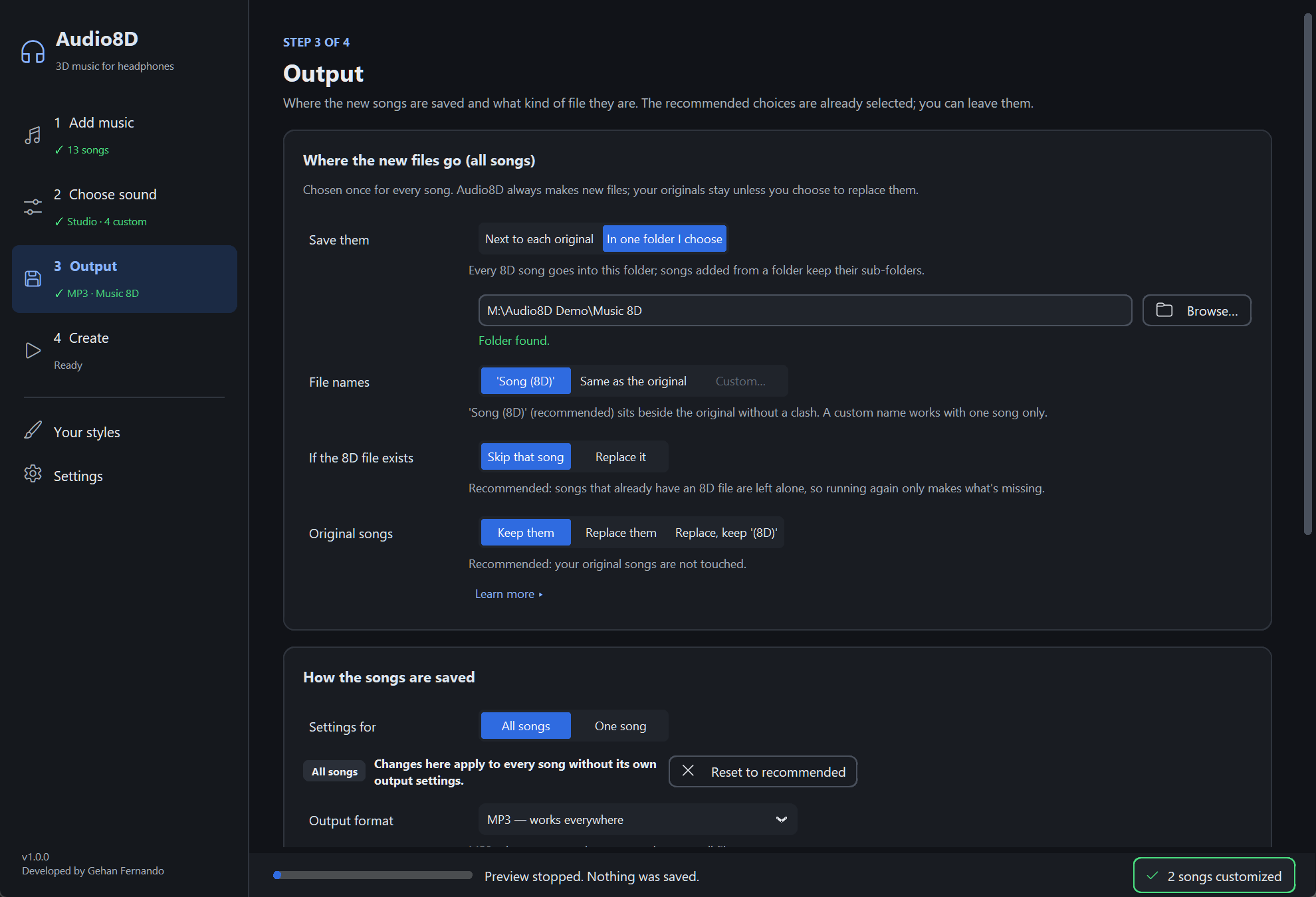
Step 3 starts with Where the new files go (all songs):
- Save them: Next to each original (the default) or In one folder I choose (Browse…);
- File names: ‘Song (8D)’ (recommended), Same as the original (needs a folder), or Custom… (one song only);
- If the 8D file exists: Skip that song (running again only makes what’s missing) or Replace it;
- Original songs: Keep them (the default), Replace them, or Replace, keep ‘(8D)’. A replaced original goes to the Recycle Bin on Windows or the Trash on macOS and Linux, so you can get it back. On Windows, on a drive without a Recycle Bin, it is kept, renamed “… (original)”.
All songs or one song
The next card, How the songs are saved, starts with Settings for: All songs | One song. Everything in that card, including More output options, follows this choice.
- All songs (where it starts): Changes here apply to every song without its own output settings, including songs you add later. Reset to recommended puts these back to MP3, High quality, Match music apps; songs with their own settings keep them.
- One song: a Song list appears, set to the song selected on step 2 (pick another in the Song list). The line says Changes here apply to “Glass Clouds” only, with a Default or Custom badge. Reset to default removes only that song’s own output settings; its sound (step 2) is not touched.
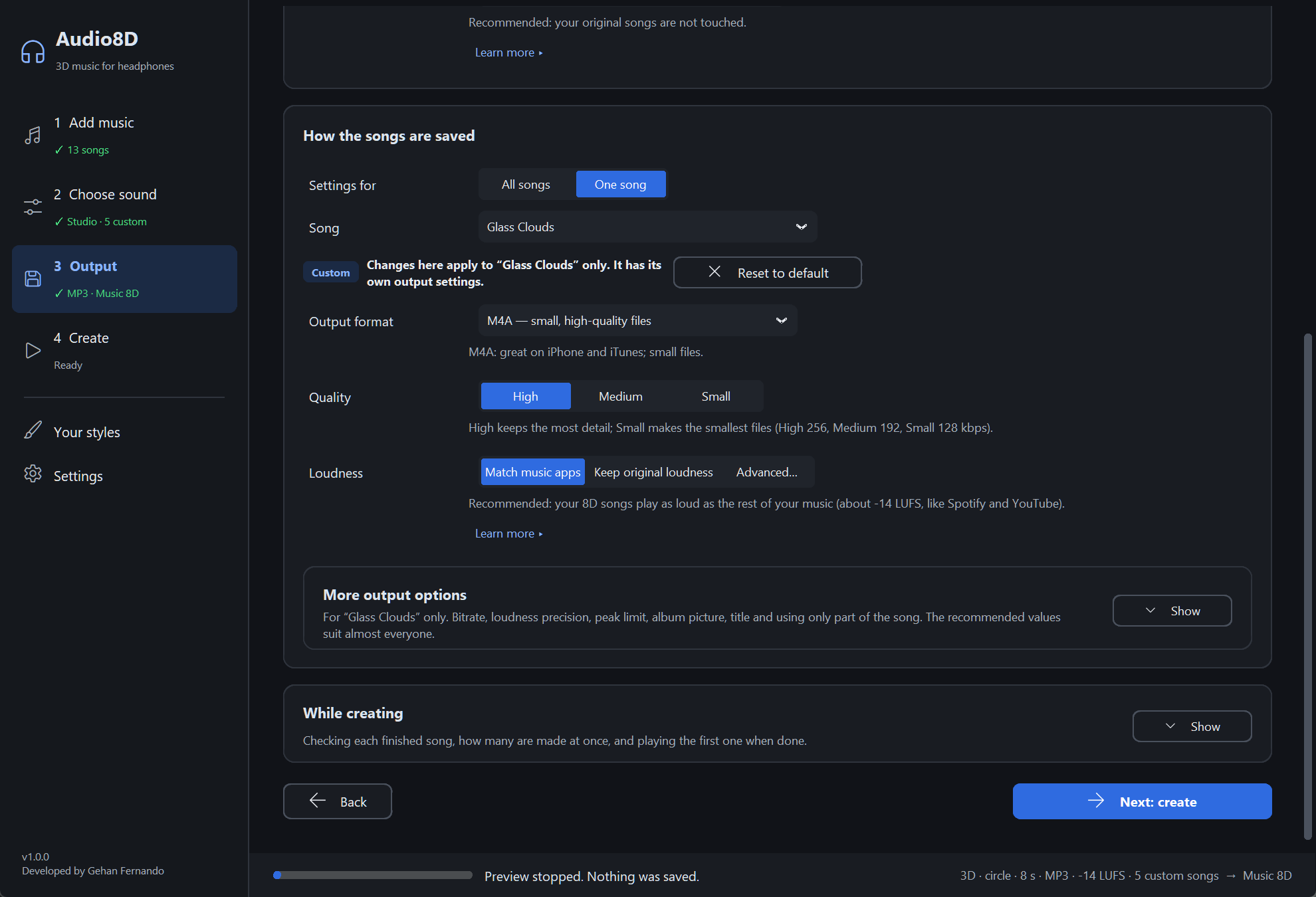
Changing an All songs setting never changes a song’s own choice (change the default to Opus, and a song you set to M4A stays M4A). A choice equal to the default doesn’t make a song Custom. The same per-song settings are also under Customize → Save this song differently on step 2.
[!NOTE] Audio8D remembers the output defaults, the default style and the preview length for next time. It never remembers Replace them or Replace it, and a song’s own settings last only while that song is on the list.
Choosing a file format
| Format | Choose it when | Good to know |
|---|---|---|
| MP3 (default) | You want a file that works almost everywhere | Phones, cars, every music app |
| FLAC | You want lossless quality: nothing is thrown away | About 4 times bigger than MP3; most, but not all, players |
| WAV | You want an uncompressed audio file | Very big files; no album picture |
| M4A | You want good quality with smaller files | Great on iPhone and in iTunes |
| Opus | You want efficient modern compression | The smallest files; some older players can’t open it |
Quality (MP3, M4A and Opus) is High by default: MP3 320 kbps, M4A 256 kbps, Opus 192 kbps. Medium and Small make smaller files. FLAC and WAV are lossless, so they have no quality to choose. A higher bitrate or FLAC keeps more of what the song has, but can’t bring back detail a compressed source (such as a 128 kbps MP3) never had.
More output options (click Show) holds the rest, showing only what applies:
- Bitrate (kbps): the exact rate behind Quality (Auto, 128 to 320); not for FLAC/WAV. With MP3 and Auto, MP3 variable quality (V0 best to V9 smallest) appears;
- Get as close to the loudness as possible: off (recommended) never squeezes the loudest moments, so a very dynamic song may end a little quieter. On shaves the loudest peaks to get as close to the target as possible; very loud or punchy songs can still land a little under it;
- Peak limit: the loudest a peak may get, set in dB from -24 to 0 (half-dB steps); recommended -1.5 dB for MP3, M4A and Opus, -1.0 dB for FLAC and WAV;
- Keep the album picture and Add ‘ (8D)’ to the song title;
- Use only part: from / to: times like 90 or 1:30, for example for a ringtone.
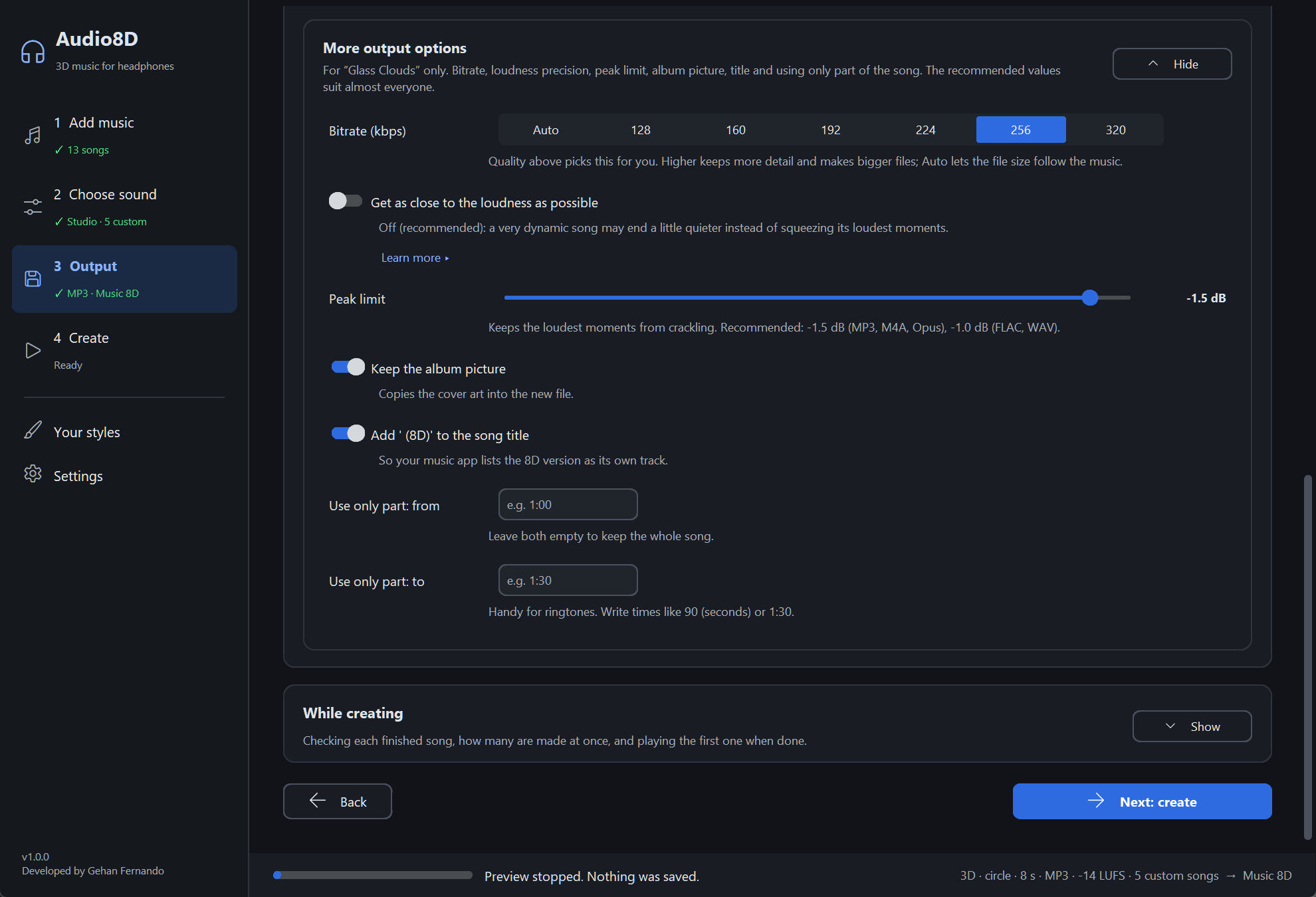
While creating (folded, for all songs) holds Check each finished song (measures loudness and peaks; recommended on), Songs at once (1 to 16; a good value for your computer is already set) and Play the first song when finished.
Loudness
Songs from different albums are often not equally loud. Audio8D can fix that.
- Match music apps (default): your new songs play at about the same volume as music from Spotify, YouTube and other apps. (Technical target: -14 LUFS.)
- Keep original loudness: each new song is as loud as its original was.
- Advanced… shows Apple Music (-16), TV & radio (-23), No change (no adjustment; 8D songs are then often a little quieter) and Custom… (a level from -30 to -5).
Loudness is measured, never guessed, and the loudest peaks are protected so nothing crackles. LUFS is simply the unit for how loud music feels.
On the command line, each result shows the finished file’s measured loudness, marked
(checked), with a yellow note when a song lands more than 0.5 LU under the target. With
--no-check nothing is measured afterwards, so it says what the song aims for.
Create your songs
Step 4 · Create shows a Summary and, folded, Every song in detail (each song’s sound, file and exactly where its new file will be saved), then anything that must be fixed first (red) or is worth knowing (yellow). When everything is fine you see Everything is ready.
Click Create N songs. While it works, the bar shows 4 of 12 done · now: Nocturne in Blue · about 0:21 left, and each song’s row says what it is doing, then Done. Stop stops after the current step; finished songs are kept and the unfinished one is cleaned up. Esc asks first (Stop creating? → Stop or Keep working). You can keep using the window.
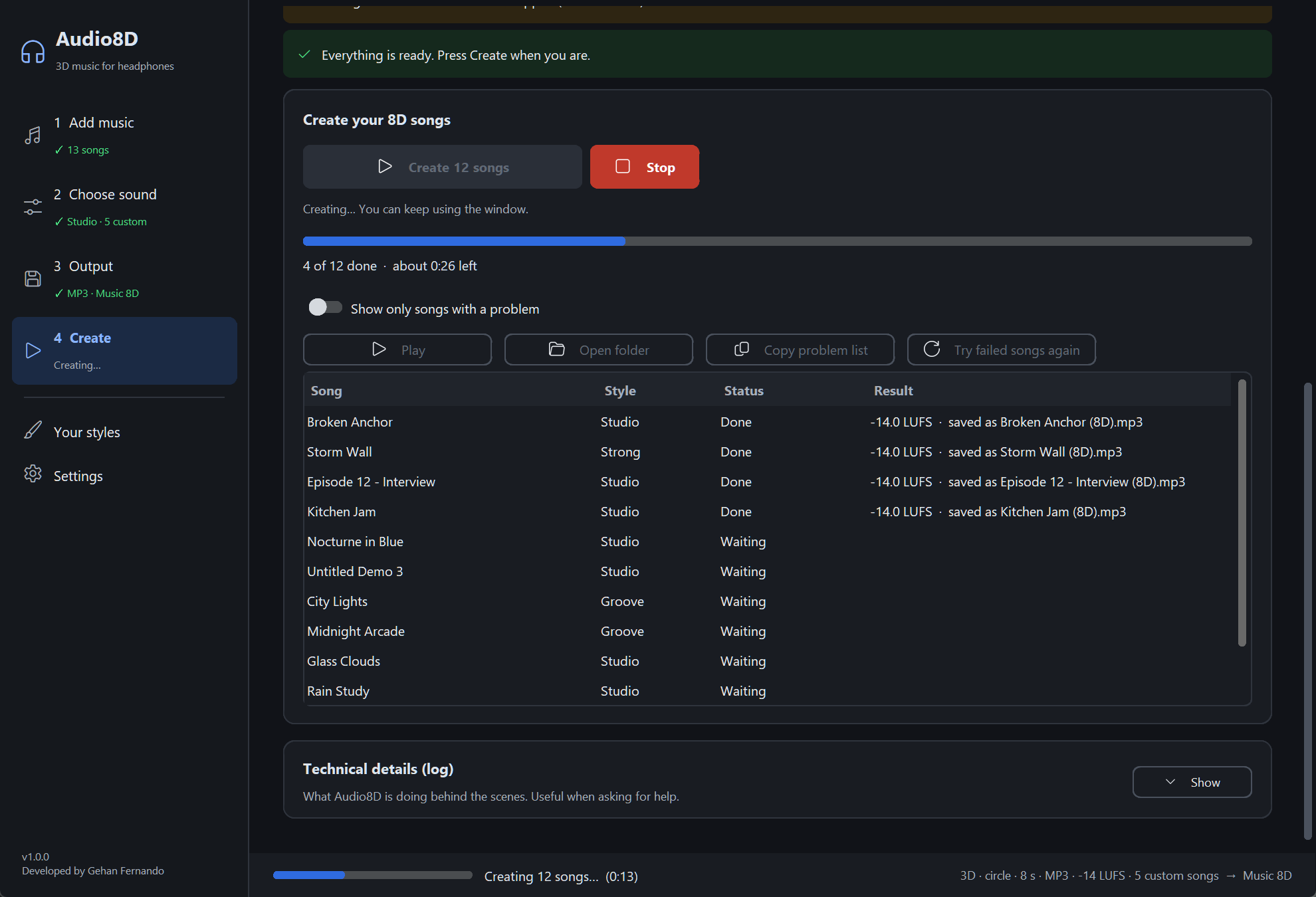
Afterwards: Play plays the selected new song, Open folder opens its folder, Show only songs with a problem filters the list, Copy problem list copies the problems, and Try failed songs again retries only the songs that failed.
If a song’s 8D file already exists, it is skipped. To make it again, choose If the 8D file exists: Replace it on step 3.
Optional add-on: keep the singer in the middle
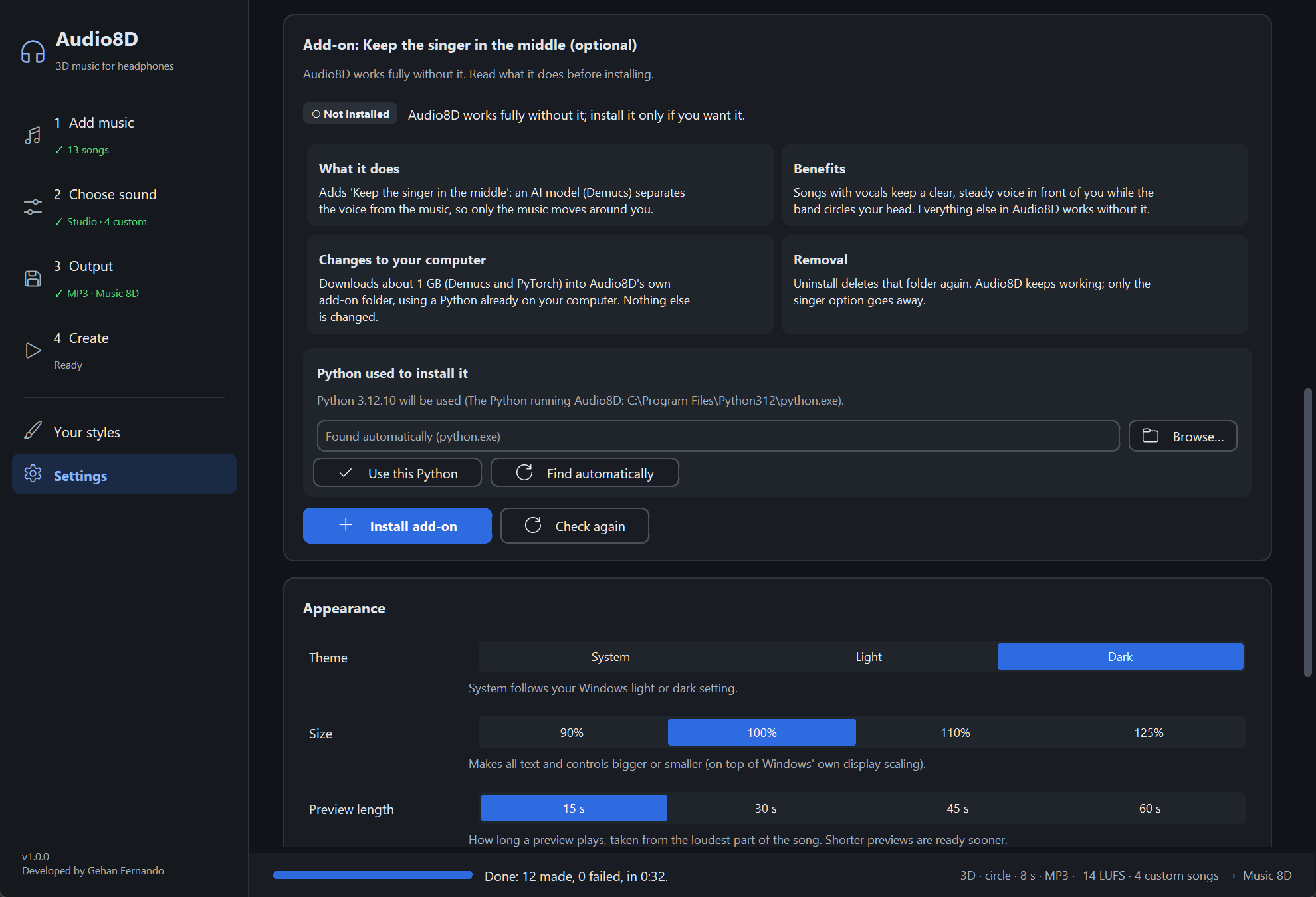
What is it?
An extra part called Demucs, a free AI model that separates a singer’s voice from the music, with PyTorch, the engine it runs on. It is not included because of its size.
What does it give me?
The option Keep the singer in the middle: the band moves around your head while the voice moves only a little and stays close to the middle.
Do I need it?
No. Audio8D works fully without it. Only this one option needs it.
What changes on my computer?
Audio8D makes its own add-on folder and downloads Demucs and PyTorch into it, using a Python that is already on your computer (3.10 or newer; on Windows use 64-bit Python). Nothing else is changed: not your Python, not your other programs.
[!WARNING]
- Download size: about 1 GB on Windows; on Linux PyTorch can be several GB.
- It needs an internet connection and takes a few minutes or more.
- On Linux, Python’s venv module must be installed (
sudo apt install python3 python3-venv).
| Windows | macOS | Linux |
|---|---|---|
%LOCALAPPDATA%\Audio8D\addon |
~/Library/Application Support/Audio8D/addon |
~/.local/share/audio8d/addon |
How do I install it?
Window: Settings → the Add-on card → read the four boxes → Install add-on → confirm. You can keep using Audio8D while it installs; Stop cancels it, and nothing half-installed is kept. If no Python is found, the card says how to get one.
The card shows each step and, where it can be measured, a real percentage, for example Downloading packages — 42% · torch-….whl (12 of 31) (files downloaded). Steps that can’t be measured show a moving bar with no number. 100% appears only when it really worked (Installed successfully — 100%); a failed or stopped install says where it stopped, for example (stopped at 42%). Show details lists pip’s own output.
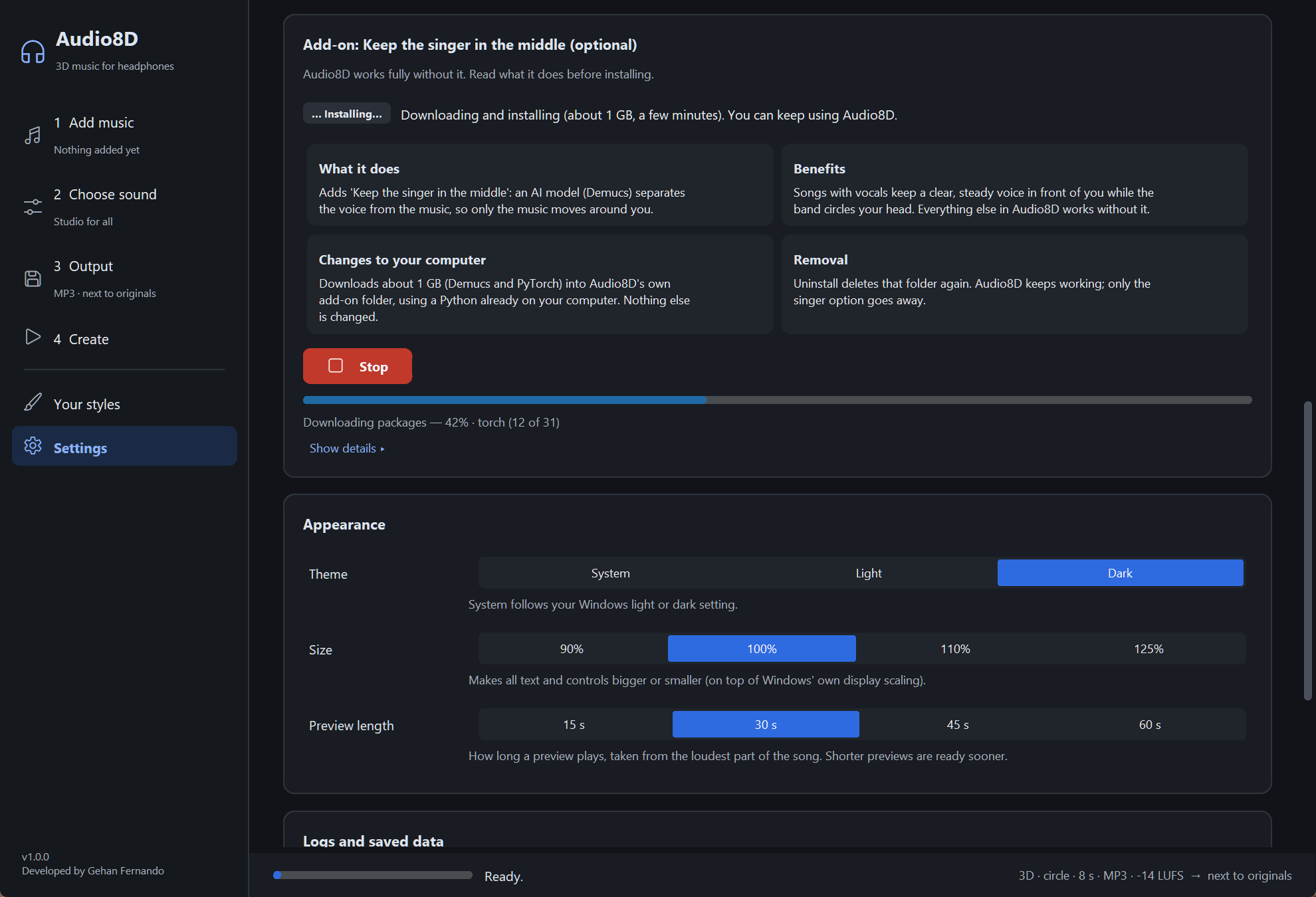
Command line: audio8d --install-addon
How do I check whether it is installed?
Window: Settings → Add-on shows ✓ Installed, ○ Not installed, or Needs
repair. Command line: audio8d --addon-status (exit code 0 = installed, 1 = not).
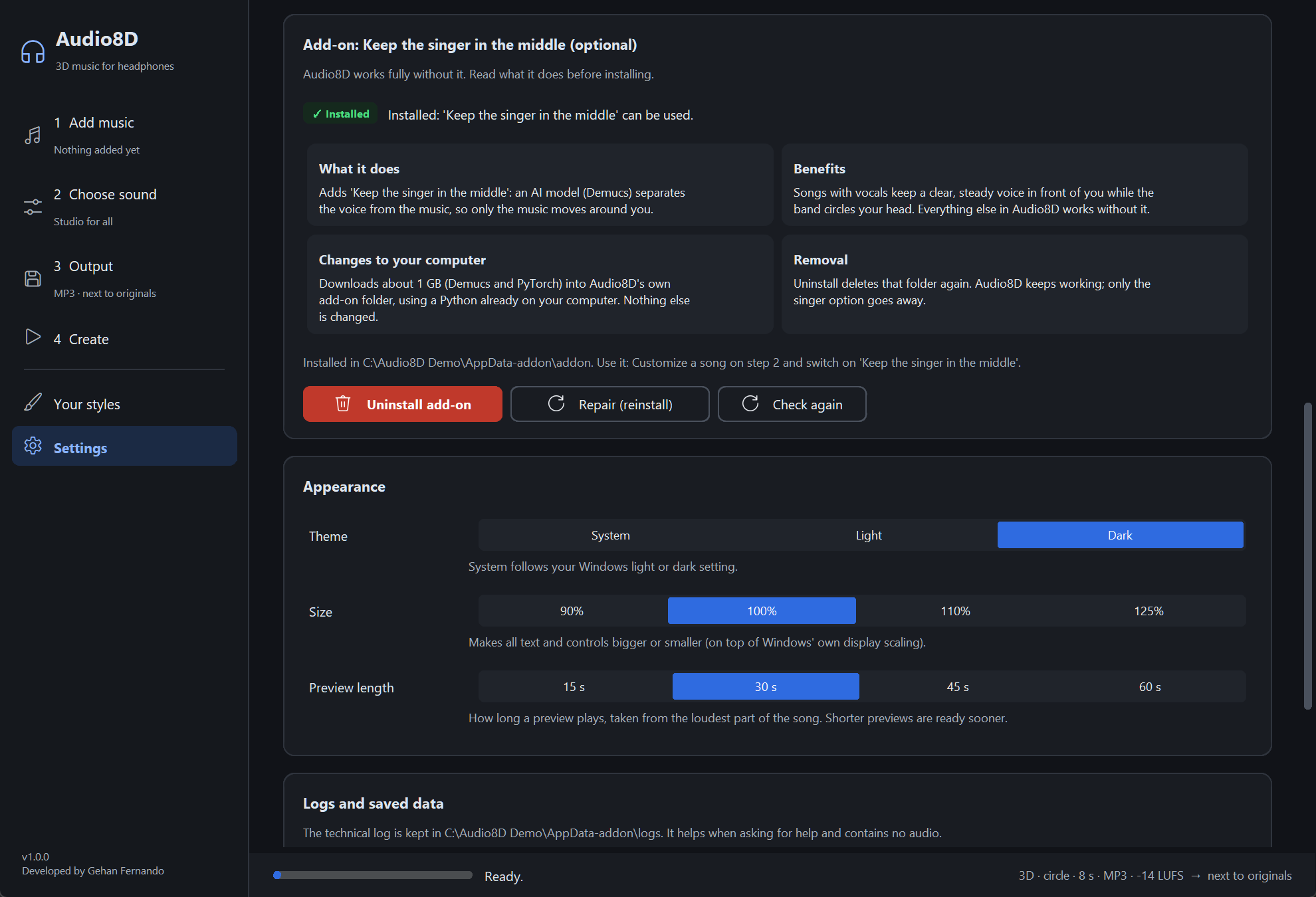
How do I use it?
Customize a song (step 2) and switch on Keep the singer in the middle. Command line:
audio8d "My Song.mp3" --vocals center. Each such song takes a minute or two longer.
How do I remove it?
Window: Settings → Add-on → Uninstall add-on → confirm. The card ends with
Uninstalled successfully — 100%. Command line: audio8d --uninstall-addon.
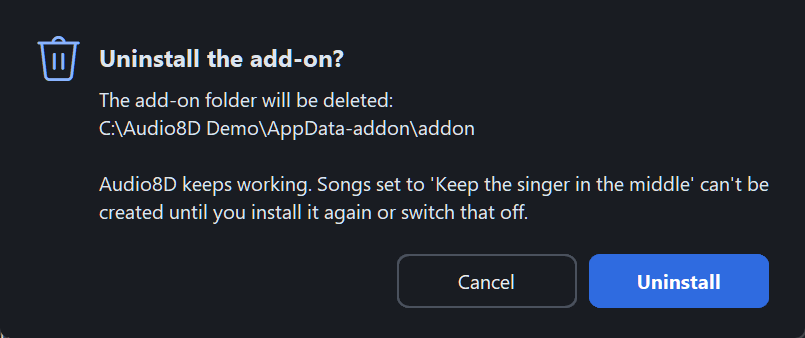
Repair (reinstall) deletes the add-on folder and installs it again. Command line:
audio8d --repair-addon.
After uninstalling, Audio8D keeps working; only Keep the singer in the middle becomes unavailable, and Audio8D tells you which songs used it. If you installed Demucs yourself into your own Python, Audio8D uses it too but never removes it.
Your own styles
On Your styles (left side) you can make a style by answering a few questions (music type, movement, speed, space, headphones or speakers). Audio8D checks it, suggests a name and a description, and Try it plays the selected song with it. You can also save your current default sound as a style. Saved styles appear in Change style and Customize like the built-in ones.
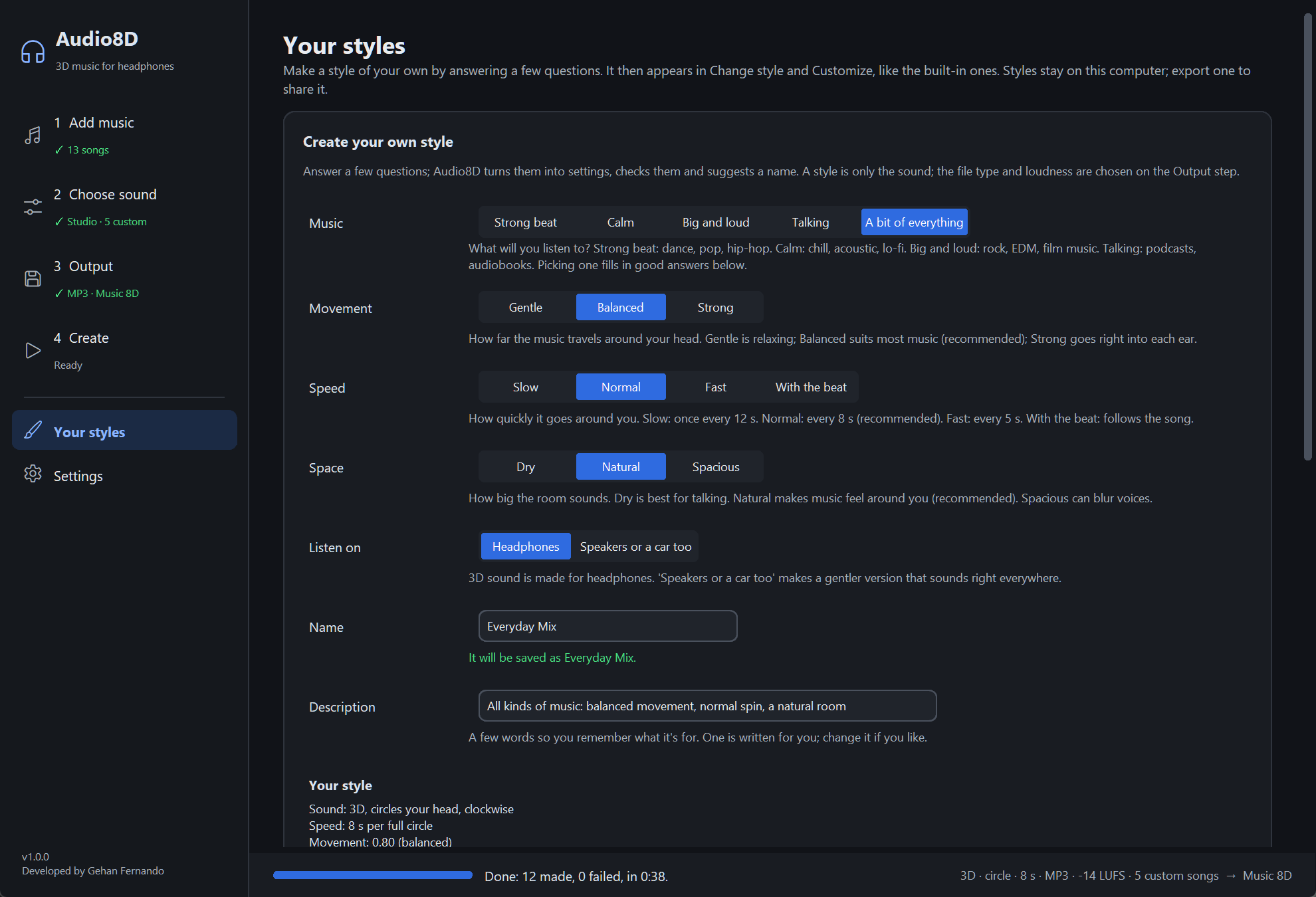
Each saved style has these buttons:
- Use: makes it the default style (songs you customized keep theirs);
- Edit: opens the style with a Name box. Change the sound (Movement, Speed, Space, the Optional and Advanced parts) and the name, listen with Preview, then click Save changes. The same style is updated; no copy is made. Songs that use it get the new sound at once. Cancel keeps the style as it was;
- Rename, Duplicate, Export (a small
.jsonfile to share) and Delete; Import a style… adds one from a file.
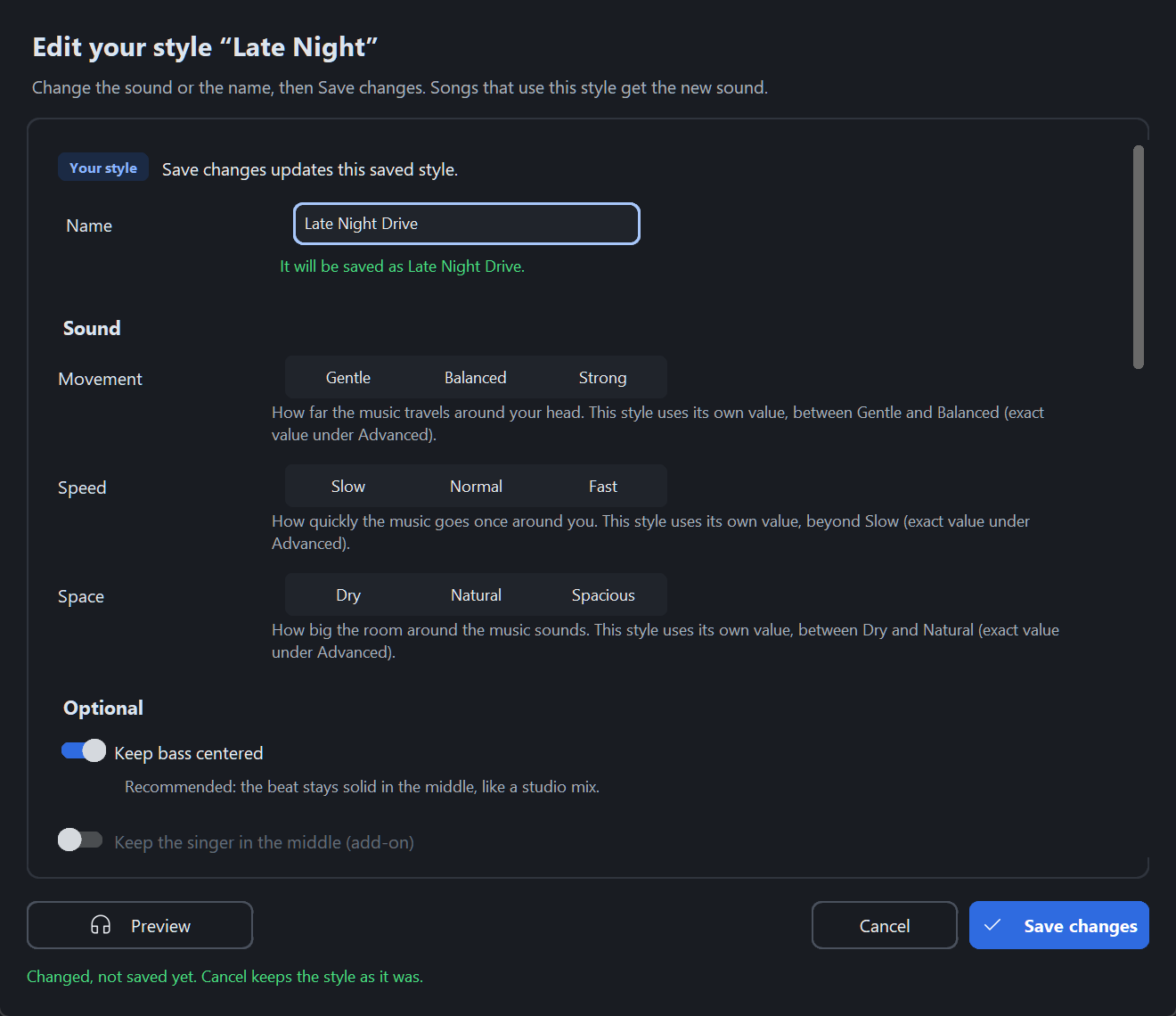
Every save checks the name (words starting with a capital, not taken, not a built-in name, at most 40 characters) and the sound (a style with no movement is refused; a doubtful one asks Save as it is or Improve and save). Built-in styles can’t be edited or renamed; save your current sound or duplicate one of your styles to start from it. A style is only a sound: file format and loudness are never part of it. All of this also works on the command line (see Your own styles on the command line).
Settings, keyboard and getting help
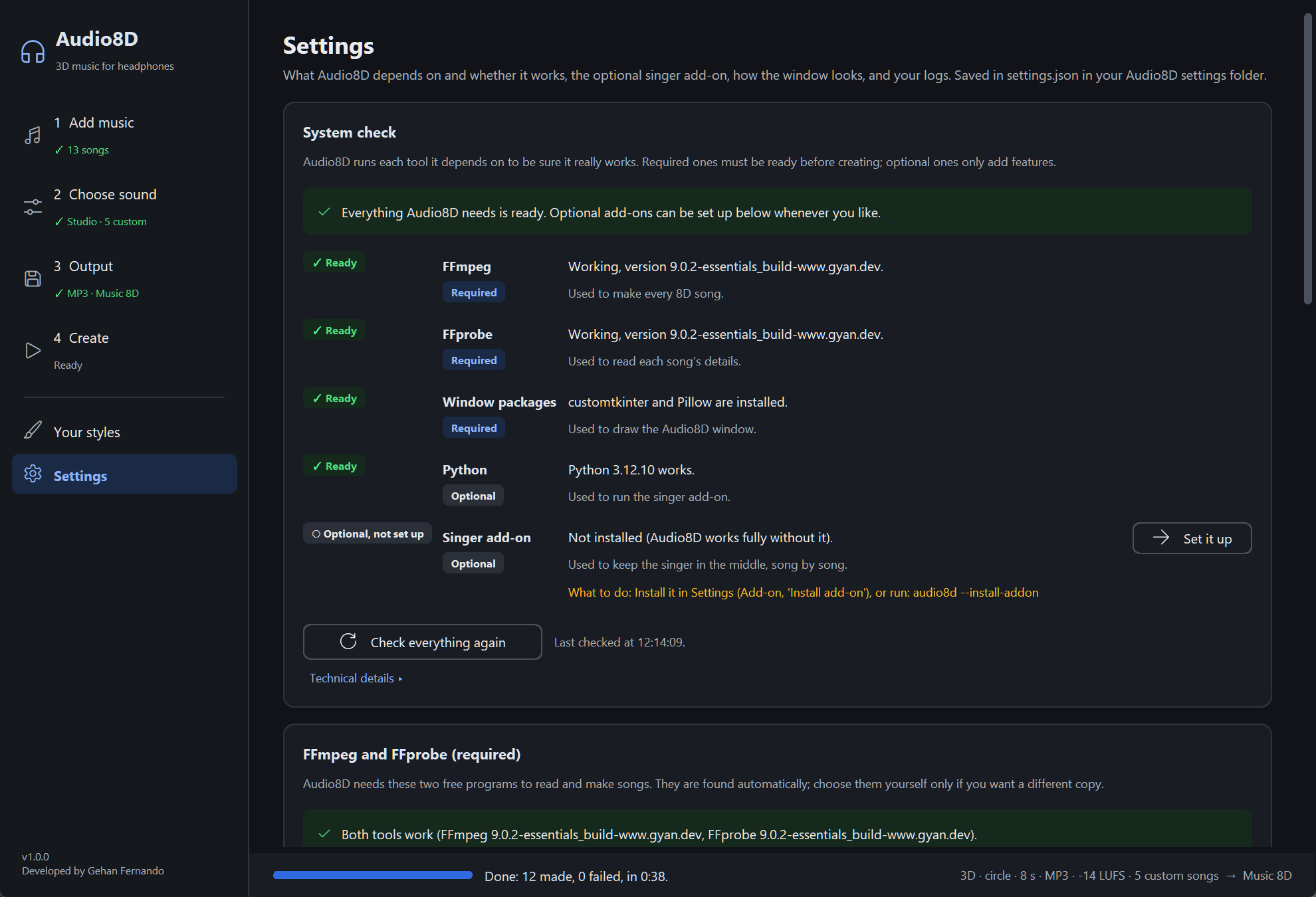
Settings (left side) holds:
- the System check: every program Audio8D depends on, marked Ready, Missing, Invalid, Optional or Unavailable, with what to do; Check everything again re-runs it;
- FFmpeg and FFprobe: normally found automatically; Browse… chooses your own, and Find automatically goes back;
- the Add-on (see above);
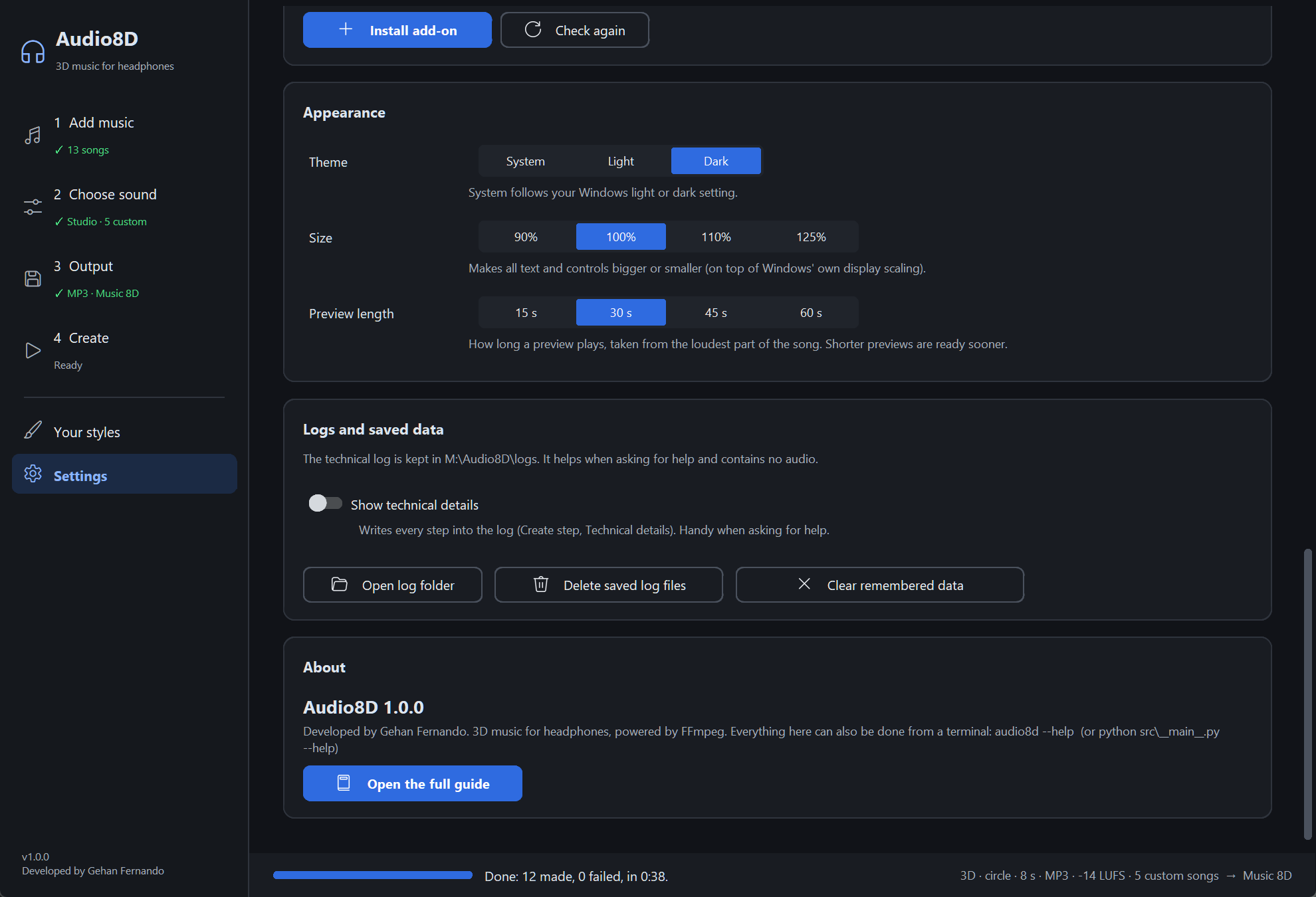
- Appearance: Theme (Light, Dark or System), Size (text and controls), and Preview length;
- Logs and saved data: where the log is kept, Show technical details (writes every step into the log), Open log folder, Delete saved log files, and Clear remembered data (forgets the remembered loudness measurements and singer splits; they are made again when needed). Both deletes ask before anything is deleted;
- About with Open the full guide (this page).
Keyboard (Ctrl on every system; on macOS too, not Cmd, though untested there):
| Keys | What they do |
|---|---|
| Tab, Shift+Tab | Move between buttons and choices (a ring shows where you are) |
| Space, Enter | Press the button or open the list |
| ← → | Change a choice, e.g. Gentle / Balanced / Strong |
| Ctrl+1 … Ctrl+6 | Go to a step or page |
| Ctrl+O, Ctrl+Shift+O | Add songs, add a folder |
| Ctrl+P | Preview (or stop) the selected song |
| Ctrl+Enter | Create |
| Ctrl+F | Search the song list |
| Enter / Space (in the song list) | Customize / preview the selected song |
| Esc | Close a dialog without changing anything; otherwise stop a preview, or, while creating, ask Stop creating? |
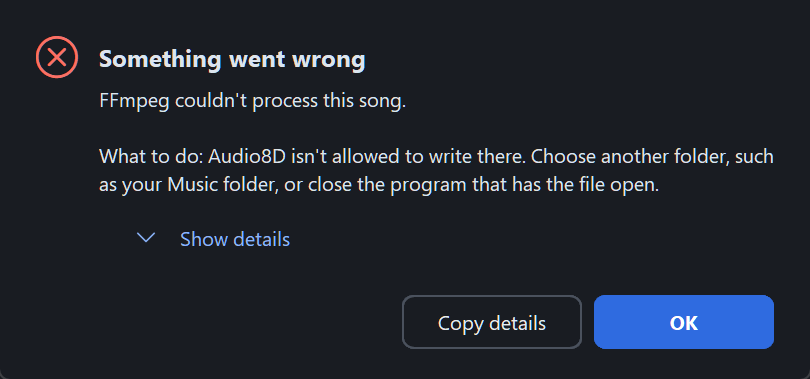
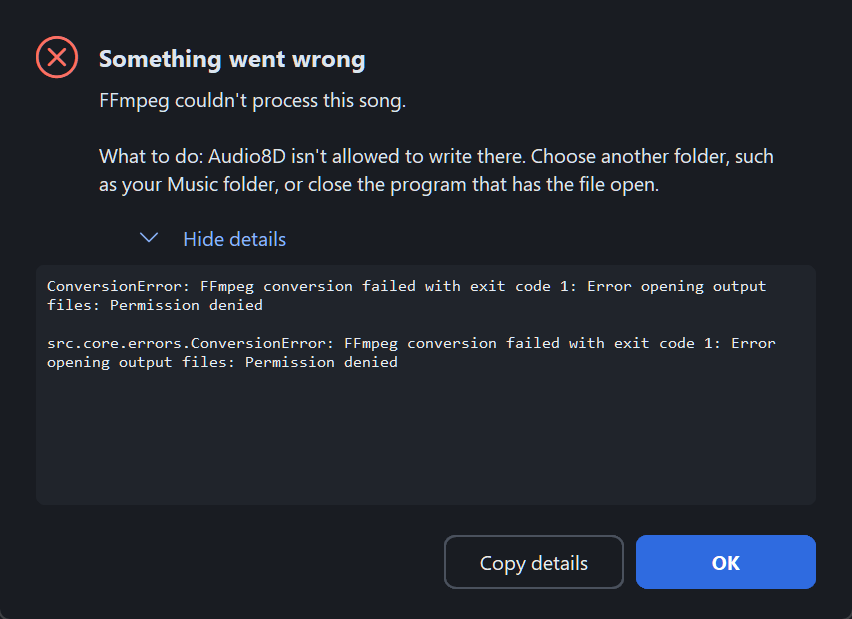
When something goes wrong, Audio8D says what happened in plain words and what to do. The technical details are under Show details; Copy details copies them for someone helping you.
🔁 Window or command line
The window and the command line offer the same features and share the same rules, the same styles and the same Settings (FFmpeg, Python, your styles). Use whichever you like.
Which window control matches which command-line option
| In the window | On the command line |
|---|---|
| Add songs, Add folder, drag and drop | Songs and folders after the command, as many as you like |
| Include songs in sub-folders | --recursive |
| Change style | --style NAME (--list-styles shows them all) |
| Use suggested styles | --suggest (shows the suggestion for each song) |
| Customize: Movement, Speed, Space | --movement, --speed, --space |
| Customize → Advanced: Movement amount, Seconds per circle, Room amount | --intensity, --rotation-seconds, --ambience |
| Sound engine, Path, Direction | --engine, --path, --direction |
| Keep bass centered / Bass centered below | --bass HZ or --bass off |
| Height, Ease in and out | --elevation, --fade |
| Spin in time with the beat, Tempo | --beat-sync / --no-beat-sync, --bpm TEMPO / --bpm off |
| Speed over time, Movement over time | --speed-curve, --intensity-curve (off for none) |
| Safe for speakers too | --speakers / --no-speakers |
| Keep the singer in the middle | --vocals center |
| Customize one song, Save this song differently | A line in a --per-song file |
| Reset to default | --default on a --per-song line |
| Preview, Compare A/B | --preview [SECONDS], --compare |
| Settings → Preview length (15–60 s) | --preview SECONDS (5–120 s) |
| Save them: In one folder I choose | --output-dir FOLDER |
| File names: ‘Song (8D)’ / Same as the original / Custom… | --name 8d / --name original / an output name after the song |
| If the 8D file exists: Replace it | --overwrite |
| Original songs: Replace them / Replace, keep ‘(8D)’ | --replace / --replace --name 8d |
| Output format, Quality, Loudness | --format, --bitrate, --loudness |
| Bitrate, MP3 variable quality | --bitrate KBPS or --bitrate auto, --quality 0..9 |
| Get as close to the loudness as possible | --exact-loudness / --no-exact-loudness |
| Peak limit (dB) | --limiter-ceiling (as a fraction: -1.5 dB ≈ 0.84) |
| Keep the album picture, Add ‘ (8D)’ to the song title | --cover / --no-cover, --title-tag / --keep-title |
| Use only part: from / to | --start TIME, --end TIME (off for none) |
| Check each finished song (off) | --no-check |
| Songs at once | --jobs N (1–16) |
| Play the first song when finished | --play |
| Step 4 Summary | --dry-run |
| Your styles: save, Edit, Rename, Duplicate, Delete, Export, Import a style… | --save-style, --update-style, --rename-style, --duplicate-style, --delete-style, --export-style, --import-style (with --style-description) |
| Settings → System check | --check |
| Settings → FFmpeg and FFprobe | --ffmpeg PATH, --ffprobe PATH (for one run) |
| Settings → Add-on | --addon-status, --install-addon, --repair-addon, --uninstall-addon, --python PATH |
| Show technical details | --verbose |
| Delete saved log files, Clear remembered data | --delete-logs, --clear-cache |
A few things only make sense on one side:
- Only in the window: the theme and size, drag and drop, opening this guide in your browser, and Open folder / Play after creating.
- Only on the command line: the step-by-step helper you get by typing the command alone.
⌨️ Command line
Everything the window does can also be done by typing commands, handy for many songs or for scripts.
How to start it:
| You have | Type (in a terminal) |
|---|---|
| The Windows package | .\audio8d-cli.exe (in the Audio8D folder) |
| The Linux or macOS package | ./audio8d-cli (in the Audio8D folder) |
| The source code (developers) | python src\__main__.py or python src/__main__.py (in the audio-8d folder, venv on) |
The examples below write audio8d; replace it with the line that fits you. Put names
with spaces in “quotes”. Typing the command alone starts a step-by-step helper
that asks you a few questions.
Make songs
audio8d "My Song.mp3"
audio8d "C:\Music" --output-dir "C:\Music 8D"
audio8d "C:\Music" --recursive --output-dir "C:\Music 8D" --jobs 4
audio8d "a.mp3" "b.flac" "C:\Music"
One song gives My Song (8D).mp3 next to the original (Studio style, MP3 High
quality, as loud as music apps). With a folder, --recursive also takes songs from
sub-folders and --jobs 4 makes 4 songs at once (1 to 16).
Several songs and folders in one run: list them all; they are made together like one
folder. Songs that would get the same new name (for example Intro.mp3 from two
folders, saved into one --output-dir) get ” (2)”, ” (3)” … instead of one
replacing the other: Intro (8D).mp3 and Intro (8D) (2).mp3. (With just two names, the second counts as a song to make only when
it is a folder or --output-dir is given; otherwise it is the output name.)
[!NOTE] An 8D file that already exists is skipped, for one song as for a folder: Audio8D says Nothing new to create and ends with exit code 0. Add
--overwriteto make it again.
Look before you make:
audio8d "C:\Music" --dry-run
audio8d "C:\Music" --suggest
--dry-run shows the settings and where each new song would be saved, then stops without
making anything. --suggest shows the style that suits each song best (from its tags),
then stops.
Choose the sound
audio8d "My Song.mp3" --style smooth
audio8d --list-styles
audio8d "My Song.mp3" --movement gentle --speed slow --space spacious
audio8d "My Song.mp3" --speed-curve "0=10, 1:00=6, 2:30=10"
--list-styles shows every style with its exact values (yours included). Exact values
also work (--intensity, --rotation-seconds, --ambience); don’t give a word and its
exact value together.
Switching a style’s setting off: several options have an “off” form, so you can undo
what a style (or the command line, in a --per-song file) switched on:
| Option | “Off” form |
|---|---|
--beat-sync |
--no-beat-sync (even when the style has beat sync on) |
--bpm TEMPO |
--bpm off (let Audio8D find the tempo) |
--speed-curve, --intensity-curve |
--speed-curve off, --intensity-curve off (the same all the way through) |
--speakers |
--no-speakers (made for headphones only, the normal) |
Curve times can have fractions of a second (for example 1:30.5=6), and they are kept
exactly.
Choose how it is saved
audio8d "My Song.mp3" --format flac
audio8d "My Song.mp3" --format m4a --bitrate 192
audio8d "My Song.mp3" --loudness match
audio8d "My Song.mp3" --loudness -16
audio8d "My Song.mp3" --start 1:30 --end 2:00 --format m4a
Formats: mp3 (default), flac, wav, m4a, opus. Loudness: -14 is Match music
apps (default), match is Keep original loudness, off means no change; any number
from -30 to -5 also works.
Like the window’s switches, these have both sides: --exact-loudness /
--no-exact-loudness, --no-cover / --cover, --keep-title / --title-tag, and
--start off / --end off (from the very start / to the very end).
Listen first
audio8d "My Song.mp3" --preview
audio8d "My Song.mp3" --preview 15
audio8d "My Song.mp3" --compare
--preview makes a short sample (30 seconds, or the number you give, from 5 to 120) in a
temporary folder, plays it and deletes it afterwards (on Windows press Enter or Ctrl+C to
stop early; on macOS and Linux it opens in your music player). --compare plays the
original, then the 8D version, at the same loudness. To keep a sample, name the file:
audio8d "My Song.mp3" "sample.wav" --preview 20.
Give some songs their own settings
For a folder, a small text file gives some songs their own settings (one song per line, then the same options you would type):
# song               its own settings
"Rain Study.mp3"     --style smooth --format flac
*.mp3                --loudness match
"Glass Clouds"       --default
"Storm Wall.flac"    --no-beat-sync --no-speakers --start off
audio8d "C:\Music" --per-song songs.txt
- The options on the command itself are the defaults; a line is one song’s override.
- A line names a song by its file name, its name without the extension, a pattern
(
*.flac) or a path. Every matching line applies, top to bottom. --defaulton a line is Reset to default for that song.- The “off” forms (
--no-beat-sync,--no-exact-loudness,--speed-curve off,--intensity-curve off,--bpm off,--no-speakers,--cover,--title-tag,--start off,--end off) undo, for that song, what the command line switched on. - Settings for the whole run (
--output-dir,--jobs…) can’t go on a line.
Your own styles on the command line
audio8d --movement gentle --speed slow --save-style "Late Night" --style-description "Calm evenings"
audio8d --space spacious --update-style "Late Night"
audio8d --rename-style "Late Night" "Late Night Drive"
audio8d --duplicate-style "Late Night Drive" "Sunday Drive"
audio8d --export-style "Sunday Drive" sunday.json
audio8d --import-style sunday.json "Shared Drive"
audio8d --delete-style "Shared Drive"
--save-style NAMEsaves the sound settings you typed as a new style; use it later with--style NAME. It saves only the sound: not the speakers switch, the file format or the loudness.--update-style NAMEsaves the settings into one of your saved styles (it starts from that style unless you add--style);--style-description TEXTadds a few words to either.--rename-style,--duplicate-style,--delete-style,--export-styleand--import-style(optionally under a new name) do the same as the buttons on Your styles, then stop. Deleting a style never touches songs already made.- The same name and sound checks as in the window apply.
The add-on, checks and help
audio8d --addon-status
audio8d --install-addon
audio8d --repair-addon
audio8d --uninstall-addon
audio8d "My Song.mp3" --vocals center
audio8d --check
audio8d --clear-cache
audio8d --delete-logs
audio8d --help
audio8d --version
--addon-statusexplains the add-on (exit code 0 = installed, 1 = not). Installing, repairing and uninstalling show the same steps and real percentages as the window.--python PATHchooses the Python used to install it.--checkruns every program Audio8D needs, says what to fix (exit code 0 = ready) and shows where the log file is. Add--verbosefor technical details.--clear-cacheforgets the remembered loudness measurements and singer splits (they are made again when needed);--delete-logsdeletes the saved log files.- Exit codes: 0 = done (also when every song was already made); 1 = a problem was explained (for example a song failed); 2 = the command itself was mistyped.
The command line uses the FFmpeg, Python and styles you chose in the window’s Settings.
All options
Every option, grouped (the same list as --help)
| How it sounds | |
|---|---|
| `--style NAME` | A style (`--list-styles`) or one of your own. Default `studio` |
| `--movement gentle\|balanced\|strong` | How far it moves (0.65 / 0.80 / 0.95) |
| `--speed slow\|normal\|fast` | How fast it goes around (12 / 8 / 5 seconds) |
| `--space dry\|natural\|spacious` | How big the room sounds (0.10 / 0.25 / 0.45) |
| `--intensity 0..1`, `--rotation-seconds 2..100`, `--ambience 0..1` | The same three, as exact values |
| `--engine 3d\|pan`, `--path circle\|arc\|figure8\|wander`, `--direction clockwise\|counterclockwise` | Engine, route and direction |
| `--bass HZ\|off` | Keep the bass centered below this pitch (default 120) |
| `--elevation 0..1`, `--fade SECONDS` | Height; ease in and out |
| `--beat-sync`, `--no-beat-sync`, `--bpm TEMPO\|off` | Circle in time with the beat (or not); the tempo, or let Audio8D find it |
| `--speed-curve "0=10, 1:00=6"`, `--intensity-curve "0=0.6, 1:00=0.95"` | Change speed or movement over time (`off` = the same all the way through) |
| `--vocals move\|center` | Singer in the middle (add-on) |
| `--speakers`, `--no-speakers` | Safe for speakers too; headphones only (normal) |
| Output (how the file is saved) | |
|---|---|
| `--format mp3\|flac\|wav\|m4a\|opus` | The file format |
| `--bitrate KBPS\|auto`, `--quality 0..9` | Exact quality (advanced) |
| `--loudness LEVEL\|match\|off`, `--exact-loudness`, `--no-exact-loudness` | Loudness; get as close to it as possible (or never limit peaks for it) |
| `--limiter-ceiling 0.0625..1` | Peak limit (advanced; 0.84 ≈ -1.5 dB, 0.89 ≈ -1.0 dB) |
| `--output-dir FOLDER`, `--name 8d\|original` | Where and under which name |
| `--replace`, `--overwrite` | Replace the originals (to the Recycle Bin or Trash); replace existing 8D files |
| `--start TIME\|off`, `--end TIME\|off` | Only part of the song (e.g. `1:30`) |
| `--no-cover`, `--cover` | No album picture; copy it (normal) |
| `--keep-title`, `--title-tag` | Don't add (8D) to the title; add it (normal) |
| `--no-check` | Don't check the result |
| More | |
|---|---|
| Several songs or folders | Made together; clashing names get " (2)", " (3)" |
| `--recursive`, `--jobs N` | With a folder: sub-folders too; N songs at once (1–16) |
| `--per-song FILE` | Settings of their own for some songs |
| `--preview [SECONDS]`, `--compare`, `--play` | Listen first (5–120 s, default 30); A/B; play the new file |
| `--dry-run`, `--suggest` | Show what would be made; suggest a style for each song |
| `--save-style NAME`, `--update-style NAME`, `--style-description TEXT` | Save these sound settings as a new style, or into one of yours |
| `--rename-style NAME NEW_NAME`, `--duplicate-style NAME NEW_NAME`, `--delete-style NAME` | Manage your styles |
| `--export-style NAME FILE`, `--import-style FILE [NAME]` | Share a style as a file |
| `--list-styles`, `--gui`, `--verbose`, `--version`, `--help` | Styles, the window, details, version, help |
| `--check`, `--ffmpeg PATH`, `--ffprobe PATH`, `--python PATH` | Check the setup (and show the log file); choose programs for this run |
| `--clear-cache`, `--delete-logs` | Forget remembered measurements and singer splits; delete the logs |
| `--addon-status`, `--install-addon`, `--repair-addon`, `--uninstall-addon` | The add-on |
Older names still work in scripts: `--preset` (= `--style`), `--list-presets`,
`--save-preset`, and the style names `lossless`, `streaming` and `hifi` (which, unlike the
styles above, also set how the file is saved).
🛠️ Troubleshooting
[!TIP] In the window, Settings → System check says what is wrong and what to do; on the command line,
--checkdoes the same and shows where the log file is.
Audio8D cannot find FFmpeg, or every song fails
Audio8D cannot find FFmpeg, or every song fails
Audio8D opens Settings → System check by itself and says what is wrong.
- A package: FFmpeg is inside the
_internalfolder (or insideAudio8D.app). Extract the ZIP again into a new folder and use that copy; don’t move files out of theAudio8Dfolder. - In the window: Settings → FFmpeg and FFprobe → Find automatically, or Browse… to choose an FFmpeg 7 or newer and Save and use, then Check everything again.
- Command line: add
--ffmpeg PATH --ffprobe PATHto use other copies for one run. - From source: see Running from source. If songs with any room
sound (every style except Voice) fail and Audio8D says Your FFmpeg is older than
version 7, install FFmpeg 7 or newer, even when
--checksays it is ready. - From source, the window doesn’t open: Tk or the window packages are missing. Linux:
sudo apt install python3-tk; macOS:brew install python-tk@3.13; then, with the venv on,python -m pip install customtkinter pillow.
The package won't start
The package won’t start
- Windows: “Windows protected your PC” → More info → Run anyway. Make sure you
extracted the ZIP first and started
Audio8D.exefrom the extractedAudio8Dfolder. - Linux: Permission denied →
chmod +x Audio8D/Audio8D Audio8D/audio8d-cli. The package needs 64-bit x86 and glibc 2.35 or newer (check withldd --version); the window needs a desktop session. - macOS: right-click
Audio8D.app→ Open; if it is “damaged”, runxattr -dr com.apple.quarantine Audio8D.app.
The song cannot be processed
The song cannot be processed
The message says why. Common causes: the file isn’t really music, is damaged, or was moved after you added it. Check that the song plays in your music app, or use another copy. Other songs are not affected.
Preview does not play
Preview does not play
- Wait for Preparing… to finish; long songs take a few seconds.
- Check your volume and that headphones are connected.
- On Linux,
xdg-utilsmust be installed and you need a default music player; the preview opens there, not inside Audio8D (the same on macOS).
Output folder cannot be written
Output folder cannot be written
“Audio8D isn’t allowed to save in …”: choose a folder you own, such as your Music folder (step 3, In one folder I choose → Browse…). Close any program that has the file open.
Nothing was created: "Nothing new to create"
Nothing was created
The 8D file already exists, so the song was skipped. In the window choose If the 8D
file exists: Replace it on step 3; on the command line add --overwrite.
The add-on will not install
The add-on will not install
- It needs Python 3.10 or newer (64-bit on Windows). The Add-on card says if Python is
missing or too old; on Windows install it from python.org (tick Add python.exe to PATH)
and click Find automatically. On Linux, install
python3-venv. - It needs an internet connection and enough free space (about 1 GB on Windows, several GB on Linux).
- Show details on the card has pip’s own words. Try Repair (reinstall).
I customized a song by accident
I customized a song by accident
Select it on step 2 and click Reset to default. Changes in Customize are only kept when you click Apply; Cancel changes nothing.
The output is too loud or too quiet
The output is too loud or too quiet
Step 3 → Loudness: Match music apps makes songs as loud as other music; Keep original loudness keeps each song as it was.
The movement feels too strong
The movement feels too strong
Choose a gentler style (Gentle, Front or Smooth), or Customize the song and set Movement: Gentle and Speed: Slow.
A song asks for the singer add-on
A song asks for the singer add-on
“… keep the singer in the middle, but the singer add-on isn’t ready”: install the add-on (Settings → Add-on), or customize those songs and switch the option off.
📚 Reference
Settings and defaults
Settings and defaults
| Setting | What it changes | Default | Simple recommendation |
|---|---|---|---|
| Style | The whole sound, as a ready-made set | Studio | Studio; Gentle for acoustic music |
| Movement | How far the music travels around you | Balanced (0.80) | Balanced; Gentle for calm music |
| Speed | How quickly it goes around | Normal (8 s per circle) | Normal; faster than 5 s can make some people dizzy |
| Space | How big the room sounds | Natural (0.25) | Natural; Dry for voices |
| Keep bass centered | The bass (below 120 Hz) stays in the middle | On | On |
| Height | Lets the sound float above ear level | 0 (ear level) | 0 |
| Ease in and out | The movement grows in at the start and settles at the end | 3 s | 3 s |
| Spin in time with the beat | Each circle lasts whole bars of music | Off (on in Groove) | On for dance and pop |
| Keep the singer in the middle | The voice moves only a little and stays close to the middle | Off | On for songs with vocals (needs the add-on) |
| Output format | The kind of file | MP3 | MP3; FLAC to keep every detail of the 8D mix |
| Quality | How much detail a compressed file keeps | High | High |
| Loudness | How loud the new song is | Match music apps (-14 LUFS) | Match music apps |
| Get as close to the loudness as possible | Shaves the loudest peaks to get as close to the level as possible (very loud songs can still land a little under it) | Off | Off |
| Peak limit | The loudest a peak may get | -1.5 dB (MP3, M4A, Opus), -1.0 dB (FLAC, WAV) | Leave it |
| Songs at once | How many songs are made at the same time | A good value for your computer (1–16) | Leave it |
| Preview length | How long a preview plays | 30 s | 15–30 s |
Where Audio8D keeps things
Where Audio8D keeps things
| What | Windows | macOS | Linux |
|---|---|---|---|
Settings (settings.json) and your styles (presets.toml) |
%APPDATA%\Audio8D |
~/Library/Application Support/Audio8D |
~/.config/audio8d |
Log (audio8d.log) |
%LOCALAPPDATA%\Audio8D\logs |
~/Library/Application Support/Audio8D/logs |
~/.config/audio8d/logs |
| Remembered measurements, separated vocals | %LOCALAPPDATA%\Audio8D\cache |
~/Library/Caches/Audio8D |
~/.cache/audio8d |
| The singer add-on | %LOCALAPPDATA%\Audio8D\addon |
~/Library/Application Support/Audio8D/addon |
~/.local/share/audio8d/addon |
| Previews (deleted automatically) | %TEMP%\Audio8D previews |
the system temporary folder | the system temporary folder |
Setting the environment variable AUDIO8D_HOME to a folder keeps all of these (except
previews) there instead. --check shows the log file’s exact place; Clear remembered
data (--clear-cache) and Delete saved log files (--delete-logs) empty the
cache and the logs.
How the sound is made
First, a gentle filter below 5 Hz removes any DC offset and inaudible rumble, which would otherwise use up headroom (it changes nothing you can hear). A mono song is copied to both ears at its full level. Audio8D then splits the song into bass and the rest (at 120 Hz by default, so the bass stays centered). The rest is moved along a path around your head using the cues ears use: the tiny time difference between the ears, the level difference, and the shadow of the head. A little reverb (Space) helps the sound feel outside your head. Then everything is mixed back, loudness is measured (EBU R 128) and set, peaks are limited, and the file is encoded: MP3 with LAME, M4A with FFmpeg’s AAC encoder, Opus with libopus, FLAC and WAV as 24-bit. All the work is done in 32-bit floating point, the song is resampled at most once (only when the format or the effect needs another rate), and a lossy file is encoded only once. The tags (title, artist, album, …) are copied, including from Opus and Ogg files, and so is the album picture where the format can hold one.
By default the peaks are protected: if reaching the loudness target would need more than about 5 dB of peak limiting, the song stays slightly under the target instead (Get as close to the loudness as possible changes that, though very loud or punchy songs can still land a little under it).
How the sound was checked
The same 23 test files (tones, sweeps, silence, mono, 5.1, hot and clipped audio, DC offset, lossy and hi-res sources, tagged files and a real song) were converted to all five formats by the old and the new code and measured by the same script: loudness, true peak, clipping, DC offset, spectrum, stereo width and correlation, channel order, distortion, metadata and decoding errors. A long file name, a damaged MP3 and a file that isn’t music were tried on the command line. The new code removed the DC offset (0.37–0.42 → 0.0001), let those files reach -14 LUFS, raised mono songs by the 3 dB they had lost, and kept the tags from Opus files. No new file clipped or failed to decode, and a real song changed by less than 0.1 dB in loudness and width. Nobody listened to the results as a formal listening test.
Exact ranges, paths and engines
| Setting | Range | Option |
|---|---|---|
| Movement (intensity) | 0 – 1 | --intensity |
| Seconds per circle | 2 – 100 | --rotation-seconds |
| Room (ambience) | 0 – 1 | --ambience |
| Bass crossover | 40 – 250 Hz, or off | --bass |
| Height (elevation) | 0 – 1 | --elevation |
| Ease in and out | 0 – 30 s | --fade |
| Tempo | 40 – 240 BPM, or off | --bpm |
| Loudness target | -30 – -5 LUFS | --loudness |
| Peak limit | 0.0625 – 1 (about -24 to 0 dB; the window shows dB) | --limiter-ceiling |
| MP3 variable quality | 0 (best) – 9 | --quality |
| Bitrate | 128, 160, 192, 224, 256, 320 kbps | --bitrate |
| Preview length | 5 – 120 s (window: 15, 30, 45 or 60 s) | --preview |
| Songs at once | 1 – 16 | --jobs |
Paths: circle (all the way round), arc (side to side in front), figure8 (loops around each ear), wander (drifts). Engine: 3d (the cues above) or pan (simple left-right, safe for speakers). Beat sync detects the tempo and rounds the circle to 2, 4, 8, 16 or 32 beats.
Words used in this guide
Words used in this guide
| Word | Meaning |
|---|---|
| 8D audio | Music that seems to move around your head when you use headphones. |
| Style | A ready-made group of sound settings. |
| Default / Custom | The settings every song uses / settings that belong to one song. |
| Customize | Change the settings of one song (or the default). |
| Preview | A temporary listen that does not create the final file. |
| Compare A/B | A temporary listen to the original, then the 8D version. |
| Create | Make and save the new 8D files. |
| Output | How the new file is saved: format, quality, loudness, folder. |
| Bitrate | A quality/size setting for compressed audio such as MP3. |
| Lossless | Audio saved without throwing any sound data away (FLAC, WAV). |
| LUFS | The unit for how loud music feels; music apps use about -14. |
| Add-on | An optional extra part you can install and remove. |
| FFmpeg | The sound program Audio8D uses to do the work. |
| Terminal | A window where you type commands instead of clicking. |
| Git / Git LFS | The tool that downloads the source code / its add-on for large files. |
| venv | A private Python environment just for Audio8D, in the .venv folder. |
⚠️ Known limitations
Platforms and packages
- The macOS package has not been built or tested. It is designed, but no Mac was available. It is for Apple Silicon only; an Intel Mac package can only be made by building on an Intel Mac (untested).
- No ARM packages for Linux or Windows. The Linux package needs 64-bit x86 and glibc 2.35 or newer.
- No GitHub releases. The packages are made into
binby the build script and are only on GitHub once they are committed and pushed. - The packages are not signed, so Windows (SmartScreen) and macOS (Gatekeeper) warn the first time.
- The packages are large (about 80–100 MB) because they include Python and FFmpeg.
- Drag and drop works on Windows only, although the window says Drop songs or folders here on Linux too. On macOS and Linux use Add songs / Add folder.
- Previews play inside the window on Windows only. On macOS and Linux they open in your music player and can’t be stopped from Audio8D.
- From source, FFmpeg older than 7.0 is not detected by the System check or
--check; songs with any room sound (every style except Voice) then fail, and the message says Your FFmpeg is older than version 7. (The packages always include FFmpeg 7 or newer.)
Features
- The singer add-on needs a Python on your computer, can download several GB on Linux, and each song with it takes a minute or two (the separated voice is remembered).
- Screen readers: everything works from the keyboard, but Tk (the toolkit under the window) does not give control names to screen readers such as Narrator or NVDA.
- Dialogs (Change style, Customize) take about half a second to appear.
- Style suggestions come from tags and names, not from listening to the audio.
- No “16D” styles. “16D” has no technical definition; Audio8D moves a song along one path, so relabelling a style as 16D would be misleading.
- Previewing a style (Change style, or Edit on Your styles) uses the all-songs output settings; a song’s own output settings are used when the song is created.
- Styles saved long ago “based on hifi” load with Gentle’s movement and room; open them with Edit and adjust if they sound different.
Sound
- No formal listening test was done; the sound was checked by measurement (see How the sound is made).
- A partly damaged MP3 converts without a warning. MP3 players skip damaged parts, and so does Audio8D; listen to the result if the source may be damaged.
- 5.1 and other surround files are mixed down to stereo by FFmpeg’s standard downmix (the LFE channel is left out) before the 8D effect.
- Low tones in M4A and Opus carry a little more distortion than in MP3 or FLAC; this comes from those encoders, not from the 8D effect.
👩💻 Running from source
This part is for developers. Normal users should use a package (see Quick start).
You need:
| Software | Windows | Linux | macOS (not tested) |
|---|---|---|---|
| Python 3.10 or newer, with Tk | python.org (tick Add python.exe to PATH) | sudo apt install python3 python3-venv python3-pip python3-tk |
brew install python@3.13 python-tk@3.13 |
| Git | Git for Windows plus Git LFS (check git lfs version) |
sudo apt install git |
brew install git |
| FFmpeg 7.0 or newer | Included in the repository: vendor\ffmpeg\windows-x86_64 (Git LFS) |
Install it yourself (below) | brew install ffmpeg (check ffmpeg -version) |
| CustomTkinter, Pillow | pip (below) |
pip (below) |
pip (below) |
Get the code and run it (Windows):
git lfs install
git clone https://github.com/gcfernando/audio-8d.git
cd audio-8d
python -m venv .venv
.\.venv\Scripts\Activate.ps1
python -m pip install customtkinter pillow
python src\__main__.py --check
python src\__main__.py --gui
vendor\ffmpeg\windows-x86_64\ffmpeg.exemust be about 105 MB. If it is only a few hundred bytes, Git LFS was missing: install it and rungit lfs pull.- If Windows refuses to run
Activate.ps1, runSet-ExecutionPolicy -Scope CurrentUser RemoteSignedonce, or skip the venv. - Double-clicking
Audio8D.pywalso opens the window, using your normal Python (not the venv), so the two packages must be installed there too.
Get the code and run it (Linux or macOS):
git clone https://github.com/gcfernando/audio-8d.git
cd audio-8d
python3 -m venv .venv
. .venv/bin/activate
python -m pip install customtkinter pillow
python src/__main__.py --check
python src/__main__.py --gui
Git LFS is not needed on Linux or macOS. On macOS use python3.13 -m venv .venv.
[!WARNING] FFmpeg 7 on Linux. Ubuntu’s own
ffmpegpackage is too old (22.04 has 4.4, 24.04 has 6.1):--checkpasses but songs with any room sound fail (FFmpeg’s own words are Option ‘irnorm’ not found; Audio8D says Your FFmpeg is older than version 7).
A tested fix for 64-bit x86 is the static build:
curl -LO https://johnvansickle.com/ffmpeg/releases/ffmpeg-release-amd64-static.tar.xz
mkdir ffmpeg-static
tar -xf ffmpeg-release-amd64-static.tar.xz -C ffmpeg-static --strip-components=1
sudo install -m 755 ffmpeg-static/ffmpeg ffmpeg-static/ffprobe /usr/local/bin/
ffmpeg -version
Install as commands, with the developer tools:
python -m pip install -e ".[gui,dev]"
This adds the commands audio8d and audio8d-gui, plus pytest, ruff, pylint and pyright.
An editable install (-e) finds FFmpeg like running from source. A normal
(non-editable) install doesn’t: put FFmpeg on your PATH, choose it in Settings, or use
--ffmpeg PATH --ffprobe PATH. Install the singer add-on from Settings (the stems
extra exists but is not needed).
📦 Building the packages
Each package is built on its own system: PyInstaller can’t build for another system.
From the repository folder (audio-8d):
python packaging/build_release.py
On Linux and macOS write python3. On Windows,
powershell -ExecutionPolicy Bypass -File packaging\build.ps1 does the same (it calls
build_release.py; the old -Zip switch is accepted but no longer needed).
Build requirements:
| Windows | Linux | macOS | |
|---|---|---|---|
| Python 3.10+ with Tk | python.org | sudo apt install python3 python3-venv python3-tk |
Homebrew (as above) |
| Git | with Git LFS (for vendor\ffmpeg) |
yes | yes |
| Internet | first build (packages) | first build (packages and FFmpeg) | first build (packages and FFmpeg) |
What it does:
- Makes its own environment in
build/venv-<system>and installs Audio8D with its window packages and PyInstaller, at the exact versions pinned inpackaging/requirements-build.txt(the same versionsTHIRD-PARTY-NOTICES.mdlists). - Gets FFmpeg 7 or newer: on Windows from
vendor/ffmpeg/windows-x86_64; on Linux x86_64 it downloads the johnvansickle.com static build and checks its published MD5; on macOS it downloads the osxexperts.net Apple Silicon build (evermeet.cx on Intel; macOS downloads not verified). An older FFmpeg is refused.--ffmpeg-dir FOLDERuses your ownffmpegandffprobe(7+) instead. - Builds the programs from
packaging/audio8d.spec, adds the README, licences andHOW TO RUN.txt, and writesbin/Audio8D-<version>-<system>-<processor>.zip, keeping the “may run” marks. - Tests the package: unpacks it to a folder with spaces in its name, runs
--versionand--checkwith no Python on the PATH, and converts a generated test tone.--skip-checkskips this. Any failure stops with Build failed: … and says why.
Temporary files stay in build/ (not stored in git).
What bin contains (only the release packages, stored with Git LFS):
bin/
  Audio8D-1.0.0-windows-x86_64.zip
  Audio8D-1.0.0-linux-x86_64.zip
  Audio8D-1.0.0-macos-arm64.zip     (after a build on a Mac)
[!NOTE] There is no CI workflow yet; build each package on its own system.
🧪 Tests and project layout
Tests and checks (from the repository folder, after pip install -e ".[gui,dev]"):
python -m pytest                        # all tests (window tests need a screen)
python -m ruff check .
python -m ruff format --check .
python -m pylint src tests packaging/build_release.py
python -m pyright src tests
The suite has 1382 tests. They include the real window, the command line, the add-on
install/repair/uninstall (with pip faked), temporary-preview cleanup, a check that the
window and the command line offer the same features, and a check that every audio8d
command in this guide is valid.
Layout of src (the audio8d package)
| Part | Holds |
|---|---|
pipeline.py, batch.py, effects/, analysis/, ffmpeg/, files/ |
The conversion, shared by the window and the command line |
core/presets.py, core/sound_levels.py, core/style_guide.py |
The styles (sound only), the standard output, the Movement/Speed/Space words |
core/locations.py |
Where settings, logs and the bundled FFmpeg are found |
song_settings.py, per_song.py |
How a song’s own settings combine with the defaults (window and --per-song) |
gui_model.py |
The window’s settings, Customize drafts, Reset to default, checks; no widgets |
previews.py, player.py |
Temporary previews and playback |
addons.py, addon_progress.py, health.py |
Add-on status, install, repair, uninstall; the system check |
cli.py, cli_manage.py, options.py, display.py, display_health.py, guided.py |
The command line (cli_manage.py: saved styles, the add-on, cache and logs) |
gui_app.py + app_*.py |
The main window, split by topic |
gui_*.py, gui_modal.py, gui_widgets.py, gui_fields.py, gui_table.py |
The window’s pages, dialogs and building blocks |
dropfiles.py, launcher.py |
Windows only: drag and drop, and reopening a double-clicked console in Windows Terminal |
Other folders: packaging/ (build scripts, the PyInstaller spec and the pinned build
requirements), vendor/ffmpeg/ (the Windows FFmpeg, Git LFS), bin/ (the release ZIPs),
tests/, docs/images/.
Business rules live outside the window and the command line, so they can’t drift apart. FFmpeg, FFprobe, Python and pip are always run with argument lists (never through a shell) and are stopped when cancelled or when the window closes.
🙏 Credits and licences
Audio8D is developed by Gehan Fernando and released under the MIT License.
It uses
FFmpeg (GPL-3.0; included in every package),
Python (included in every package),
CustomTkinter,
Pillow, and, optionally,
Demucs with
PyTorch; the packages are built with
PyInstaller. The licences of the parts shipped with Audio8D are
in the licenses folder and listed in THIRD-PARTY-NOTICES.md;
Demucs and PyTorch are downloaded by the add-on under their own licences (MIT and
BSD-3-Clause).
🎧 Put on your headphones and press play!
Documentation links
Read all Audio8D guides online · Project overview · All developer projects