🪟 Glass.Message — Modern MessageBox Replacement for WinForms (C#/.NET)
Glass.Message is a C# Windows Forms dialog library for .NET Framework 4.8.1 and .NET 8, 9 and 10. It provides themed message dialogs, inline inputs, progress dialogs and toast notifications.
Mica & Acrylic backdrops · automatic dark/light theming · fluent builder · async dialogs · inline inputs · progress · toasts · full RTL






⬇️ Download the latest release · 📜 Changelog
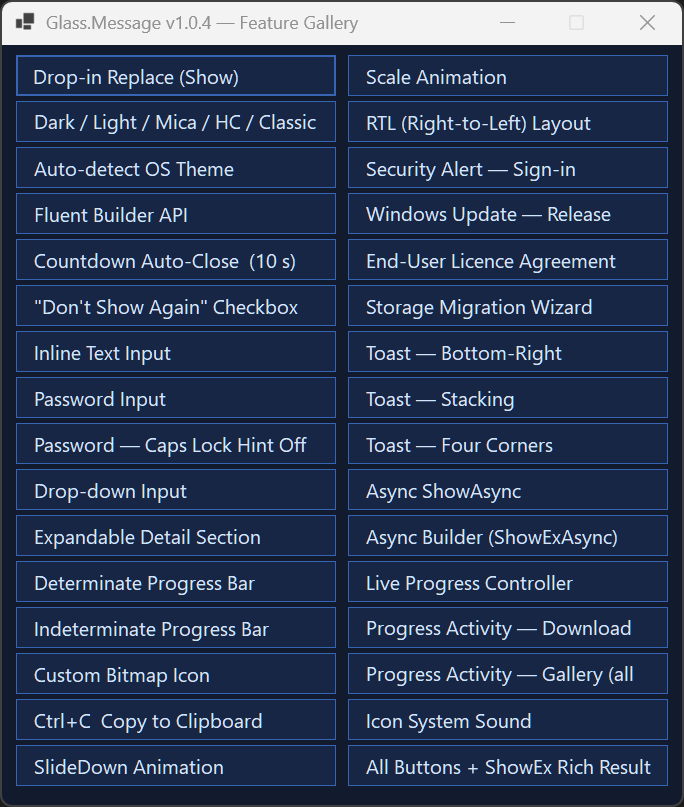
Themed dialogs, inline inputs, progress and toast notifications.
✨ The one-line pitch
For supported MessageBox.Show(...) overloads, use GlassMessage.Show(...) to display a themed, DPI-aware dialog. Install the package and import its namespace as shown in the quick start, then choose a standard overload or use the fluent builder for additional options.
😴 Before — MessageBox |
🪟 After — GlassMessage |
|---|---|
MessageBox.Show(
    "The printer is offline.",
    "Printer Offline",
    MessageBoxButtons.OK,
    MessageBoxIcon.Warning);
|
GlassMessage.Show(
    "The printer is offline.",
    "Printer Offline",
    MessageBoxIcon.Warning);
|
| Flat, dated, fixed grey chrome | 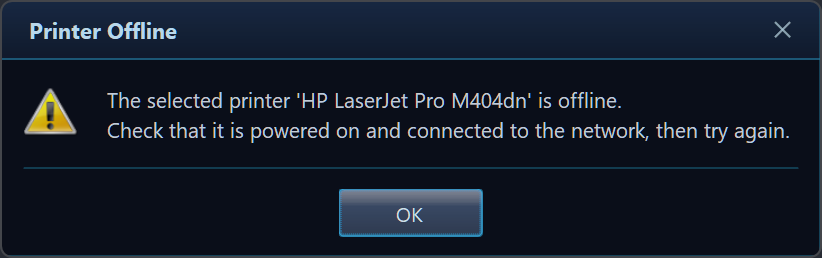 |
The
Show(...)overloads are signature-compatible withSystem.Windows.Forms.MessageBox, so most call sites compile untouched and still return aDialogResult.
📊 Why Glass.Message?
MessageBox |
Glass.Message | |
|---|---|---|
Drop-in Show(...) API |
✅ | ✅ |
| Dark / Light / custom themes | ❌ | ✅ |
| Auto-follow OS theme | ❌ | ✅ |
| Windows 11 rounded corners + Mica | ❌ | ✅ |
| Open / close animations | ❌ | ✅ |
| Inline text / password / dropdown input | ❌ | ✅ |
| Checkbox (“don’t show again”) | ❌ | ✅ |
| Progress bar (in the dialog) | ❌ | ✅ |
| Live progress updates (controller) | ❌ | ✅ |
| Expandable “Show details” panel | ❌ | ✅ |
| Countdown auto-close | ❌ | ✅ |
| Custom bitmap icon | ❌ | ✅ |
async / awaitable + cancellable (incl. rich dialogs) |
❌ | ✅ |
| Toast notifications (multi-monitor aware) | ❌ | ✅ |
| Full RTL layout | ⚠️ partial | ✅ |
Ctrl+C copies message |
✅ | ✅ |
🆕 What’s new in v1.0.6
A quality, performance, and concurrency hardening release — no new features, no public API changes. All of the fixes below were verified with real stress/concurrency tests and live-rendered DPI screenshots, not code review alone.
| Area | Change |
|---|---|
| Concurrency | GlassProgressController.SetValue/SetMessage/SetActivity now coalesce rapid or concurrent calls so at most one UI update per kind is ever queued, instead of flooding the UI thread with one BeginInvoke per call under high-frequency updates. Verified with 6 concurrent worker threads plus a live message pump: no deadlock, no hang, no cross-thread exception. |
| Async lifecycle | Verified that cancellation before showing, immediately after showing, while visible/animating, concurrently with a button click, and during owner disposal all reach a terminal task state — no hangs. |
| Memory / GDI+ | Toast notifications and the dialog’s close-button/countdown-ring pens no longer allocate new paths/brushes/pens on every animation frame or repaint — they’re now built once and reused, like GlassDialog/GlassButton already do. Verified GDI/USER handle counts stay bounded across 300 dialog and 200 toast create/dispose cycles. |
| Rendering / DPI | Verified from actual rendered screenshots that dialogs rescale cleanly with sharp corners, crisp borders, and no artifacts at 100%, 125%, 150%, 175%, and 200% DPI. |
| Reliability | Verified no stale toast entries after 25 simultaneous and 50 rapid-sequential toast show/dismiss cycles, and no corruption when a DPI change fires while progress updates and an open toast are concurrently active. |
See the full CHANGELOG for details, including the prior v1.0.5 progress-animation release and v1.0.4 activity-aware progress release.
// Live progress now glides between values instead of jumping:
var progress = GlassMessage.Create("Uploading to OneDrive…")
    .Title("Backup")
    .Progress(0, 100)
    .ProgressActivity(GlassProgressActivity.Upload)   // glowing packets flow →
    .Buttons("Cancel")
    .ShowProgress();

progress.SetValue(60);                                // fill eases up smoothly
progress.SetActivity(GlassProgressActivity.Sync);     // ripple eases both ways
🖼️ Preview Gallery
Fluent builder + custom buttons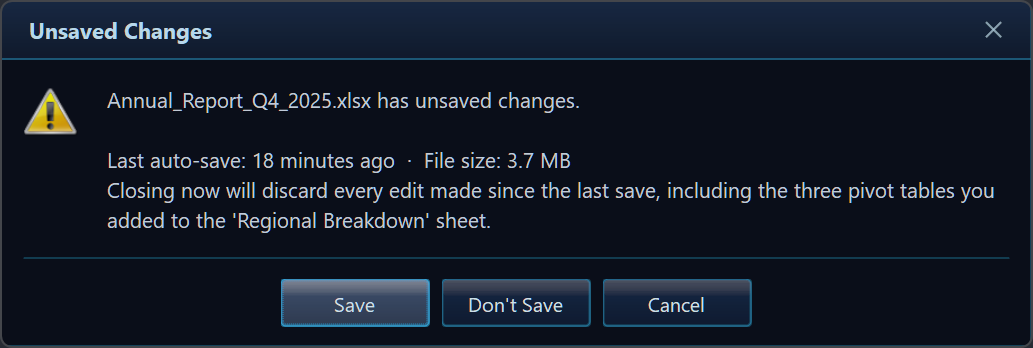 |
Inline text input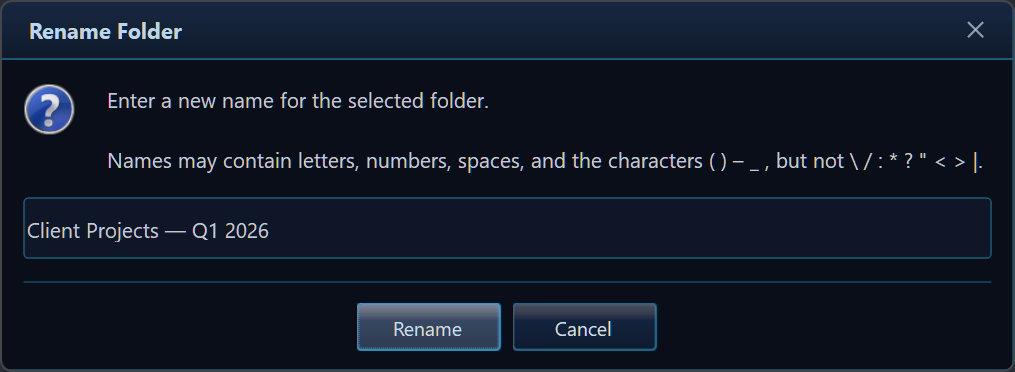 |
Password + reveal eye + Caps Lock hint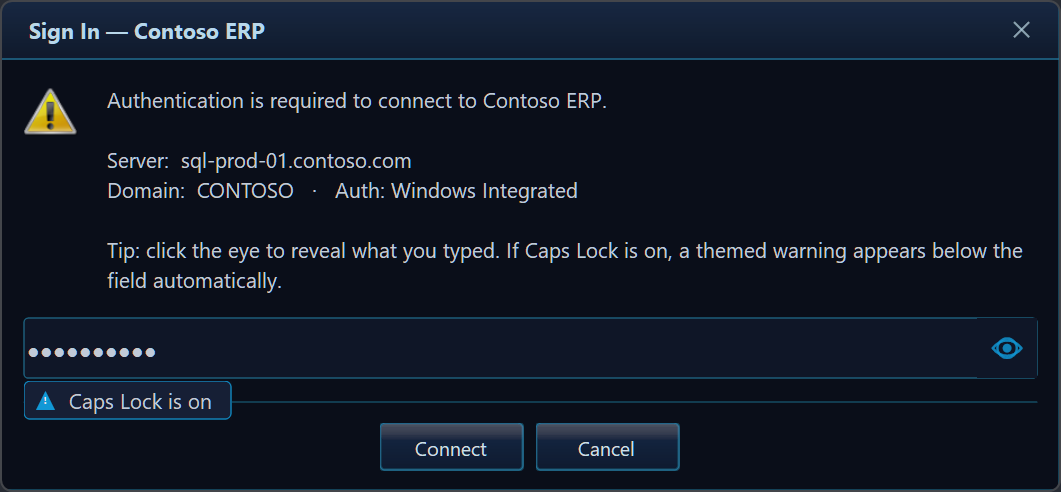 |
Drop-down picker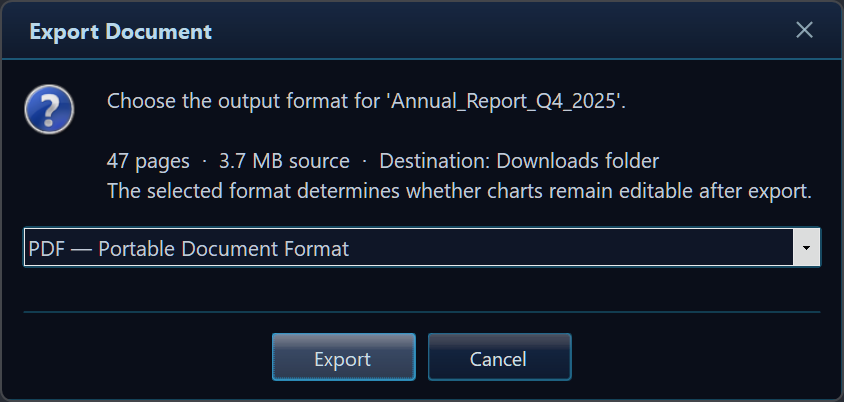 |
Expandable detail (stack traces)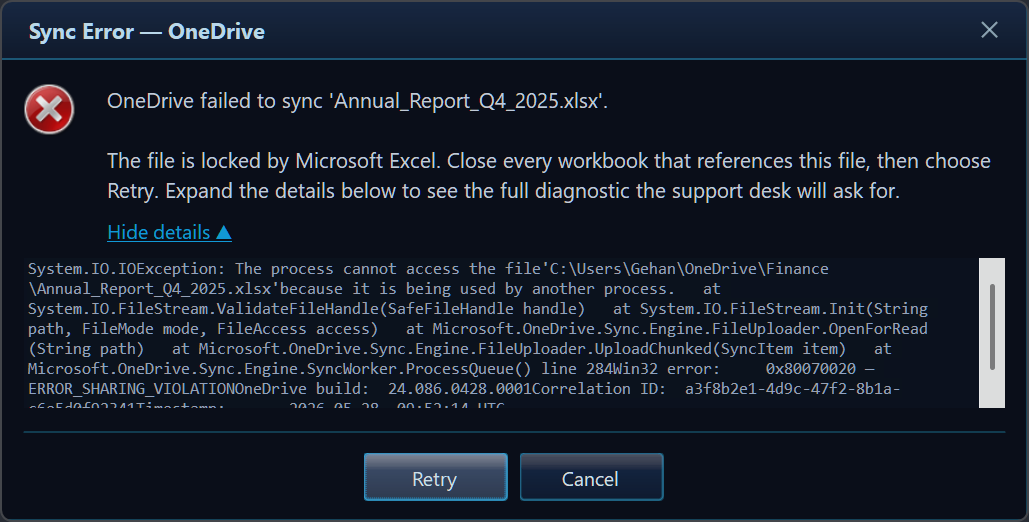 |
Determinate progress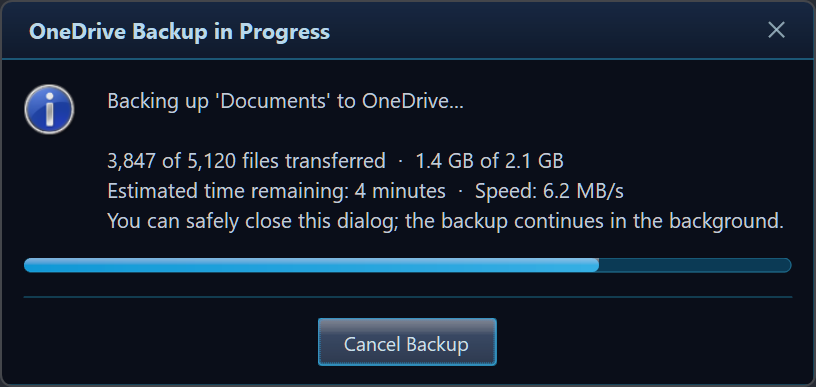 |
Countdown auto-close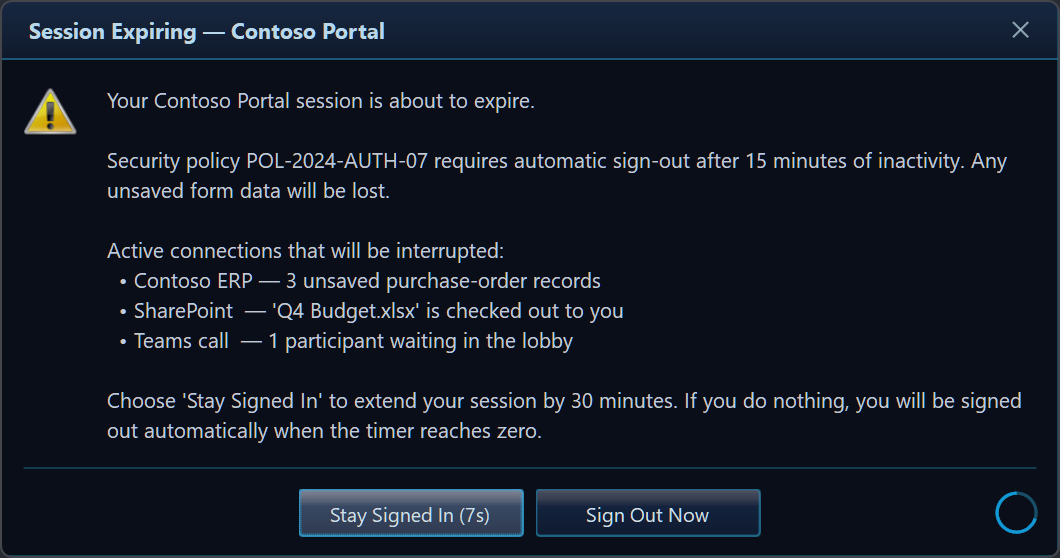 |
"Don't show again" checkbox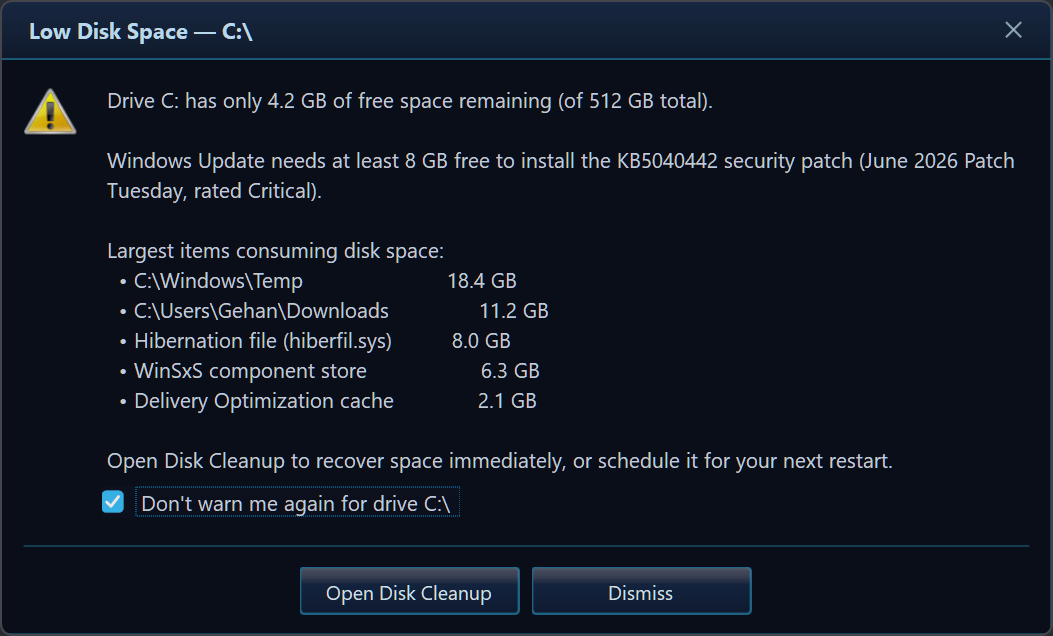 |
Async builder — awaitable rich dialogs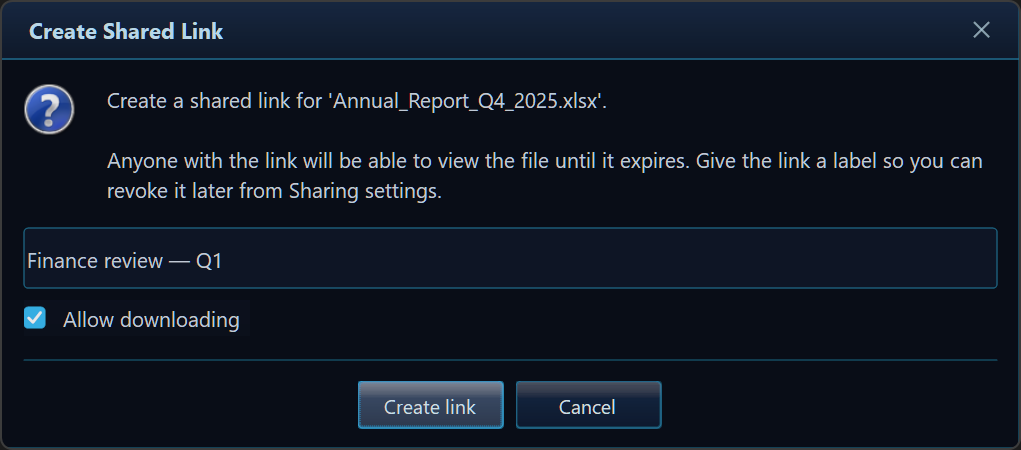 |
Live progress controller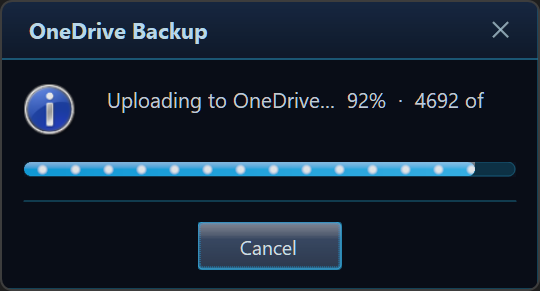 |
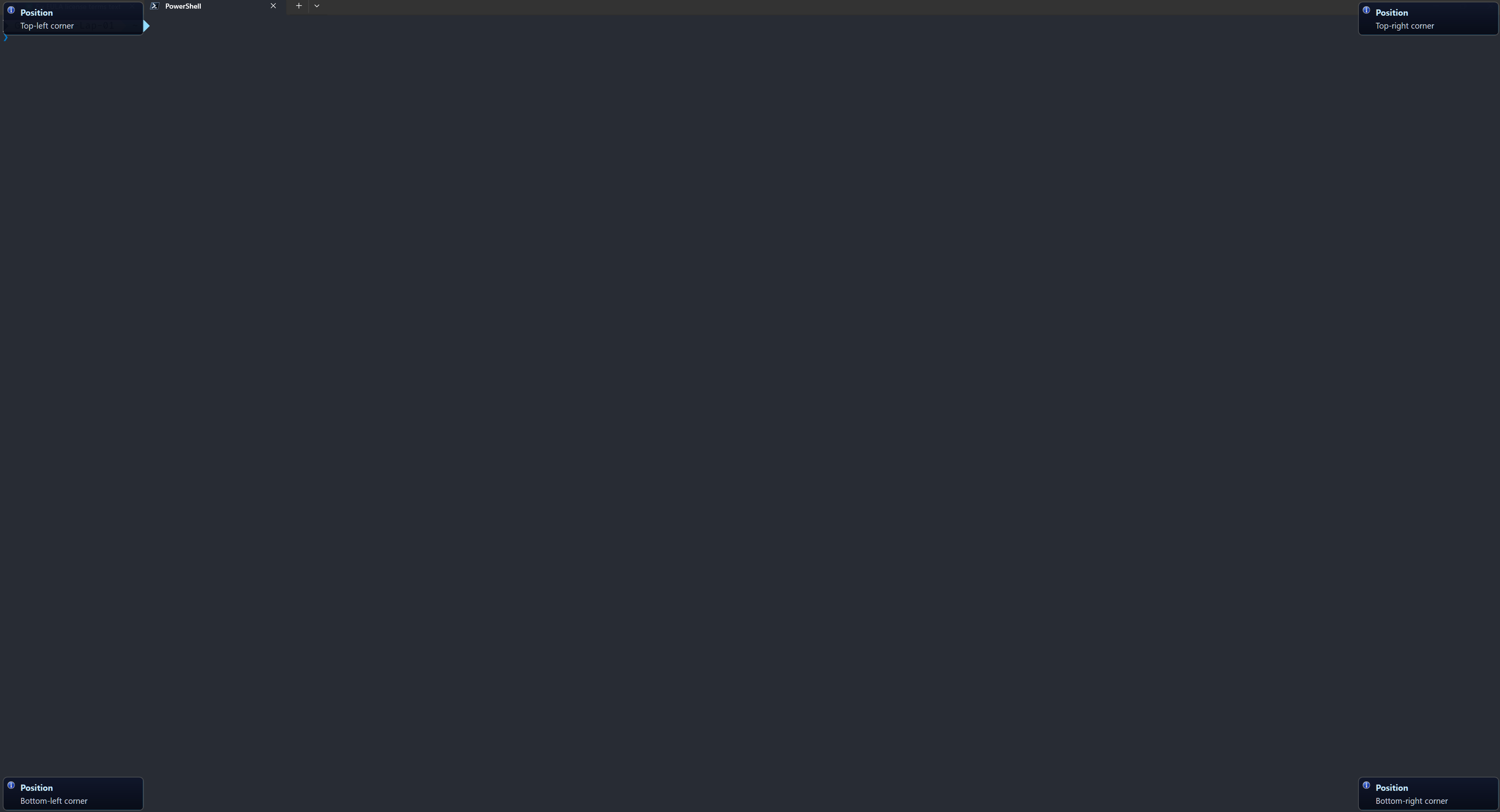
Toasts — non-modal, auto-stacking notifications at any corner
🎨 Five themes out of the box
Dark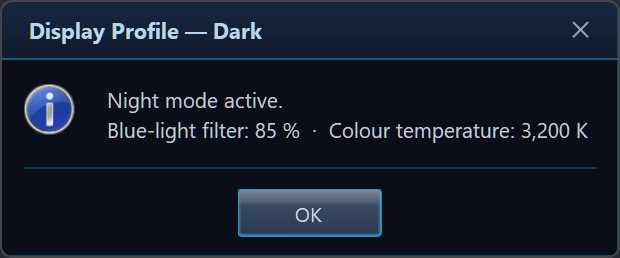 |
Light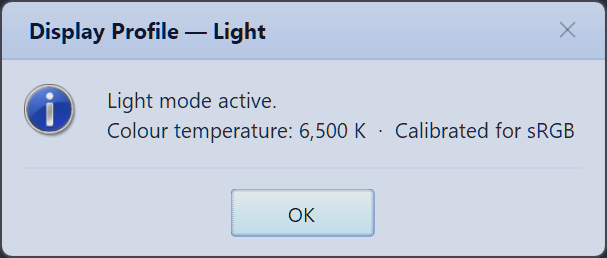 |
Mica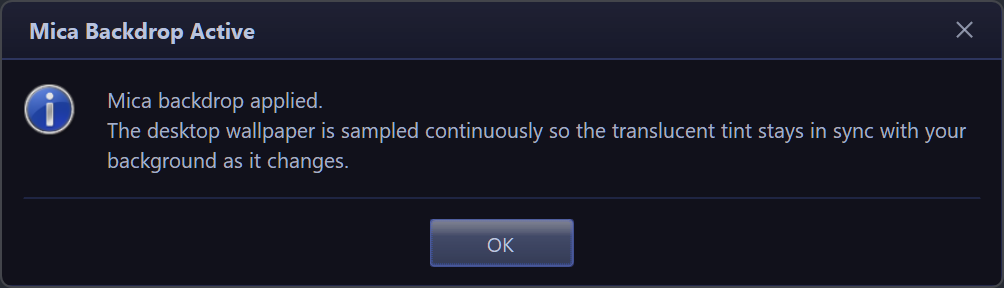 |
High Contrast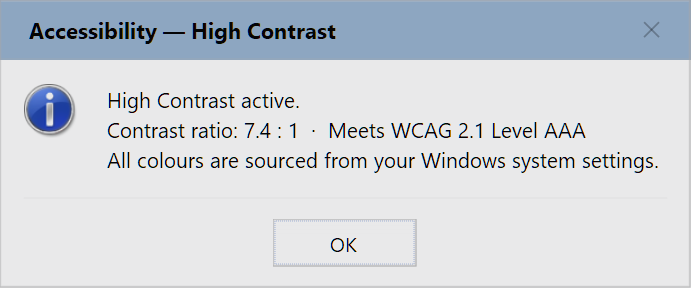 |
Windows Classic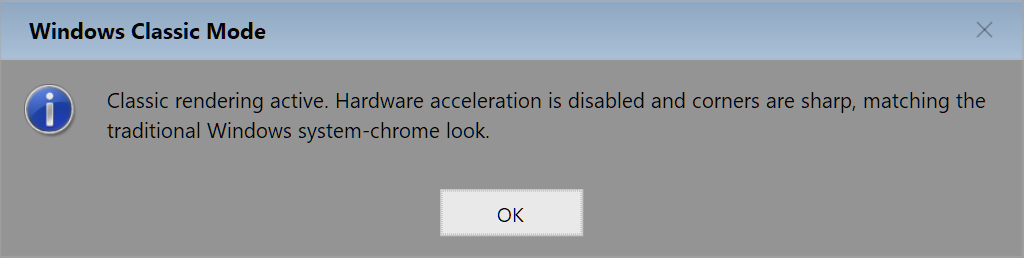 |
…or build your own Custom GlassTheme → |
GlassMessage.Create("Mica backdrop applied.")
    .Title("Mica Backdrop Active")
    .Icon(MessageBoxIcon.Information)
    .Theme(GlassTheme.Mica)   // GlassTheme.Dark (= Default) · Light · Mica · HighContrast · WindowsClassic
    .Show();
📑 Table of Contents
Features · Installation · Quick Start · Usage Guide · Demo Walkthrough · API · Configuration · Styling · Best Practices · Structure · Requirements · Run the Demo · FAQ · Full Example
🚀 Features
Everything below is backed by real code in Glass.Message and shown live in Glass.Demo.
| Category | Capability |
|---|---|
| Drop-in API | GlassMessage.Show(...) overloads that mirror MessageBox.Show exactly |
| Fluent builder | GlassMessage.Create(...) for composable dialogs |
| Async | ShowAsync(...) on the facade and the builder (ShowAsync() / ShowExAsync()) — non-blocking, awaitable, cancellable |
| Rich result | ShowEx() / ShowExAsync() return button + checkbox state + typed input |
| Live progress | ShowProgress() → a thread-safe GlassProgressController you update while work runs |
| Activity-aware progress | ProgressActivity(...) animates the bar to match the operation (upload, download, sync, compress, …) — 6 distinct families, switchable live |
| Theming | Dark, Light, Mica, HighContrast, WindowsClassic + custom themes |
| Auto theme | GlassTheme.AutoDetect() follows the Windows light/dark/HC setting |
| Modern chrome | Windows 11 rounded corners (DWM), Mica backdrop, Acrylic fallback |
| Inputs | Single-line, password (reveal + configurable Caps Lock hint), multi-line, drop-down |
| Checkbox | “Don’t show again”-style opt-in under the message |
| Detail panel | Expandable “Show details” for stack traces / diagnostics |
| Progress | Determinate and indeterminate (marquee) bars, with optional activity-matched flow animations |
| Countdown | Auto-confirm the default button with a live circular countdown |
| Custom icon | Any 48×48 Bitmap (e.g. a product logo) |
| System sounds | Sound() / GlassMessage.PlaySystemSounds play the icon’s Windows sound on open |
| Animations | Fade (default), SlideDown, Scale, None |
| Keyboard | Ctrl+C copies title + message; Enter/Esc map to sensible results |
| RTL | Full right-to-left mirrored layout |
| Toasts | Six anchor positions, auto-stacking, multi-monitor aware, click actions, async variant |
| Cross-target | .NET Framework 4.8.1 and .NET 8 / 9 / 10 (Windows) |
📦 Installation
Option A — Download from Releases (no account, no NuGet needed)
Grab the latest build straight from the repo’s Releases page → Latest. Each release includes:
| Download | Use it for |
|---|---|
Glass.Message.<ver>.nupkg |
The NuGet package — all four frameworks in one file (AnyCPU: x86 + x64) |
Glass.Message-<ver>-net481.zip |
Just the .NET Framework 4.8.1 DLL + XML docs (AnyCPU) |
Glass.Message-<ver>-net8.0-windows.zip |
Just the .NET 8 DLL (AnyCPU) |
Glass.Message-<ver>-net9.0-windows.zip |
Just the .NET 9 DLL (AnyCPU) |
Glass.Message-<ver>-net10.0-windows.zip |
Just the .NET 10 DLL (AnyCPU) |
Glass.Demo-<ver>-win-x64.zip |
The runnable demo gallery, 64-bit — unzip and run Glass.Demo.exe (no .NET install required) |
Glass.Demo-<ver>-win-x86.zip |
The runnable demo gallery, 32-bit — for older / x86 Windows |
To use a raw DLL, unzip it and reference Glass.Message.dll from your project:
<ItemGroup>
  <Reference Include="Glass.Message">
    <HintPath>libs\Glass.Message.dll</HintPath>
  </Reference>
</ItemGroup>
Option B — Project reference (how the demo is wired today)
<ItemGroup>
  <ProjectReference Include="..\Glass.Message\Glass.Message.csproj" />
</ItemGroup>
dotnet add reference ..\Glass.Message\Glass.Message.csproj
Option C — NuGet package (local or private feed)
The downloadable .nupkg carries full NuGet metadata (PackageId = Glass.Message, MIT-licensed). Drop it into a local folder feed, then:
dotnet add package Glass.Message
Install-Package Glass.Message # Package Manager Console
Then add a single
using Glass;and you’re ready. See the CHANGELOG for what’s new in each version.
⚡ Quick Start
using Glass;
using System.Windows.Forms;

// 1) (Optional) set global defaults once at startup, e.g. in Program.Main():
GlassMessage.UseRoundedCorners = true;                    // Windows 11 rounded corners
GlassMessage.DefaultTheme      = GlassTheme.AutoDetect(); // follow the OS theme

// 2) Show a basic, MessageBox-style dialog:
DialogResult result = GlassMessage.Show(
    "Your changes have been saved.",
    "Success",
    MessageBoxIcon.Information);

// 3) React to the result exactly like a classic MessageBox:
if (result == DialogResult.OK) { /* ... */ }
Expected behaviour: a themed dialog fades in, centred on the screen containing the mouse cursor (multi-monitor aware), with a glossy OK button. Enter, OK, or Esc all return DialogResult.OK for a single-button dialog.
📚 Complete Usage Guide
Grouped and collapsible — expand what you need.
1 · Drop-in replacement — Show
All the classic MessageBox overloads exist.
GlassMessage.Show(
    "The selected printer 'HP LaserJet Pro M404dn' is offline.\n" +
    "Check that it is powered on and connected to the network, then try again.",
    "Printer Offline",
    MessageBoxIcon.Warning);
Params: message, title, icon, buttons, defaultButton, optional owner/theme.
Best practice: keep using the returned DialogResult exactly as before.
2 · Fluent builder — Create(...)
Every method returns the builder, so calls chain.
GlassMessage.Create(
        "Annual_Report_Q4_2025.xlsx has unsaved changes.\n\n" +
        "Closing now will discard every edit made since the last save.")
    .Title("Unsaved Changes")
    .Icon(MessageBoxIcon.Warning)
    .Buttons("Save", "Don't Save", "Cancel")
    .Default(MessageBoxDefaultButton.Button1)
    .Show();
Custom button mapping — the number of labels picks the nearest standard layout, so each click still maps to a meaningful DialogResult:
| Labels | Layout | Returned results (in order) |
|---|---|---|
| 1 | OK | OK |
| 2 | OK / Cancel | OK, Cancel |
| 3+ | Yes / No / Cancel | Yes, No, Cancel |
⚠️ With three labels, the first button returns
DialogResult.Yes(notOK). Always confirm which result your labels map to.
3 · Auto-detect the OS theme
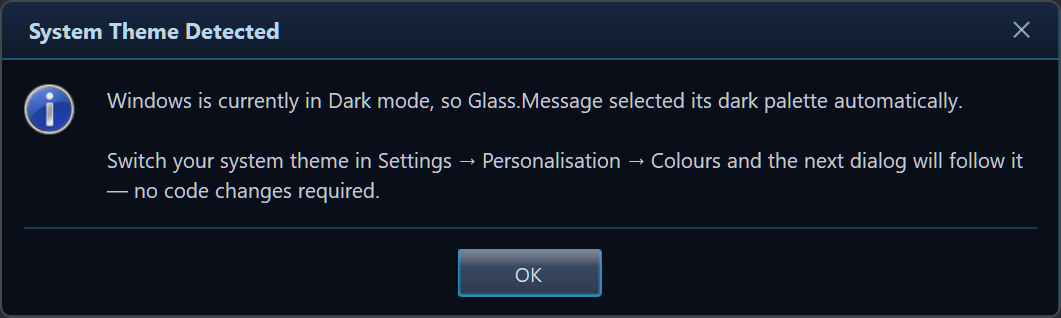
var theme    = GlassTheme.AutoDetect();
var modeName = GlassTheme.IsSystemDark() ? "Dark" : "Light";

GlassMessage.Create($"Windows is currently in {modeName} mode…")
    .Title("System Theme Detected")
    .Icon(MessageBoxIcon.Information)
    .Theme(theme)
    .Show();
Helpers: GlassTheme.AutoDetect() (returns a preset) · GlassTheme.IsSystemDark() (bool).
Best practice: set GlassMessage.DefaultTheme = GlassTheme.AutoDetect(); once at startup.
4 · Countdown auto-close — AutoClose(...)
Auto-confirms the default button after a delay, with a live circular countdown and a (Ns) suffix.
GlassMessage.Create("Your Contoso Portal session is about to expire.")
    .Title("Session Expiring — Contoso Portal")
    .Icon(MessageBoxIcon.Warning)
    .Buttons("Stay Signed In", "Sign Out Now")
    .AutoClose(10_000)                 // 10 seconds
    .Animation(GlassAnimation.SlideDown)
    .Show();
Params: AutoClose(milliseconds) (clamped ≥ 0); target = the Default(...) button.
5 · Checkbox — CheckBox(...) + ShowEx()
var r = GlassMessage.Create("Drive C: has only 4.2 GB of free space remaining.")
    .Title("Low Disk Space — C:\\")
    .Icon(MessageBoxIcon.Warning)
    .Buttons("Open Disk Cleanup", "Dismiss")
    .CheckBox("Don't warn me again for drive C:\\")
    .ShowEx();

if (r.CheckBoxChecked) { /* persist the preference */ }
Params: CheckBox(label, defaultChecked = false). Use ShowEx() to read GlassResult.CheckBoxChecked.
6 · Inputs — text · password · dropdown · multiline
| Text |
Password (Caps Lock hint on) |
Password (Caps Lock hint off)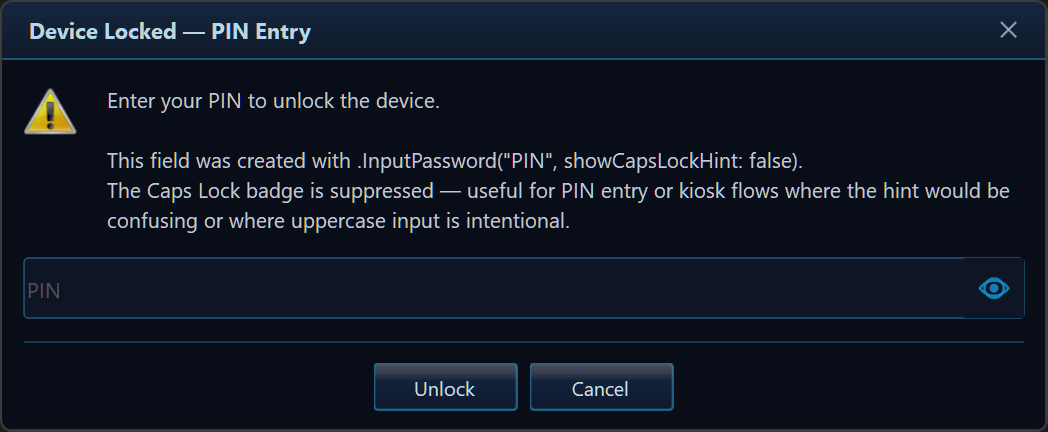 |
Drop-down |
// Single-line text
var r = GlassMessage.Create("Enter a new name for the selected folder.")
    .Title("Rename Folder")
    .Icon(MessageBoxIcon.Question)
    .InputText("Folder name", "Client Projects — Q1 2026")
    .Buttons("Rename", "Cancel")
    .ShowEx();
if (r.Button == DialogResult.OK && !string.IsNullOrWhiteSpace(r.InputText)) { /* r.InputText */ }

// Masked password — reveal eye + Caps Lock badge are shown by default
GlassMessage.Create("Authentication is required to connect to Contoso ERP.")
    .Title("Sign In — Contoso ERP")
    .InputPassword("Active Directory password")
    .Buttons("Connect", "Cancel")
    .ShowEx();

// Suppress the Caps Lock badge (e.g. kiosk / PIN entry where it's not helpful)
GlassMessage.Create("Enter your PIN to unlock the device.")
    .Title("Device Locked")
    .InputPassword("PIN", showCapsLockHint: false)
    .Buttons("Unlock", "Cancel")
    .ShowEx();

// Drop-down picker
GlassMessage.Create("Choose the output format.")
    .Title("Export Document")
    .InputDropdown(
        ["PDF — Portable Document Format",
         "Word (.docx) — Microsoft Word",
         "Excel (.xlsx) — Microsoft Excel"],
        "PDF — Portable Document Format")   // pre-selected
    .Buttons("Export", "Cancel")
    .ShowEx();
Methods: InputText(placeholder, defaultValue) · InputPassword(placeholder, showCapsLockHint = true) · InputMultiline(placeholder, defaultValue) · InputDropdown(items, defaultItem).
Read back: GlassResult.InputText (never null).
Best practice: treat password InputText as a secret — don’t log it. Set showCapsLockHint: false to hide the Caps Lock badge (e.g. for PIN or kiosk flows).
7 · Expandable detail — Detail(...)
Hides verbose diagnostics behind a “Show details ▼” link.
GlassMessage.Create("OneDrive failed to sync 'Annual_Report_Q4_2025.xlsx'.")
    .Title("Sync Error — OneDrive")
    .Icon(MessageBoxIcon.Error)
    .Detail(
        "System.IO.IOException: The process cannot access the file ...\n" +
        "Win32 error:     0x80070020 — ERROR_SHARING_VIOLATION\n" +
        "Correlation ID:  a3f8b2e1-4d9c-47f2-8b1a-c6e5d0f92341")
    .Buttons(MessageBoxButtons.RetryCancel)
    .Show();
Best practice: user-facing guidance in the message; raw diagnostics in Detail(...).
8 · Progress — determinate, indeterminate & activity-aware
| Determinate |
Indeterminate (marquee)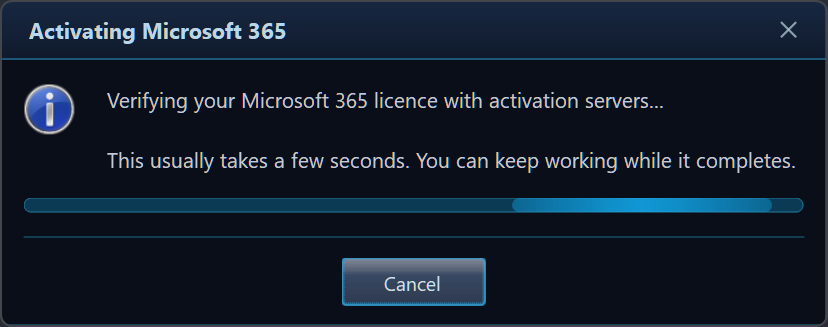 |
GlassMessage.Create("Backing up 'Documents' to OneDrive…")
    .Title("OneDrive Backup in Progress")
    .Progress(75, 100)                 // determinate
    .Buttons("Cancel Backup")
    .Show();

GlassMessage.Create("Verifying your Microsoft 365 licence…")
    .Title("Activating Microsoft 365")
    .ProgressIndeterminate()           // marquee
    .Buttons("Cancel")
    .Show();

GlassMessage.Create("Downloading update package…")
    .Title("Downloading Update")
    .Progress(40, 100)
    .ProgressActivity(GlassProgressActivity.Download)   // backward-flowing "incoming" stripes
    .Buttons("Cancel")
    .Show();
Methods: Progress(value, max = 100) · ProgressIndeterminate() · ProgressActivity(activity).
ProgressActivity layers an animated overlay on either bar so it matches the operation in
progress. Activities are grouped into visual families, each with its own distinct
animation; direction and speed then give every activity its own character (e.g. Upload
and Download are the same glowing-packet style flowing opposite ways):
| Family | Animation | Activities |
|---|---|---|
| Packets | glowing dots glide along the bar | Upload (→) · Download (←) · Stream |
| Chevrons | diagonal barber-pole bands march | FileTransfer (→) · Import (←) |
| Segments | rounded blocks march (pack/unpack) | Compress (→) · Extract (←) · Export |
| Wave | a sinusoidal brightness ripple | Backup (→) · Restore (←) · Sync (sloshes both ways) |
| Pulse | the fill breathes in and out | Encrypt · Decrypt · Connecting |
| Comet | a soft shine sweeps across | Install · Search · Processing |
Download flow (incoming packets)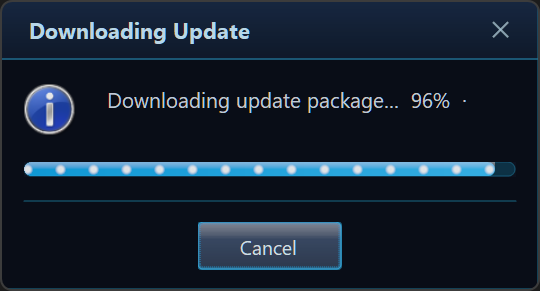 |
Activity gallery — every family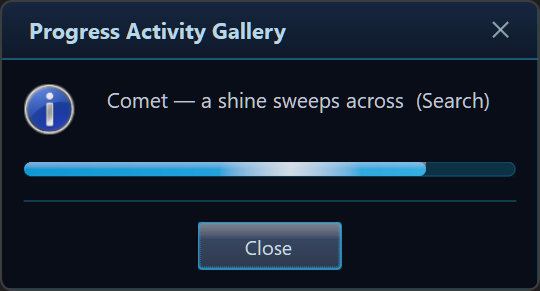 |
Use None for a plain bar. Change the activity live from the controller via SetActivity(...)
as an operation moves between phases (e.g. Compress → Upload).
9 · Custom bitmap icon — Icon(Bitmap)
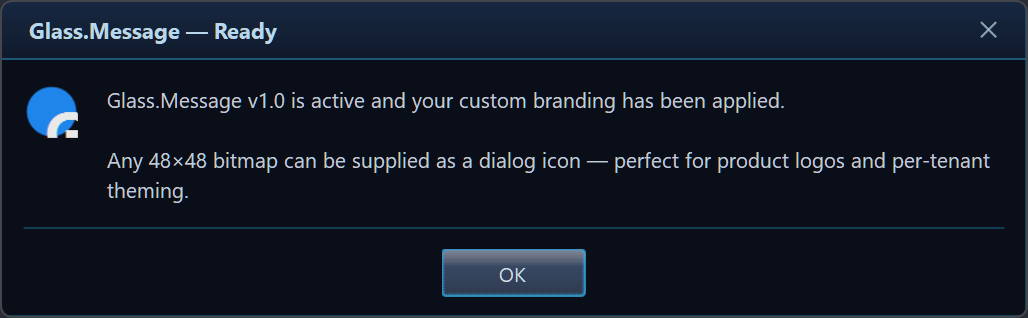
using var bmp = new Bitmap(48, 48);
using (var g = Graphics.FromImage(bmp))
{
    g.SmoothingMode = SmoothingMode.AntiAlias;
    g.FillEllipse(Brushes.DodgerBlue, 2, 2, 44, 44);
    g.DrawString("G", new Font("Segoe UI", 26f, FontStyle.Bold), Brushes.White, new PointF(10, 6));
}

GlassMessage.Create("Your custom branding has been applied.")
    .Title("Glass.Message — Ready")
    .Icon(bmp)                         // Bitmap overload
    .Buttons(MessageBoxButtons.OK)
    .Show();
Best practice: dispose the bitmap with using after the dialog returns.
10 · Keyboard — Ctrl+C, Enter, Esc
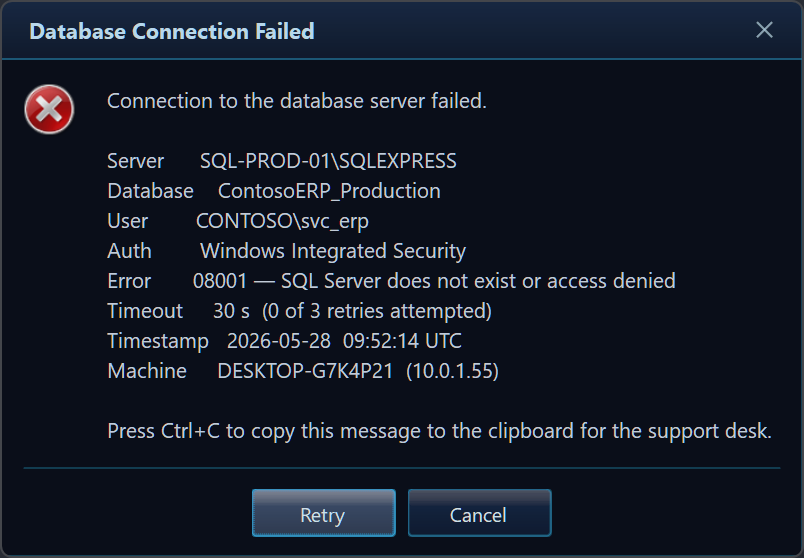
No code required:
- Ctrl+C copies the title + message to the clipboard (great for support tickets).
- Enter activates the default button.
- Esc (or ×) closes with the least-destructive result for the current button set.
11 · Animations — Animation(...)
SlideDown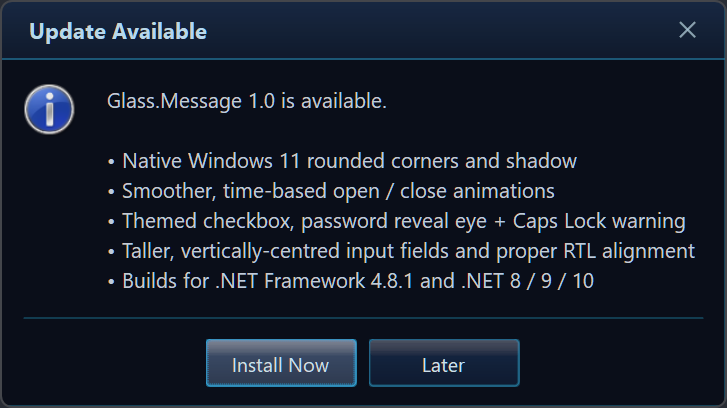 |
Scale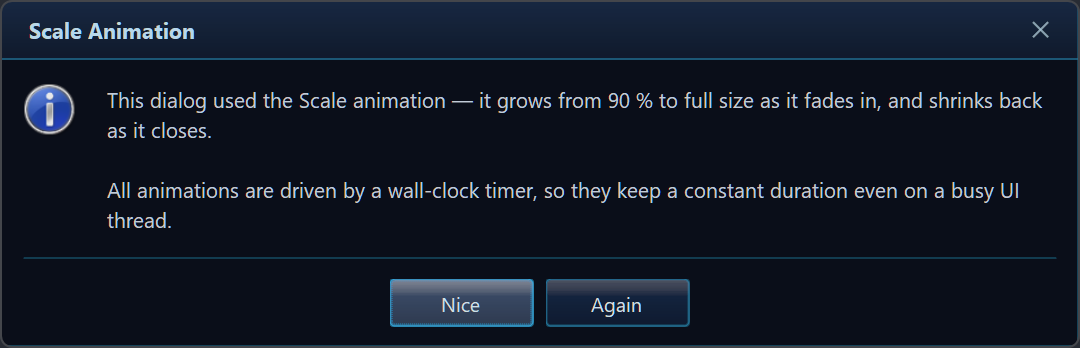 |
GlassMessage.Create("Glass.Message 1.0 is available.")
    .Title("Update Available")
    .Buttons("Install Now", "Later")
    .Animation(GlassAnimation.SlideDown)   // Fade (default) · SlideDown · Scale · None
    .Show();
Best practice: use GlassAnimation.None in automated UI tests for deterministic timing.
12 · Rich result — ShowEx()
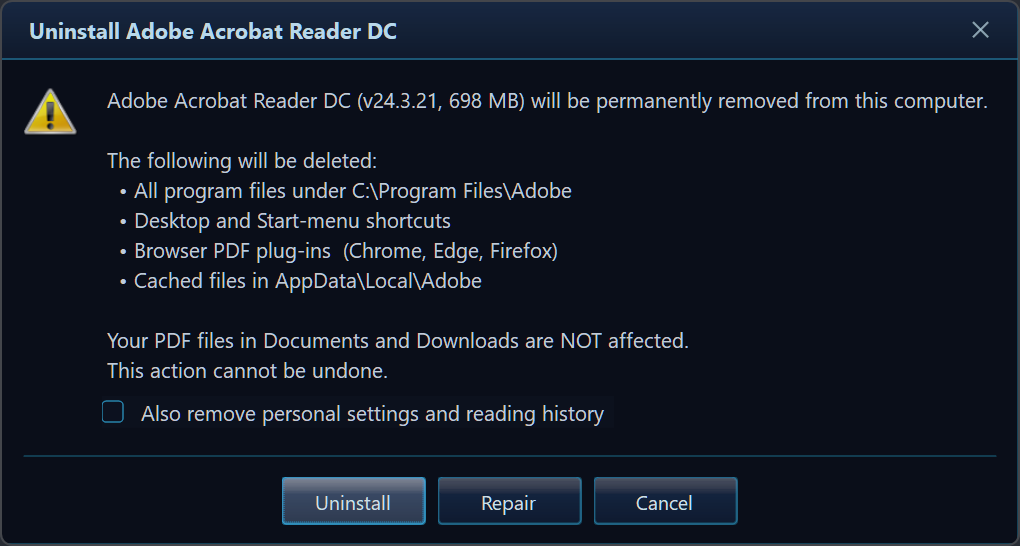
ShowEx() returns a GlassResult with the button + checkbox + input at once.
var r = GlassMessage.Create("Adobe Acrobat Reader DC will be permanently removed.")
    .Title("Uninstall Adobe Acrobat Reader DC")
    .Icon(MessageBoxIcon.Warning)
    .Buttons("Uninstall", "Repair", "Cancel")   // → Yes / No / Cancel
    .CheckBox("Also remove personal settings and reading history")
    .ShowEx();

if (r.Button != DialogResult.Cancel)            // user chose Uninstall (Yes) or Repair (No)
{
    bool alsoRemovePrefs = r.CheckBoxChecked;
    // ...
}
The Security Alert demo uses the same pattern — the second button (Secure account) returns DialogResult.No:
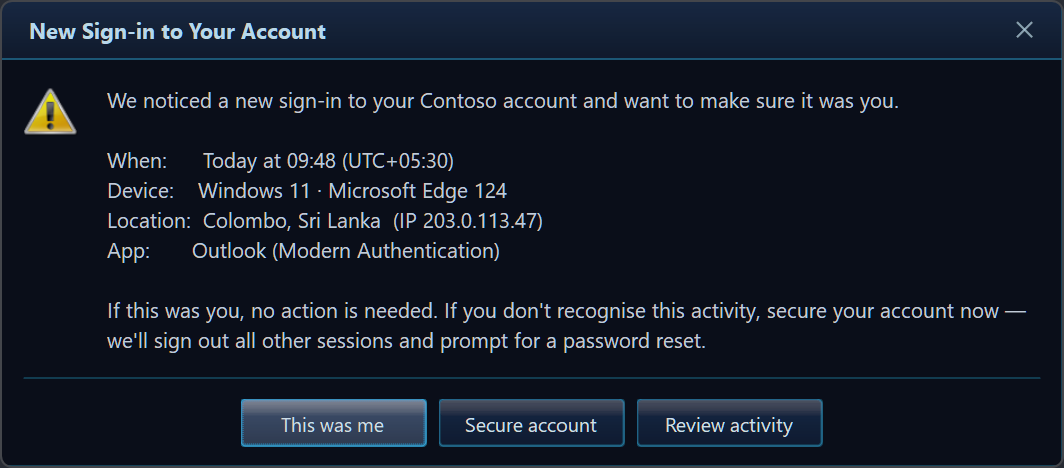
var r = GlassMessage.Create("We noticed a new sign-in to your Contoso account.")
    .Title("New Sign-in to Your Account")
    .Icon(MessageBoxIcon.Warning)
    .Buttons("This was me", "Secure account", "Review activity")
    .ShowEx();

if (r.Button == DialogResult.No) { /* "Secure account" */ }
13 · Async, non-blocking — ShowAsync(...)
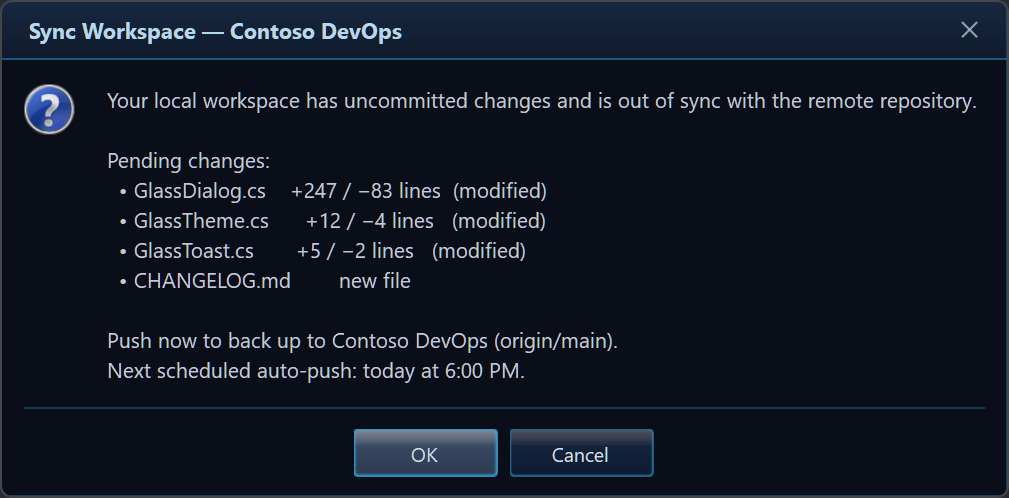
Shows without blocking the UI thread; await the chosen button. A CancellationToken closes it (→ DialogResult.Cancel).
private static async void SyncWorkspace()
{
    var r = await GlassMessage.ShowAsync(
        "Your local workspace has uncommitted changes.",
        "Sync Workspace — Contoso DevOps",
        MessageBoxIcon.Question,
        MessageBoxButtons.OKCancel);

    GlassMessage.Show(r == DialogResult.OK ? "Push started." : "Push skipped.",
                      r == DialogResult.OK ? "Pushing…" : "Sync Deferred",
                      MessageBoxIcon.Information);
}
Signature: Task<DialogResult> ShowAsync(string message, string title = "", MessageBoxIcon icon = None, MessageBoxButtons buttons = OK, CancellationToken ct = default) (+ a theme-aware overload).
Rich dialogs: for awaitable dialogs with input / checkbox / dropdown, use the builder’s ShowAsync() / ShowExAsync() — see §17.
14 · Right-to-left — RightToLeft()
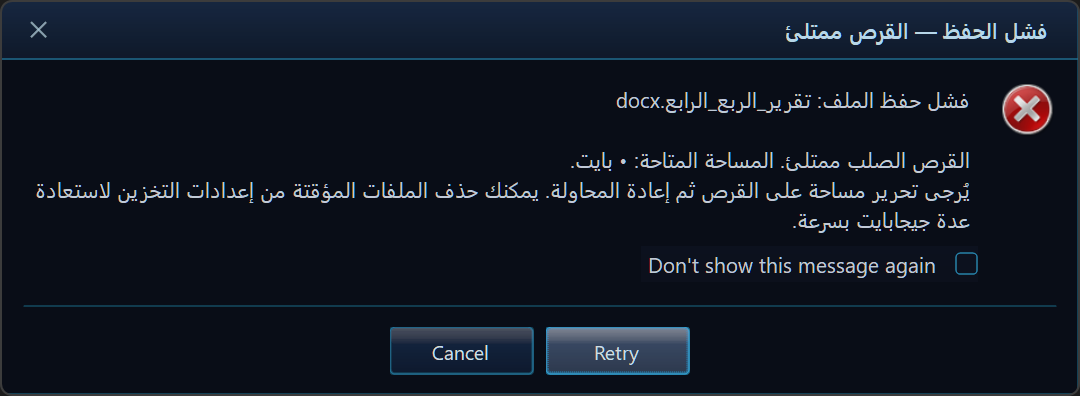
GlassMessage.Create("فشل حفظ الملف: تقرير_الربع_الرابع.docx")
    .Title("فشل الحفظ — القرص ممتلئ")
    .Icon(MessageBoxIcon.Error)
    .Buttons(MessageBoxButtons.RetryCancel)
    .RightToLeft()
    .Show();
15 · Real-world compositions
Windows Update — Release Notes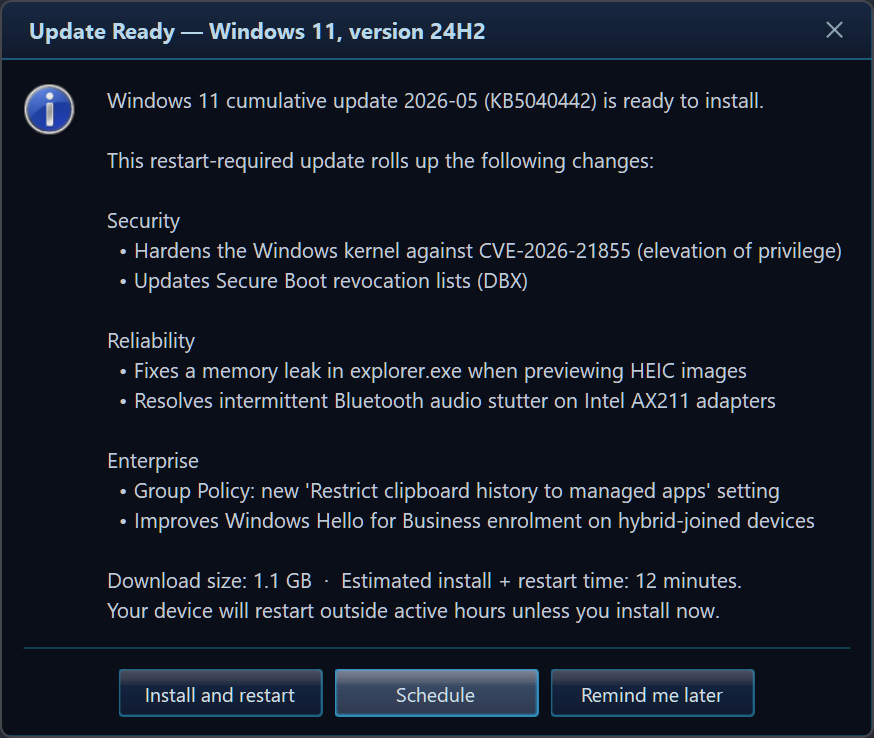 |
Storage Migration Wizard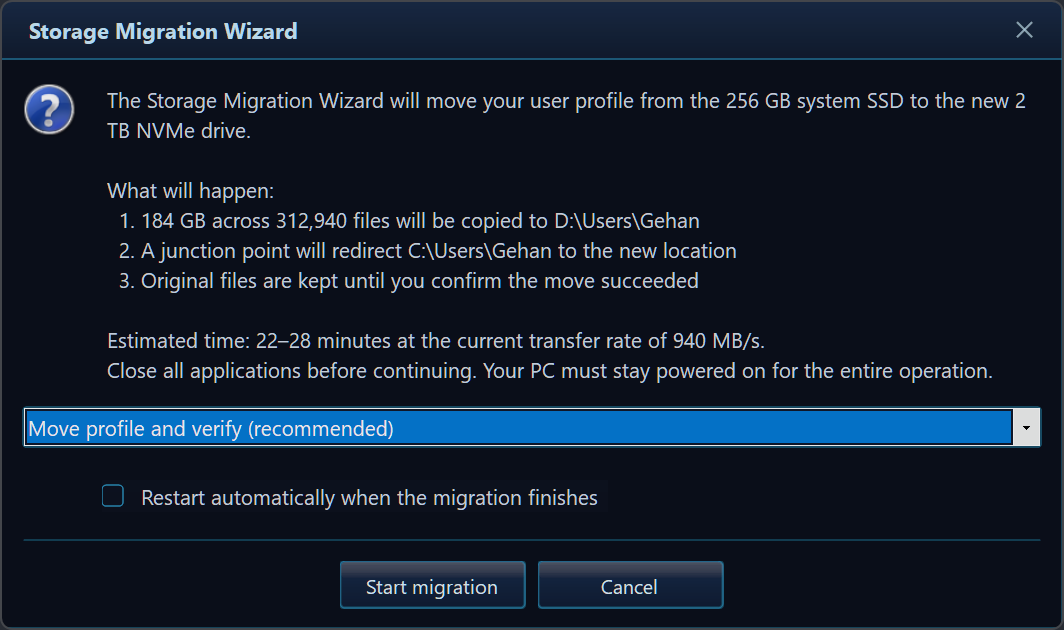 |
The EULA dialog pairs a Detail(...) panel with a required CheckBox(...):
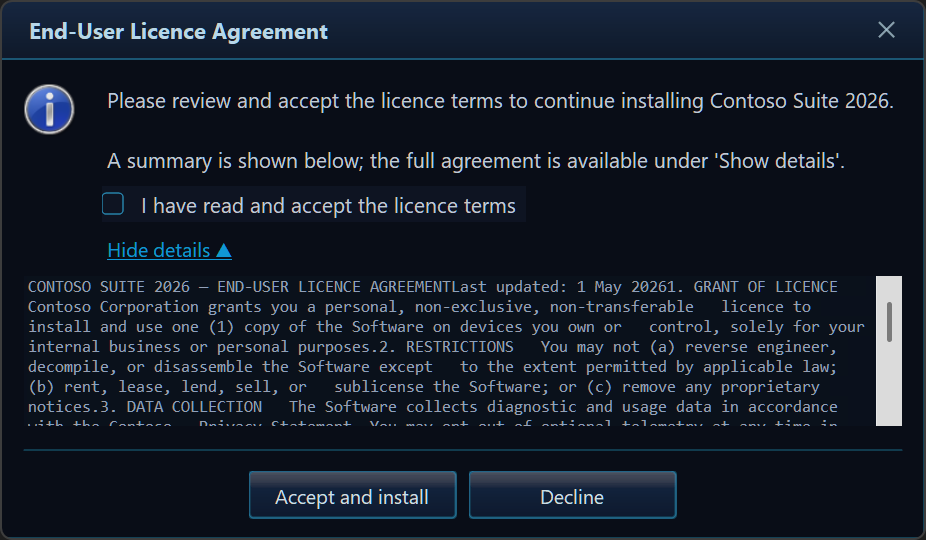
GlassMessage.Create("Please review and accept the licence terms to continue.")
    .Title("End-User Licence Agreement")
    .Icon(MessageBoxIcon.Information)
    .Detail("CONTOSO SUITE 2026 — END-USER LICENCE AGREEMENT\n...")
    .CheckBox("I have read and accept the licence terms")
    .Buttons("Accept and install", "Decline")
    .Show();
The Migration Wizard combines a drop-down, a checkbox, and a follow-up progress dialog:
var r = GlassMessage.Create("The Storage Migration Wizard will move your user profile…")
    .Title("Storage Migration Wizard")
    .Icon(MessageBoxIcon.Question)
    .InputDropdown(
        ["Move profile and verify (recommended)",
         "Move profile without verification (faster)",
         "Copy only — keep originals in place"],
        "Move profile and verify (recommended)")
    .CheckBox("Restart automatically when the migration finishes")
    .Buttons("Start migration", "Cancel")
    .ShowEx();

if (r.Button == DialogResult.OK)
{
    GlassMessage.Create($"Strategy: {r.InputText}\nAuto-restart: {(r.CheckBoxChecked ? "Yes" : "No")}")
        .Title("Migration Started")
        .Progress(12, 100)
        .Buttons("Run in background")
        .Show();
}
16 · Toasts — GlassToast
Single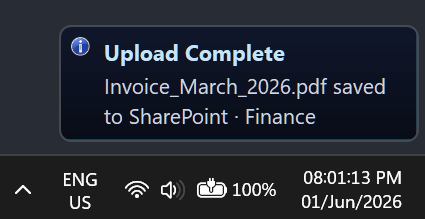 |
Auto-stacking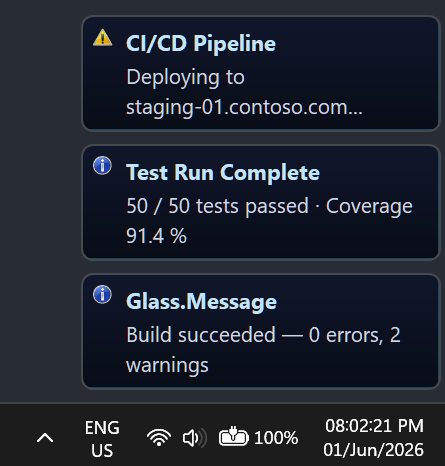 |
// Single, fully-configured toast
GlassToast.Show(new GlassToastOptions
{
    Message    = "Invoice_March_2026.pdf saved to SharePoint · Finance",
    Title      = "Upload Complete",
    Icon       = MessageBoxIcon.Information,
    DurationMs = 4_000,
    Position   = ToastPosition.BottomRight,
});

// Fire several — they stack and re-pack automatically
GlassToast.Show("Build succeeded — 0 errors, 2 warnings", "Glass.Message", MessageBoxIcon.Information);
GlassToast.Show("50 / 50 tests passed · Coverage 91.4 %",  "Test Run Complete", MessageBoxIcon.Information);
GlassToast.Show("Deploying to staging-01.contoso.com…",    "CI/CD Pipeline", MessageBoxIcon.Warning);
Positions: BottomRight (default), BottomLeft, TopRight, TopLeft, BottomCenter, TopCenter.
Click action: set OnClick — the toast runs your action and dismisses.
Await one: await GlassToast.ShowAsync(options) completes when it closes.
Multi-monitor: toasts auto-target the active window’s screen (then the cursor’s, then primary) and stack per-screen. Pin one to a specific monitor with Screen:
GlassToast.Show(new GlassToastOptions
{
    Message  = "Render finished on the second display.",
    Title    = "Done",
    Icon     = MessageBoxIcon.Information,
    Position = ToastPosition.TopRight,
    Screen   = Screen.AllScreens[1],   // null = auto (active window → cursor → primary)
});
17 · Async builder — ShowAsync() / ShowExAsync()
The whole builder is awaitable too — so input / checkbox / dropdown dialogs run without blocking the UI thread. ShowExAsync() returns the full GlassResult; both accept a CancellationToken (cancelling yields DialogResult.Cancel).
var r = await GlassMessage.Create("Create a shared link for 'Annual_Report_Q4_2025.xlsx'.")
    .Title("Create Shared Link")
    .Icon(MessageBoxIcon.Question)
    .InputText("Link label", "Finance review — Q1")
    .CheckBox("Allow downloading", defaultChecked: true)
    .Buttons("Create link", "Cancel")
    .ShowExAsync();                     // or .ShowAsync() for just the DialogResult

if (r.Button == DialogResult.OK)
{
    // r.InputText, r.CheckBoxChecked
}
Methods: Task<DialogResult> ShowAsync(CancellationToken = default) · Task<GlassResult> ShowExAsync(CancellationToken = default).
18 · Live progress — ShowProgress() + GlassProgressController
ShowProgress() opens a non-blocking progress dialog and hands back a thread-safe GlassProgressController. Drive the bar and caption from a worker, then Complete() it — or detect a user cancel via WasCanceledByUser. Pair it with ProgressActivity(...) (see §8 · Progress) and SetActivity(...) so the bar’s animation matches the work — and switches as it moves between phases.
var progress = GlassMessage.Create("Preparing backup…")
    .Title("OneDrive Backup")
    .Icon(MessageBoxIcon.Information)
    .Progress(0, 100)
    .ProgressActivity(GlassProgressActivity.Compress)   // packing files: marching blocks
    .Buttons("Cancel")
    .ShowProgress();

for (var i = 0; i <= 100 && !progress.WasCanceledByUser; i += 5)
{
    if (i == 50) progress.SetActivity(GlassProgressActivity.Upload);  // now sending: packets flow →
    progress.SetValue(i);
    progress.SetMessage($"Backing up…  {i}%");
    await Task.Delay(80);
}

if (!progress.WasCanceledByUser) progress.Complete();
await progress.Completion;            // completes when the dialog closes
Members: SetValue(int) · SetMessage(string) · SetActivity(GlassProgressActivity) · Complete() · Close(DialogResult) · Completion (Task<GlassResult>) · WasCanceledByUser · IsClosed. All update methods marshal onto the UI thread, so they’re safe to call from any thread.
19 · System sounds — Sound()
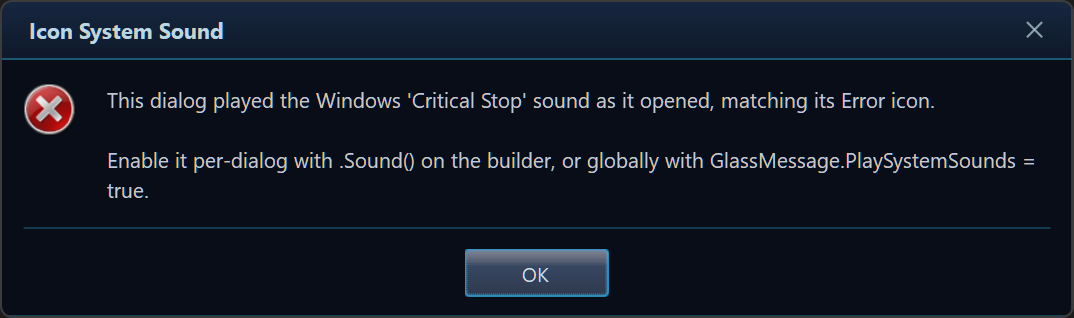
Play the Windows system sound that matches the icon (Information / Warning / Error / Question) when the dialog opens, just like the classic MessageBox.
GlassMessage.Create("This dialog played the 'Critical Stop' sound as it opened.")
    .Title("Icon System Sound")
    .Icon(MessageBoxIcon.Error)
    .Sound()                           // per-dialog opt-in
    .Buttons(MessageBoxButtons.OK)
    .Show();

// …or enable it for every dialog at startup:
GlassMessage.PlaySystemSounds = true;
Per-dialog: Sound(bool enable = true) wins over the global. Global: GlassMessage.PlaySystemSounds (default false).
🧭 Demo Walkthrough
Glass.Demo is a single WinForms window — a 2-column grid of buttons, one per feature.
- Entry point:
Program.Main()callsApplicationConfiguration.Initialize(), sets two global defaults, and runsDemoForm. DemoFormbuilds its UI from one(string Label, Action Action)[]table — the single place to edit when adding a showcase.- Each
Demo_*method is self-contained and demonstrates exactly one capability with realistic copy.
Full demo → feature map (32 demos)
| Demo button | Method | Feature |
|---|---|---|
| Drop-in Replace (Show) | Demo_Basic |
GlassMessage.Show |
| Dark / Light / Mica / HC / Classic Themes | Demo_Themes |
Theme(...) presets |
| Auto-detect OS Theme | Demo_AutoTheme |
GlassTheme.AutoDetect() |
| Fluent Builder API | Demo_Builder |
Create(...) + custom buttons |
| Countdown Auto-Close (10 s) | Demo_Countdown |
AutoClose(...) |
| “Don’t Show Again” Checkbox | Demo_CheckBox |
CheckBox(...) + ShowEx() |
| Inline Text Input | Demo_Input |
InputText(...) |
| Password Input | Demo_Password |
InputPassword(...) |
| Password — Caps Lock Hint Off | Demo_PasswordNoCapsLock |
InputPassword(..., showCapsLockHint: false) |
| Drop-down Input | Demo_Dropdown |
InputDropdown(...) |
| Expandable Detail Section | Demo_Detail |
Detail(...) |
| Determinate Progress Bar | Demo_Progress |
Progress(value, max) |
| Indeterminate Progress Bar | Demo_ProgressMarquee |
ProgressIndeterminate() |
| Custom Bitmap Icon | Demo_CustomIcon |
Icon(Bitmap) |
| Ctrl+C Copy to Clipboard | Demo_Copy |
clipboard copy |
| SlideDown Animation | Demo_Slide |
Animation(SlideDown) |
| Scale Animation | Demo_Scale |
Animation(Scale) |
| RTL (Right-to-Left) Layout | Demo_RTL |
RightToLeft() |
| Security Alert — Sign-in | Demo_SecurityAlert |
3-button mapping + ShowEx() |
| Windows Update — Release Notes | Demo_ReleaseNotes |
Default(Button2) |
| End-User Licence Agreement | Demo_Eula |
Detail(...) + CheckBox(...) |
| Storage Migration Wizard | Demo_Migration |
dropdown + checkbox + progress |
| Toast — Bottom-Right | Demo_Toast |
GlassToast.Show(options) |
| Toast — Stacking | Demo_ToastStack |
auto-stacking toasts |
| Toast — Four Corners | Demo_ToastCorners |
ToastPosition |
| Async ShowAsync | Demo_Async |
await GlassMessage.ShowAsync |
| Async Builder (ShowExAsync) | Demo_AsyncBuilder |
builder ShowExAsync() |
| Live Progress Controller | Demo_ProgressController |
ShowProgress() + GlassProgressController (live SetActivity) |
| Progress Activity — Download Flow | Demo_ProgressDownload |
ProgressActivity(Download) |
| Progress Activity — Gallery (all styles) | Demo_ProgressActivityGallery |
every GlassProgressActivity family |
| Icon System Sound | Demo_Sound |
Sound() |
| All Buttons + ShowEx Rich Result | Demo_ShowEx |
full GlassResult |
🔧 API Overview
GlassMessage — static facade
// MessageBox-compatible (several overloads):
DialogResult Show(string message);
DialogResult Show(string message, string title);
DialogResult Show(string message, string title, MessageBoxIcon icon);
DialogResult Show(string message, string title, MessageBoxIcon icon, MessageBoxButtons buttons);
DialogResult Show(string message, string title, MessageBoxIcon icon, MessageBoxButtons buttons, MessageBoxDefaultButton defaultButton);
DialogResult Show(IWin32Window owner, string message, string title, MessageBoxIcon icon, MessageBoxButtons buttons, MessageBoxDefaultButton defaultButton);
DialogResult Show(IWin32Window owner, string message, string title, MessageBoxIcon icon, MessageBoxButtons buttons, MessageBoxDefaultButton defaultButton, GlassTheme theme);

// Async (non-blocking):
Task<DialogResult> ShowAsync(string message, string title = "", MessageBoxIcon icon = None, MessageBoxButtons buttons = OK, CancellationToken ct = default);
Task<DialogResult> ShowAsync(string message, string title, MessageBoxIcon icon, MessageBoxButtons buttons, GlassTheme theme, CancellationToken ct = default);

// Fluent builder:
GlassBuilder Create(string message);

// Global defaults:
static GlassTheme DefaultTheme      { get; set; }  // = GlassTheme.Default
static bool       UseRoundedCorners { get; set; }  // = false
static bool       PlaySystemSounds  { get; set; }  // = false
GlassBuilder — fluent builder
| Method | Purpose |
|---|---|
Title(string) |
Title-bar caption |
Icon(MessageBoxIcon) / Icon(Bitmap) |
System icon or custom 48×48 bitmap |
Buttons(MessageBoxButtons) / Buttons(params string[]) |
Standard set or custom labels |
Default(MessageBoxDefaultButton) |
Focused / auto-close target button |
Theme(GlassTheme) |
Per-dialog theme override |
Owner(IWin32Window) |
Owner window (centres on / stays above it) |
Animation(GlassAnimation) |
Open/close animation |
RoundedCorners(bool = true) |
Per-dialog rounded-corner override |
Sound(bool = true) |
Play the icon’s system sound when the dialog opens |
AutoClose(int ms) |
Auto-confirm the default button after a delay |
CheckBox(string label, bool defaultChecked = false) |
Add a checkbox |
InputText(string placeholder = "", string defaultValue = "") |
Single-line input |
InputPassword(string placeholder = "", bool showCapsLockHint = true) |
Masked input + reveal toggle; Caps Lock badge shown while active (pass false to suppress) |
InputMultiline(string placeholder = "", string defaultValue = "") |
Multi-line input |
InputDropdown(IEnumerable<string> items, string defaultItem = null) |
Drop-down list |
Detail(string) |
Expandable “Show details” panel |
Progress(int value, int max = 100) |
Determinate progress bar |
ProgressIndeterminate() |
Marquee progress bar |
ProgressActivity(GlassProgressActivity) |
Directional flow animation (Transfer/Upload/Download/Sync/…) |
RightToLeft(bool = true) |
Mirror layout for RTL |
Show() |
Show modally → DialogResult |
ShowEx() |
Show modally → GlassResult |
ShowAsync(CancellationToken = default) |
Show non-blocking → Task<DialogResult> |
ShowExAsync(CancellationToken = default) |
Show non-blocking → Task<GlassResult> |
ShowProgress() |
Show non-blocking → GlassProgressController (live updates) |
GlassResult, GlassToast & enums
// GlassResult (from ShowEx / ShowExAsync) — implicitly converts to DialogResult
DialogResult Button          { get; }   // the button pressed
bool         CheckBoxChecked { get; }   // checkbox state
string       InputText       { get; }   // typed/selected value (never null)

// GlassProgressController (from builder.ShowProgress()) — thread-safe, non-blocking
void               SetValue(int value);          // update the determinate bar
void               SetMessage(string message);   // update the caption
void               SetActivity(GlassProgressActivity); // change the flow animation live
void               Complete();                   // close with DialogResult.OK
void               Close(DialogResult = OK);      // close with an explicit result
Task<GlassResult>  Completion        { get; }    // completes when the dialog closes
bool               WasCanceledByUser { get; }    // user dismissed vs Complete()/Close()
bool               IsClosed          { get; }

// GlassToast — static facade
GlassToast.Show(string message, int durationMs = 4_000);
GlassToast.Show(string message, string title, int durationMs = 4_000);
GlassToast.Show(string message, string title, MessageBoxIcon icon, int durationMs = 4_000);
GlassToast.Show(GlassToastOptions options);
Task        GlassToast.ShowAsync(GlassToastOptions options);

// GlassToastOptions
class GlassToastOptions
{
    string         Message           { get; set; }
    string         Title             { get; set; }
    MessageBoxIcon Icon              { get; set; } = None;
    GlassTheme     Theme             { get; set; }
    int            DurationMs        { get; set; } = 4_000;
    ToastPosition  Position          { get; set; } = BottomRight;
    Action         OnClick           { get; set; }
    bool?          UseRoundedCorners { get; set; }
    Screen         Screen            { get; set; }   // null = auto-target the active screen
}

// Enums
enum GlassAnimation { Fade, SlideDown, Scale, None }
enum GlassInputMode { None, Text, Password, Multiline, Dropdown }
enum ToastPosition  { BottomRight, BottomLeft, TopRight, TopLeft, BottomCenter, TopCenter }
GlassInputModeis selected for you by theInput*builder methods — you rarely set it directly.
⚙️ Configuration
Global defaults (set once at startup):
| Setting | Type | Default | Effect |
|---|---|---|---|
GlassMessage.DefaultTheme |
GlassTheme |
GlassTheme.Default (dark) |
Theme when none is specified |
GlassMessage.UseRoundedCorners |
bool |
false |
Global rounded-corners default |
GlassMessage.PlaySystemSounds |
bool |
false |
Play the icon’s system sound on open |
GlassMessage.UseRoundedCorners = true;
GlassMessage.DefaultTheme      = GlassTheme.AutoDetect();
GlassMessage.PlaySystemSounds  = true;   // optional — off by default
Everything else is per-dialog via the builder. The only required value is the message.
Toast options (GlassToastOptions): Message, Title, Icon (None), Theme (falls back to DefaultTheme), DurationMs (4000), Position (BottomRight), OnClick, UseRoundedCorners (null → global), Screen (null → auto-target the active screen).
🎨 Styling and Customization
Beyond the five presets, build a fully custom GlassTheme — every colour, font, corner radius, and the opacity is settable.
var brand = new GlassTheme
{
    BackgroundTop    = Color.FromArgb(28, 16, 42),
    BackgroundBottom = Color.FromArgb(14, 8, 24),
    TitleBarTop      = Color.FromArgb(48, 24, 78),
    TitleBarBottom   = Color.FromArgb(28, 14, 48),
    BorderColor      = Color.FromArgb(180, 120, 255),
    AccentColor      = Color.FromArgb(150, 90, 240),   // focus, progress, links
    TitleColor       = Color.FromArgb(235, 225, 255),
    MessageColor     = Color.FromArgb(220, 210, 240),
    ButtonForeColor  = Color.FromArgb(240, 235, 255),
    ButtonFillTop    = Color.FromArgb(60, 36, 96),
    ButtonFillBottom = Color.FromArgb(36, 20, 60),
    CheckBoxColor    = Color.FromArgb(180, 120, 255),
    InputBackColor   = Color.FromArgb(20, 12, 34),
    InputForeColor   = Color.FromArgb(220, 210, 240),
    CornerRadius       = 10,    // window corner radius (0 = square)
    ButtonCornerRadius = 6,
    Opacity            = 0.97,
};

GlassMessage.DefaultTheme = brand;   // apply everywhere
| Group | Properties |
|---|---|
| Window body | BackgroundTop, BackgroundBottom |
| Title bar | TitleBarTop, TitleBarBottom, TitleColor |
| Accent / edge | BorderColor, AccentColor |
| Text | MessageColor |
| Buttons | ButtonForeColor, ButtonFillTop, ButtonFillBottom |
| Inputs / checkbox | InputBackColor, InputForeColor, CheckBoxColor |
| Shape | CornerRadius, ButtonCornerRadius |
| Fonts | TitleFont, MessageFont, ButtonFont |
| Window | Opacity |
Built-in presets:
GlassTheme.Default·GlassTheme.Dark(alias forDefault) ·GlassTheme.Light·GlassTheme.Mica·GlassTheme.HighContrast·GlassTheme.WindowsClassic·GlassTheme.AutoDetect().Tip: Built-in presets are shared singletons (exempt from disposal). Custom themes implement
IDisposableand free their fonts onDispose().
Modern chrome: with rounded corners enabled, the dialog requests crisp Windows 11 DWM corners and a Mica backdrop (falling back to Acrylic blur on Windows 10), degrading to a software-rounded region on older systems. The OS version is detected with RtlGetVersion, so the modern chrome still activates even when the host app ships without a Windows 10/11 compatibility manifest (in which case Environment.OSVersion would otherwise mis-report Windows 8 and quietly disable it).
✅ Error Handling / Best Practices
- Use
ShowEx()when you need data back —Show()returns only the button. - Validate input —
GlassResult.InputTextis nevernull, but still check content. - Know your button mapping — custom labels map by count (1→OK, 2→OK/Cancel, 3+→Yes/No/Cancel).
- Prefer
ShowAsyncin async handlers so the UI thread keeps pumping; pass aCancellationTokento dismiss. - Set global defaults once at startup rather than per call.
- Dispose custom bitmap icons with
using. - Use
GlassAnimation.Nonein tests for deterministic dialogs. - ⚠️ Windows-only (WinForms) · treat passwords as secrets (don’t log
InputText).
🗂️ Project Structure
Glass/
├── Glass.sln                     # Solution: library + demo + tests
├── README.md  ·  LICENSE         # This file · MIT
├── Glass.Message/                # ── The library ──
│   ├── GlassMessage.cs           # Static facade (Show / ShowAsync / Create)
│   ├── GlassBuilder.cs           # Fluent builder
│   ├── GlassDialog.cs            # WinForms dialog (rendering, layout, animations)
│   ├── GlassDialogConfig.cs      # Internal settings bag
│   ├── GlassResult.cs            # Rich result (button + checkbox + input)
│   ├── GlassProgressController.cs# Live handle for non-blocking progress dialogs
│   ├── GlassTheme.cs             # Palette + presets + AutoDetect
│   ├── GlassToast.cs             # Toast facade, options, and toast window
│   ├── GlassButton.cs            # Themed button control
│   ├── OsVersion.cs              # True Windows version (RtlGetVersion) for DWM chrome
│   ├── GlassAnimation.cs         # enum: Fade / SlideDown / Scale / None
│   ├── GlassInputMode.cs         # enum: None / Text / Password / Multiline / Dropdown
│   └── GlassProgressActivity.cs  # enum: progress flow activities (Upload / Download / Sync / …)
├── Glass.Demo/                   # ── WinForms feature gallery ──
│   └── Program.cs                # DemoForm + one Demo_* method per feature
├── Glass.Message.Tests/          # ── Unit tests ──
├── Images/                       # Screenshots used by this README
└── tools/                        # Build/signing helper scripts
💻 Requirements
| OS | Windows (Windows-only by design) |
| UI stack | Windows Forms |
| Library targets | net481, net8.0-windows, net9.0-windows, net10.0-windows |
| Demo target | net8.0-windows |
| High-DPI | PerMonitorV2 |
| Dependencies | None beyond the .NET / WinForms framework assemblies |
▶️ Running the Demo
Visual Studio: open Glass.sln → set Glass.Demo as startup → press F5.
Command line:
dotnet run --project Glass.Demo     # launch the gallery
dotnet build Glass.sln -c Release   # build everything
The projects include an optional post-build Authenticode signing step (
tools\Sign-Output.ps1) that runs withContinueOnError— if you haven’t set up a dev certificate, the build still succeeds and signing is simply skipped.
❓ FAQ
Can I really just replace MessageBox with GlassMessage?
Yes — GlassMessage.Show(...) is signature-compatible with MessageBox.Show(...), so most call sites compile unchanged and still return a DialogResult.
How do I get the checkbox state or typed input back?
Call ShowEx() instead of Show() and read GlassResult.CheckBoxChecked / GlassResult.InputText.
My three-button dialog returns odd DialogResult values. Why?
Custom labels map to the nearest standard layout by count: 1→OK, 2→OK/Cancel, 3+→Yes/No/Cancel. With three labels the buttons return Yes / No / Cancel in order.
How do I make dialogs follow the user's Windows theme?
GlassMessage.DefaultTheme = GlassTheme.AutoDetect(); at startup.
Are toasts modal? Does it block the UI thread?
Toasts are non-modal, top-most, auto-dismissing windows. Show()/ShowEx() are modal (blocking); use ShowAsync(...) for a non-blocking, awaitable dialog.
How do I close an async dialog from code?
Pass a CancellationToken to ShowAsync; cancelling it closes the dialog and yields DialogResult.Cancel.
Can I hide the Caps Lock hint on password fields?
Yes — pass showCapsLockHint: false to InputPassword():.InputPassword("placeholder", showCapsLockHint: false)
Which .NET versions are supported?
.NET Framework 4.8.1 and .NET 8 / 9 / 10 (Windows).
🤝 Contributing
- Fork and create a feature branch.
- Make your change in
Glass.Message; for user-visible features, add aDemo_*showcase by appending an entry to thedemostable inGlass.Demo/Program.cs. - Add or update tests in Glass.Message.Tests.
- Build the solution and run the demo to smoke-test visually.
- Open a PR describing the change, with a screenshot for any UI work.
The demo’s
demosarray is the single list to edit when adding or removing a feature showcase — keep it in sync with the library.
🚢 Release pipeline
Releases are produced by .github/workflows/release.yml, triggered by pushing a version tag (git push origin v1.2.3), publishing a GitHub Release, or a manual run. The pipeline is split into focused jobs so independent work runs in parallel and a failure points straight at the stage that broke:
metadata ─► test ─┬─► package ─┐
                  └─► demo ────┴─► release ─► publish-nuget
| Job | Runner | What it does |
|---|---|---|
| metadata | Linux | Resolves the version and extracts the matching CHANGELOG.md section once, sharing them via a job output + an artifact. |
| test | Windows | Builds the library (all four TFMs) and runs the unit tests — the quality gate for everything downstream. |
| package | Windows | Packs the .nupkg / .snupkg (CHANGELOG notes embedded) and zips the per-framework DLLs. |
| demo | Windows | Publishes the self-contained demo app for win-x64 and win-x86. Runs in parallel with package. |
| release | Linux | Gathers every artifact and publishes the GitHub Release. Skipped on manual runs. |
| publish-nuget | Linux | Pushes the package to NuGet.org (only when the NUGET_API_KEY secret is present). |
Windows-only jobs build the library because it targets .NET Framework 4.8.1 and Windows Forms; the lightweight metadata/release/publish jobs run on Linux.
📄 License
Licensed under the MIT License — see LICENSE. Copyright (c) 2026 Gehan Fernando
🧩 Full Example
A single, practical flow combining a custom theme, the builder, an input, a checkbox, the rich result, async, and a confirming toast.
using Glass;
using System.Threading.Tasks;
using System.Windows.Forms;

internal static class Program
{
    [STAThread]
    private static void Main()
    {
        ApplicationConfiguration.Initialize();

        // 1) Global defaults — modern corners + follow the OS theme.
        GlassMessage.UseRoundedCorners = true;
        GlassMessage.DefaultTheme      = GlassTheme.AutoDetect();

        Application.Run(new MainForm());
    }
}

internal sealed class MainForm : Form
{
    public MainForm()
    {
        Text = "Glass.Message — Full Example";
        var btn = new Button { Text = "Export report…", Dock = DockStyle.Fill };
        btn.Click += async (_, _) => await ExportAsync();
        Controls.Add(btn);
    }

    private async Task ExportAsync()
    {
        // 2) Rich dialog: drop-down + checkbox, read back via ShowEx().
        var choice = GlassMessage.Create(
                "Choose the output format for 'Annual_Report_Q4_2025'.")
            .Title("Export Document")
            .Icon(MessageBoxIcon.Question)
            .InputDropdown(
                ["PDF — Portable Document Format",
                 "Word (.docx) — Microsoft Word",
                 "Excel (.xlsx) — Microsoft Excel"],
                "PDF — Portable Document Format")
            .CheckBox("Open the file when export finishes")
            .Buttons("Export", "Cancel")
            .Animation(GlassAnimation.Scale)
            .ShowEx();

        if (choice.Button != DialogResult.OK)
        {
            GlassToast.Show("Export cancelled.", "Export", MessageBoxIcon.Warning);
            return;
        }

        // 3) Non-blocking progress confirmation.
        var confirm = await GlassMessage.ShowAsync(
            $"Exporting as:\n{choice.InputText}\n\nThis runs in the background.",
            "Export Started", MessageBoxIcon.Information, MessageBoxButtons.OKCancel);

        // 4) Notify without interrupting — a toast.
        if (confirm == DialogResult.OK)
        {
            GlassToast.Show(new GlassToastOptions
            {
                Title    = "Export Complete",
                Message  = $"{choice.InputText}\nSaved to Downloads"
                           + (choice.CheckBoxChecked ? " · opening now…" : ""),
                Icon     = MessageBoxIcon.Information,
                Position = ToastPosition.BottomRight,
                OnClick  = () => { /* open the file / folder */ },
            });
        }
    }
}
Glass.Message — built with care by Gehan Fernando · MIT Licensed
A modern message box, the way Windows dialogs should look.
Documentation links
Read all Glass.Message guides online · Project overview · All developer projects