Beginner guide
Tern works with ordinary text files containing Markdown. Local notes need no account or internet connection; remote pictures, URL imports and optional connections have separate network behavior.
Press F1 to open Learn Tern. Its fifteen lessons remain open while you practise. Reading a lesson does not save, send or change a note; the action you deliberately choose does that.
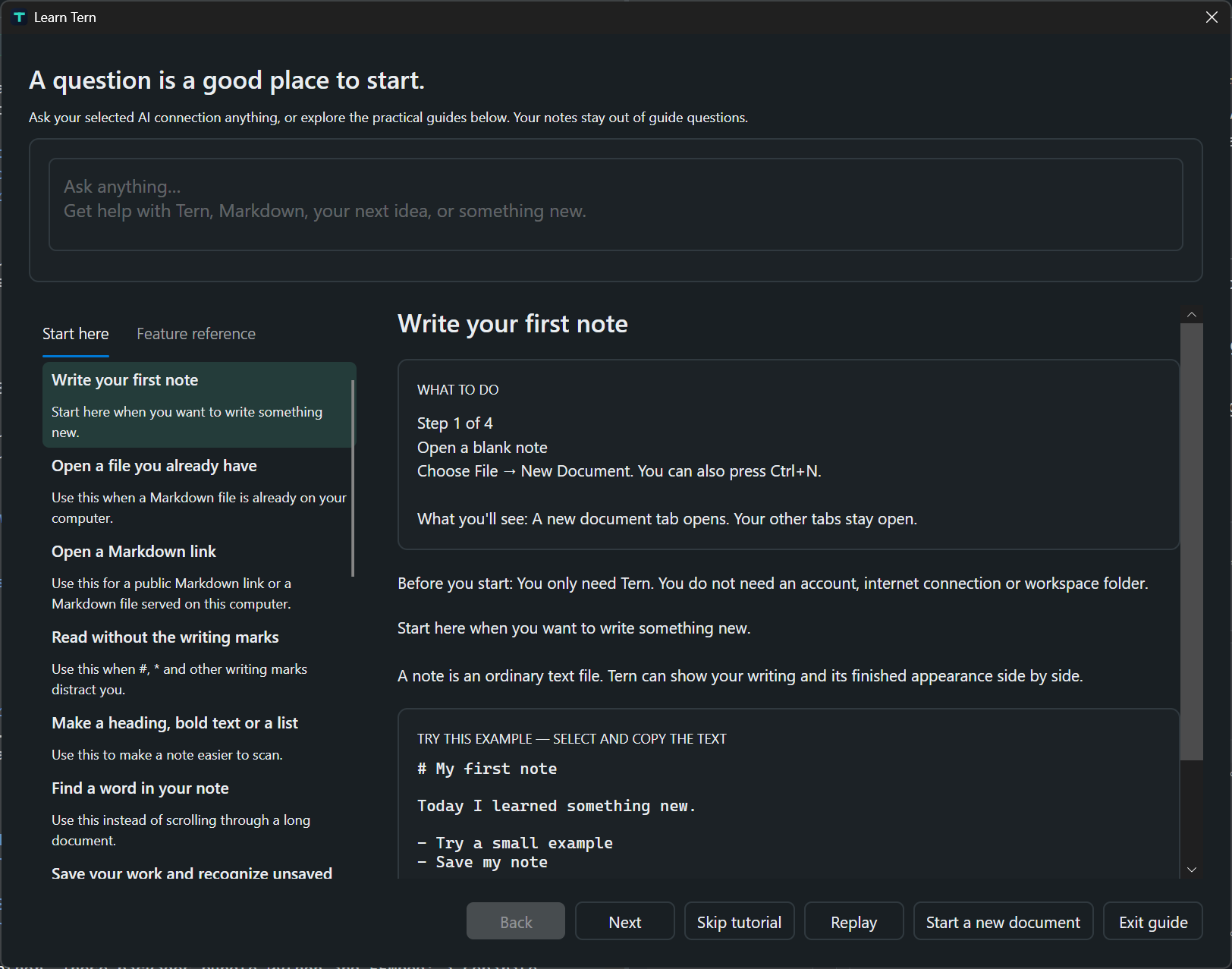
1. Write your first note
Press Ctrl+N and type:
# My first note

Today I learned something new.
The # makes a heading. Ctrl+2 shows source beside reading preview. Other tabs remain open.
2. Open an existing file
Press Ctrl+O and choose Markdown. Tern does not convert it into a private file format. Keep a backup when experimenting with important notes. Existing files can still have unsaved edits in their tabs.
3. Open a Markdown link
Choose Open from URL from File or + Add. Use a public Markdown-file URL; a GitHub file link can be converted to raw content, while a repository folder or ordinary HTML page is not a note. Open uses a local cache; Download and Open asks for a destination. The result is editable and does not update its website. Check missing-asset notices before relying on offline access.
4. Read without writing marks
Use Ctrl+1 for Source, Ctrl+2 for Split or Ctrl+3 for Reading. Native preview supports bounded Markdown, math and diagrams without executing a web page’s scripts.
5. Format text
Select words and use Ctrl+B for bold or Ctrl+I for italic. Format also inserts headings, links, lists, task lists and code. Ctrl+Shift+K inserts a link; Ctrl+Enter toggles a task.
## Things to remember

- One small step
- [ ] A task I can finish
6. Find words
Ctrl+F searches the active note; Ctrl+H replaces. Review options before replacing many matches. Ctrl+Shift+F searches the indexed workspace, a different scope.
7. Save your work
Press Ctrl+S and choose a .md filename. Empty drafts can be saved. An explicit filename takes priority over a heading-derived suggestion. Recognize the tab’s unsaved indication. On close, Save writes changes, Discard abandons them and Cancel keeps the note open. Undo is useful editing history, not a backup.
8. Add a picture
Save a new note first; insertion can open Save and continue afterwards. Use Insert Local Image, paste a copied image file or drop an image into Source. Adjacent images link immediately. Other locations offer Link original / Copy image / Cancel. Clipboard pixels without a source file need a copy destination. Read the attachment rules before moving notes.
9. Export a PDF or other format
Choose a File export command, select format and destination and review readiness messages. Format changes require a compatible destination. Inspect the result: content can be truncated, glyphs may need another font and layouts differ. Save editable Markdown separately.
10. Print
Ctrl+P opens Windows printing for readable plain text, not the exact styled preview. Check the selected printer and settings. Physical printer behavior needs separate acceptance.
11. Recover interrupted work
Inspect recovery provenance and compare it with the current file. Restore into an independent unsaved copy before deciding what to retain. Recovery and saved-text history are useful but do not replace backups. Do not discard your only good copy.
12. Try a practice note
Copy the practice note into a new note and save your own copy. Change a sentence, check a task, try Undo, switch to Reading and save again. Its example link opens example.com only if deliberately followed; the sample contains no remote images.
13. Organize a folder or workspace
Open Folder browses an existing directory without metadata. Create Workspace makes a named folder containing .tern-workspace.json; Open Workspace restores that context. Use disposable folders while learning real rename, move and delete actions. Closing a folder/workspace does not delete files and asks about unsaved changes. See workspace details.
14. Decide whether to use AI
AI is optional. Local writing, preview and export do not require an AI account. Providers have their own account, cost and retention terms. Decide whether you may transmit the note; use synthetic text first.
15. Connect and review a request
Open Settings → AI connections → Manage AI connections. Follow Choose service → Configure connection → Validate and save. Enter a connection name, exact model ID and required key. Validate connection sends a fixed test message to check the selected endpoint, model and authentication; it sends no note, but provider usage may apply. Read success or the error, then Save connection. Saving alone makes no request and does not prove the settings work. Saved keys use Windows Credential Manager. Select the saved API or Copilot connection in the main toolbar for writing, or expand Try your own message (optional) in setup to review and send a separate question. Generate and update note can send the entire active Markdown plus your question; the result is one undoable edit and stays unsaved until Save. Guide questions do not automatically include your note.
The AI service menu includes GitHub Copilot and MCP server alongside APIs. It offers the appropriate setup fields for your choice. Use Create connection for a new profile; select any saved connection to modify, validate or delete it. All saved connections appear in the main toolbar. Copilot needs installed native copilot.exe, Copilot access and a fine-grained token with Copilot Requests permission. Select an MCP connection in the main toolbar and choose Open MCP tools. Connect and discover explicitly, then review the tool, exact JSON arguments and consent before running it once; external effects may not be undoable. MCP cannot generate a note. For API or Copilot writing, the larger panel puts connection selection first and provides Review the exact request before generation. Copilot requests have an 8,192-character complete-request limit and do not accept @mentions or CLI commands. Live services are not certified merely by local protocol tests. Read privacy and connections, then continue with the user guide.